Tips & tricks · Gear · Everywhere · smooth calls · 3 min read
Choppy Video Call? A Cable Fixes What Wi-Fi Can't
Last reviewed:
In this article
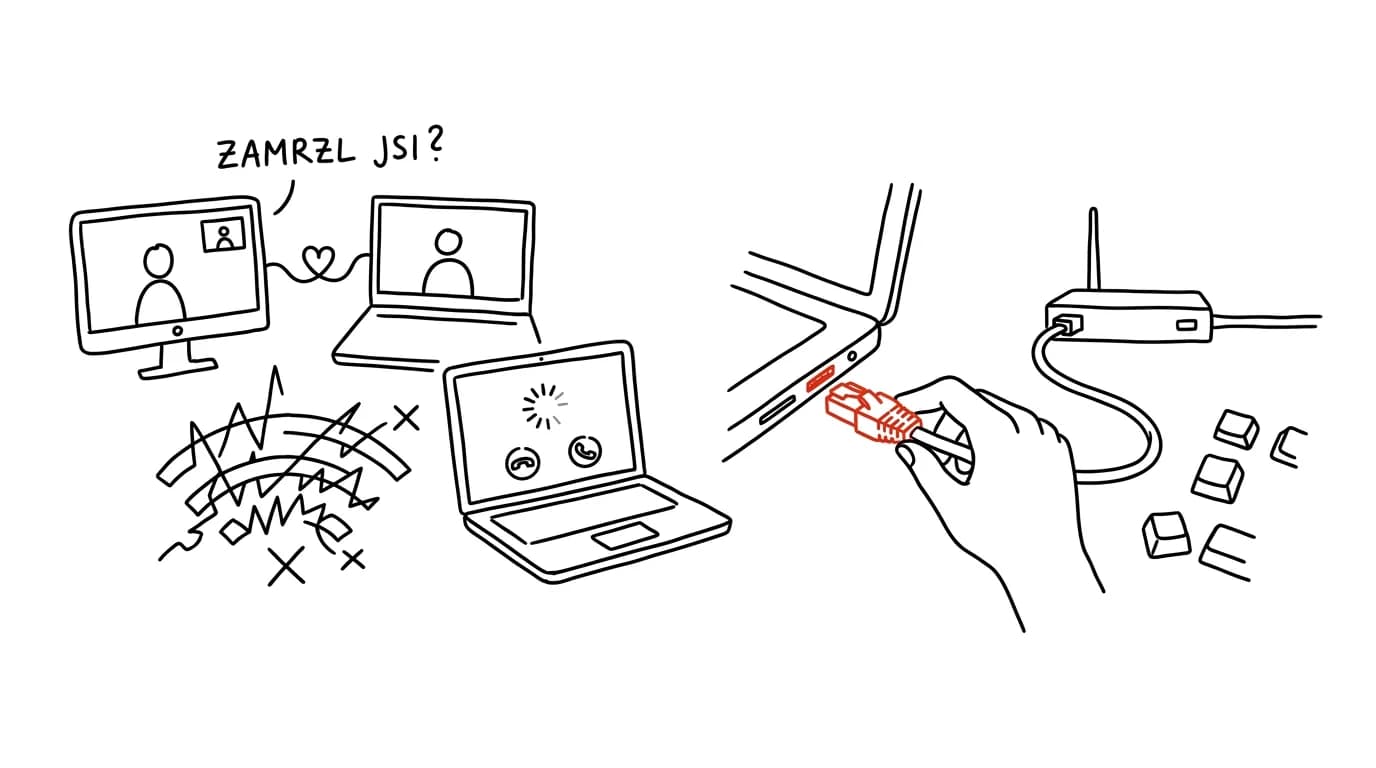
When you freeze on a call or your voice cuts out, the first suspect is usually "slow internet." But a video call actually needs surprisingly little speed — what it needs is stability: packets arriving regularly, none of them lost. And that's exactly where Wi-Fi wobbles, especially through a wall, in a building with a lot of interference, or when the microwave happens to be reheating lunch. An Ethernet cable has essentially zero packet loss and essentially zero jitter. That's why the advice technicians give first is: for important calls, use a cable.
How to do it
- Check the back of your router — the yellow or numbered LAN ports are free for you to use. You can get an Ethernet cable of any length at any electronics store; for a home office down the hall, even a flat cable works, one that tucks under a floor trim and stays out of everyone's way.
- Thin laptops often have no Ethernet port — a USB-C (or USB-A) to Ethernet adapter fixes that. If you use a docking station, it likely already has Ethernet built in — just plug it in; see the tip docking stations.
- Once it's plugged in, there's nothing to configure — the system prioritizes the wired connection automatically. You'll know it's active from the taskbar icon: a monitor with a plug instead of the Wi-Fi fan symbol.
- If you can't run a cable to the router, at least reduce interference: sit closer to the router, connect to the 5 GHz band (often named with a "5G" suffix, or the router manages bands itself), and don't leave your laptop sitting on the floor behind a metal desk.
- A last resort for a home office that's far from the router: powerline adapters send the network over your electrical wiring, and a mesh system sends it over its own radio links. Both are more stable than one Wi-Fi signal through three walls.
A typical scenario
Consultant Hana runs client presentations from a home office two walls away from the router. Her speed test always showed decent numbers, yet clients twice per call asked her to repeat the last sentence. After running a flat cable under the floor trim, the dropouts vanished completely — the problem was never speed, it was that the Wi-Fi signal wobbled for a fraction of a second every so often, something video tolerates and a live call doesn't.
What you get out of it
Calls without freezing and without "hello, can you hear me?" — a more professional impression exactly in the situations where it matters most. A cable also usually speeds up large transfers: downloads, backups, and file sharing run at the connection's full speed instead of whatever's left over from Wi-Fi.
Pro tip
If Wi-Fi is the culprit, you can find out in a minute: run a call or a ping test once on Wi-Fi and once with a cable. The difference usually isn't in download speed, but in how much the response time jitters — and that's exactly the number that determines call quality.
Want to go deeper? The handbook has a whole chapter on it — The complete guide to an effective home office.
Similar tips
Google Docs: @ inserts people, dates, and templates
Type @ and insert a mention of a coworker, a date, a checklist, or a whole meeting template. The fastest way to structured documents.
In-depth guide · 19 min
A PhD student with AI: research, teaching, and grading
A guide with prompts for the PhD week: a research routine with citations, prepping exercises, grading tests, and admin — AI stays strictly an advisor.
A New Version of a File in Google Drive: The Link Stays the Same
Don't upload a corrected PDF as another file. Manage versions swaps it out under the same link — for everyone who has it.
Was this helpful?
Liked this tip?
I send one like it every week by email. Two minutes to read, hours saved.
The Top 30 tips e-book, free — it lands in your inbox right away.
Then 1 tip a week · no spam · unsubscribe in one click
Prefer a system to single tips? The free email course — seven days, seven emails, one skill a day.