Tips & tricks · Apps · Browser · ~5 min a day · 3 min read
Google Docs: @ inserts people, dates, and templates
Last reviewed:
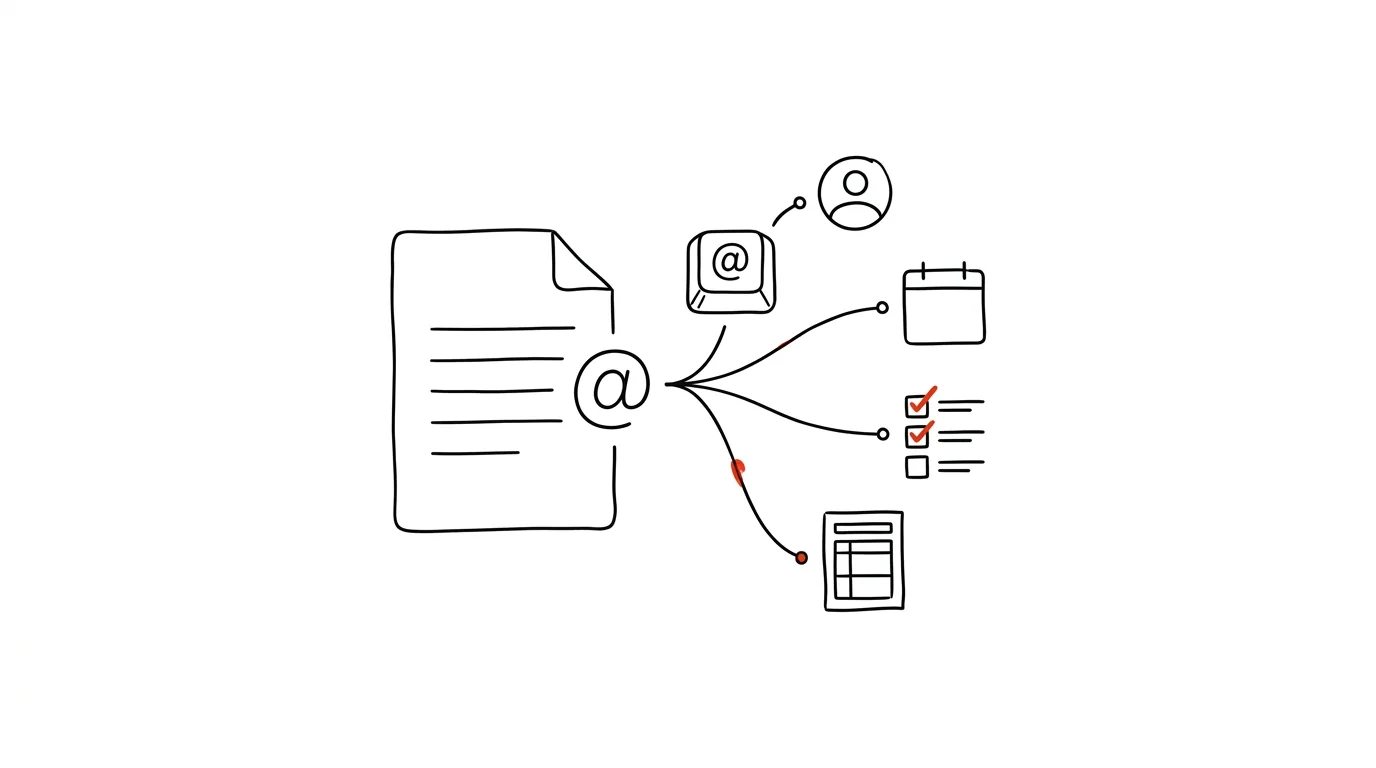
The @ symbol is a universal insert menu in Google Docs — and the vast majority of users only know it from email, where it marks an address. In Docs, though, it opens a quick menu for inserting a mention of a coworker, a date, a checklist, or an entire ready-made template, without you having to search through the top menus for anything.
A typical scenario
You're writing meeting notes and need to insert a coworker's name with a link to their profile, a specific date for the next meeting, and a list of tasks with checkboxes. Without the @ menu, that means typing the name by hand, finding the checklist option in the insert menu, and formatting the date separately. With the @ menu, you type @, pick the type of element from the list, and Docs inserts it already in the right format — a name with a link, a date in a calendar-linked format, a checklist with checkboxes.
How to do it
- On a new line, type the @ symbol — a dropdown menu with insert options opens instantly.
- From the menu, pick what you need: a person (inserts a coworker's name with a link to their profile and the option to share the document with them), a date (inserts it in a format linked to your calendar), a checklist (a task list with checkboxes), or a table or status dropdown (e.g., “In progress / Done / Waiting”).
- Keep typing the @ sign followed by a few letters of a name or word — the menu filters as you type, so you can find what you need quickly even in a longer list of options.
- Beyond individual elements, try the ready-made blocks available the same way: Meeting notes (automatically links to the event on your calendar and inserts the attendees) or Task tracker (a ready-made table for dividing up and tracking work across your team).
- Inserted elements stay live — a coworker's name, for instance, keeps working as a link to their profile even after the document is saved, and checking off an item on the checklist saves directly into the document.
- The same menu can also insert a link to another file on Google Drive (a document, spreadsheet, or presentation) — just type @ and start typing the name of the file you want to link.
The best tools
- The @ symbol in Google Docs — a built-in, free feature, and the fastest way to add structured elements right as you write.
- The Meeting notes template — a ready-made format for meeting minutes with calendar linking, saving you from building the structure from scratch.
- The Task tracker template — a ready-made table for dividing up team work, useful as a quick starting point instead of building your own spreadsheet.
- Linked files via @ — a quick way to reference other documents, spreadsheets, or presentations on Drive without having to find and copy a link manually.
What you get out of it
- Time: faster insertion of structured elements than formatting by hand or hunting through the top menus.
- More consistent documents: meeting notes and task lists share the same format across the team when everyone uses the same built-in blocks.
- Fewer forgotten tasks: checklists and calendar links keep tasks and deadlines visible right in the text, not just in someone's head.
Pro tip
The Meeting notes template links to the specific event on your calendar and automatically pre-fills the attendees — if you write meeting notes regularly, it's worth using from the start instead of typing attendee names by hand every time. As a manager, it also makes it easy to keep a consistent notes format across the whole team, even when a different person writes them each time.
Want to go deeper? The handbook has a whole chapter on it — The app categories that matter.
Similar tips
Windows Search: extend the index to your working folders
Win+S
When Windows can't “find” your files, it's probably not indexing the right folders. One search setting fixes it all.
AutoCorrect as a shortcut dictionary: long names from three letters
Teach Word that “dph” means “value added tax.” AutoCorrect can expand your own custom shortcuts across every Office app.
Comparing two versions of a document: see the changes in color
Word and Google Docs can both compare two versions of a file and highlight every difference. No more reading contracts line by line.
Was this helpful?
Liked this tip?
I send one like it every week by email. Two minutes to read, hours saved.
The Top 30 tips e-book, free — it lands in your inbox right away.
Then 1 tip a week · no spam · unsubscribe in one click
Prefer a system to single tips? The free email course — seven days, seven emails, one skill a day.