Tips & tricks · Shortcuts · Everywhere · ~2 min a day · 3 min read
A New Line Inside a Cell: Alt+Enter
Last reviewed:
Alt+Enter
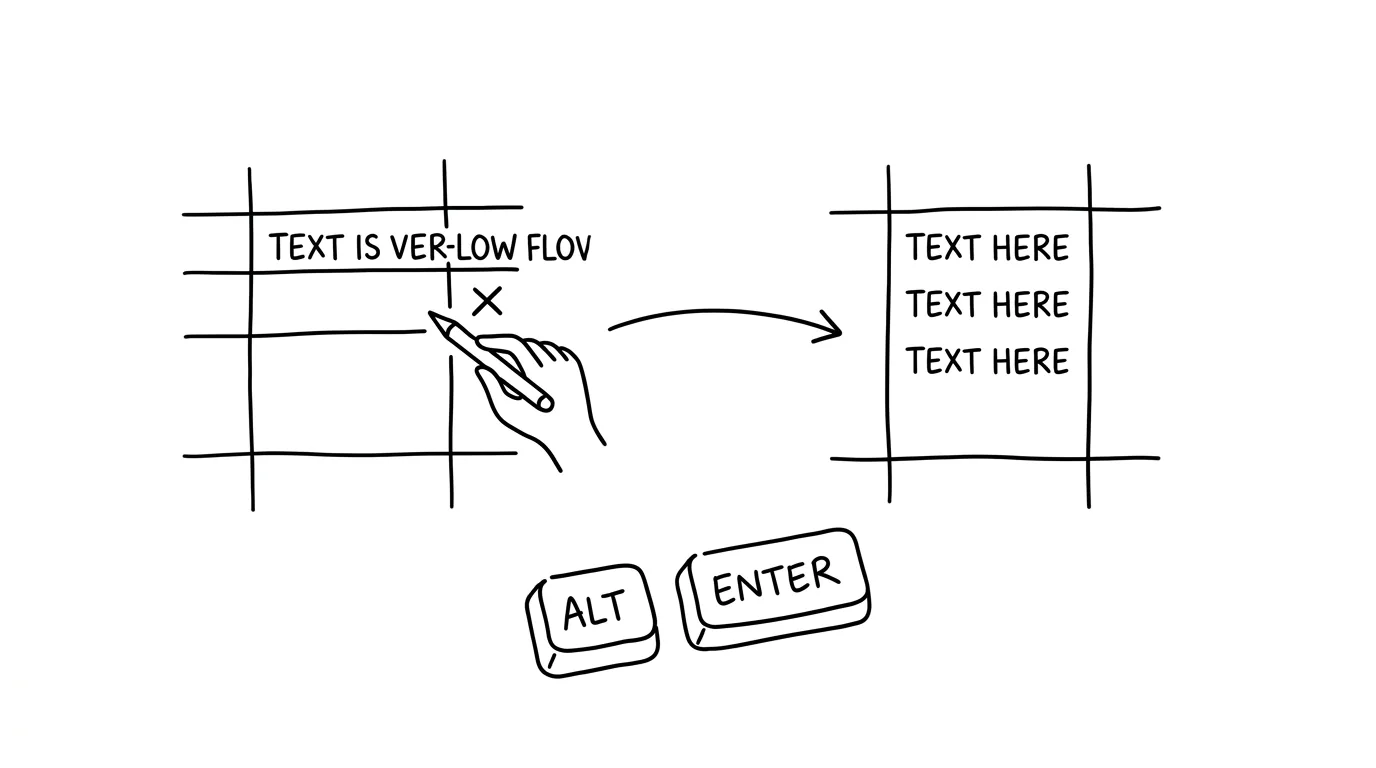
Excel's Enter always jumps down a cell — that's fine until you need to write a longer, multi-line note inside a single cell. The Alt+Enter shortcut gets around that limit: it inserts a new line right inside the current cell, so you don't have to force the text into neighboring columns or restructure the sheet. It's one of the simplest shortcuts in Excel, and hardly anyone uses it.
A typical scenario
Petr keeps a supplier log and needs to fit a three-line address into a single cell — street, city, and postal code, plus maybe a note about the delivery. Without Alt+Enter he has two bad options: cram everything onto one line separated by commas, which is unreadable and filters poorly, or create three separate columns just for one address, which breaks the rest of the sheet.
With Alt+Enter he types the street, presses Alt+Enter, types the city, presses Alt+Enter again, types the postal code — everything stays in one cell, on three lines, neatly stacked. The column stays single, the sheet stays compact, and filtering by address still works.
How to do it
- While typing into a cell, press Alt + Enter (on Mac, Cmd + Option + Enter) wherever you want a line break.
- Excel inserts a new line inside the same cell and the cursor continues on it — the cell doesn't close out of edit mode the way it would after a regular Enter.
- For all the lines to actually show and the cell to grow taller, Wrap Text needs to be turned on (on the Home tab; in most versions it switches on automatically once you use Alt+Enter).
- If you need to remove a break, place the cursor right after it and delete it with Delete or Backspace, just like any other character.
- It works retroactively too — enter a cell you've already filled in with F2 or a double-click, and add a break anywhere in the text.
The best tools
- The built-in Alt+Enter shortcut (Excel) — works instantly, no installation, in every version of Excel on Windows and Mac.
- Shift+Enter in Word and Outlook — same idea in a different app: it creates a “soft” line break without starting a new paragraph, handy in an email signature, for instance.
- Google Sheets and LibreOffice Calc have a similar way to insert a line break inside a cell — just check the exact key combination in that app's help, since it varies between versions.
What you get out of it
- Time: a few tens of seconds per cell, but across hundreds of addresses or notes in a sheet that adds up to real minutes a day.
- Clarity: the sheet stays compact, and columns match actual data categories instead of the technical limit of one line per cell.
- Functionality holds up: filtering and sorting by column still work exactly as they should, because the address or note stays in one cell instead of being chopped into three.
Pro tip
If you forget to turn on Wrap Text, the line breaks inside the cell still exist — you just can't see them, since the cell looks like a single line. Select the column and click Wrap Text on the Home tab to make all the hidden breaks visible at once.
Want to go deeper? The handbook has a whole chapter on it — The app categories that matter.
Similar tips
Numbers without switching keyboards: slide your finger off the 123 key
On iPhone, slide your finger off the 123 key onto a digit and the keyboard snaps back to letters by itself. Gboard has a key hold or a permanent number row.
Double space: a period, a space, and a capital letter at once
Tap the space bar twice at the end of a sentence — your phone inserts a period and a space, then capitalizes the next sentence. iPhone and Android.
Hold the space bar: your keyboard turns into a trackpad
Landing a finger right in the middle of a word is a lottery. Holding the space bar turns your keyboard into a touchpad for precise cursor movement.
Was this helpful?
Liked this tip?
I send one like it every week by email. Two minutes to read, hours saved.
The Top 30 tips e-book, free — it lands in your inbox right away.
Then 1 tip a week · no spam · unsubscribe in one click
Prefer a system to single tips? The free email course — seven days, seven emails, one skill a day.