Tips & tricks · Shortcuts · Everywhere · ~10 min a week · 2 min read
Alt+; in Excel: Copy Without the Hidden Rows
Last reviewed:
Alt+;
In this article
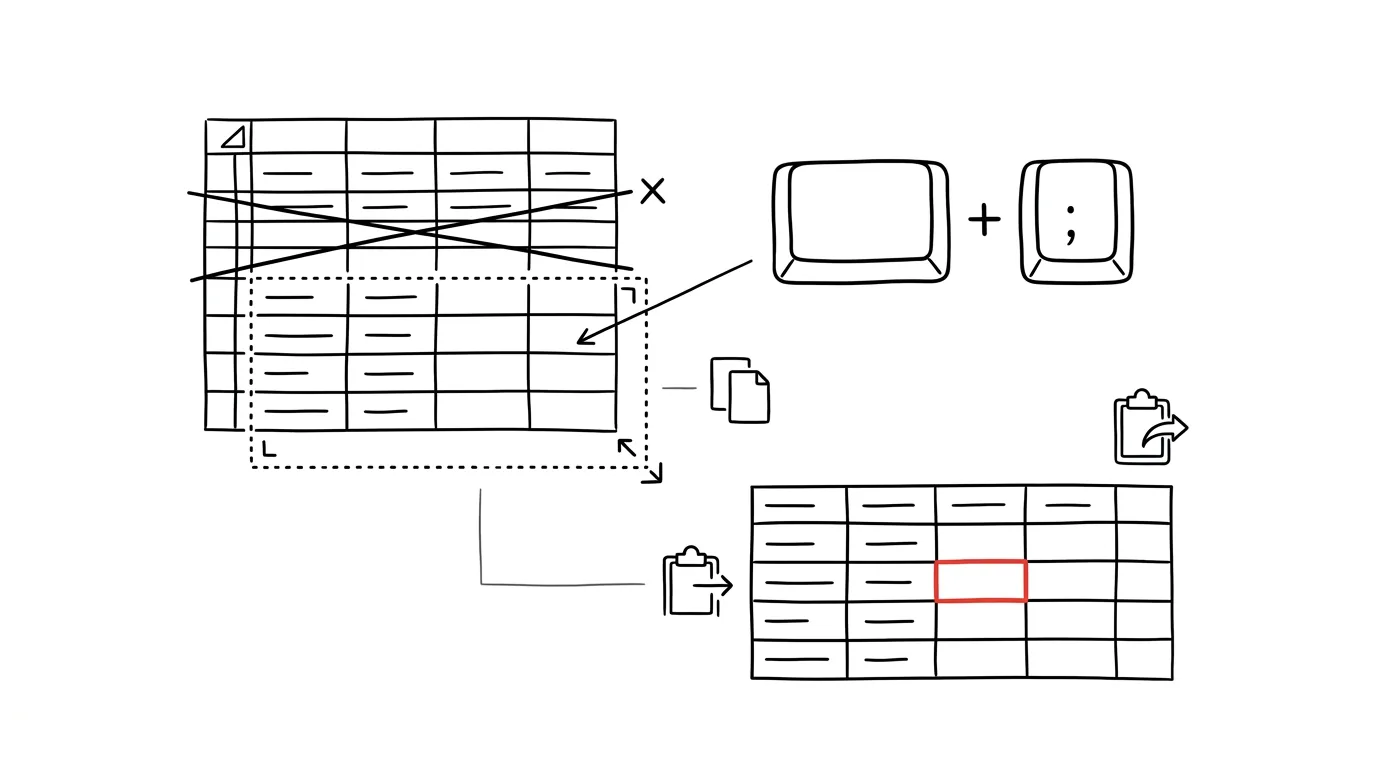
You hide helper rows in a table, or collapse grouped columns, select the result, copy it — and when you paste, all the hidden cells come along too. Exactly the ones the recipient wasn't supposed to see, or the ones that break the structure of the destination sheet. Excel has an unassuming shortcut for this: Alt + ; narrows your current selection down to visible cells only, so copying genuinely skips hidden rows and columns.
How to do it
- Select the range you want to copy — including any hidden rows or columns inside it, that's fine.
- Press Alt + ; (on a Mac Cmd + Shift + Z). The selection breaks into its visible parts — you can tell by the thin white dividers running through the highlighted area.
- Only now press Ctrl + C and paste wherever you need to. Hidden cells won't come along.
- If the shortcut doesn't work on your keyboard, the same function lives in the menu: Home → Find & Select → Go To Special → Visible cells only.
Worth knowing: rows hidden by an ordinary filter are usually excluded from copying automatically by Excel. The shortcut is essential for rows and columns hidden manually (right-click → Hide) and for collapsed groupings or subtotals — without it, those get copied along with everything else. And it's not just for copying: a selection narrowed to visible cells can be recolored, bolded, or deleted directly, without touching hidden content.
A typical scenario
An analyst prepares an executive summary from a full report: she hides helper calculation columns, collapses detail rows, and leaves only the totals visible. She selects the summary, copies it into a new workbook for the client — and all the internal intermediate calculations come along too, including margins the client was never supposed to see. With Alt+; before copying, only what's on screen leaves: the summary table, nothing more.
The nasty part of this mistake is that the sender never sees it themselves — the copy looks fine to them, and the hidden columns only show up for the recipient once they unhide them. That's exactly why it's worth making Alt+; before copying an "adjusted" view an automatic habit.
What you get out of it
The certainty that "what I see is what I send" — no accidentally carried-over internal columns, no manually deleting hidden rows from the copy afterward. And time saved on reports: you produce an extract from a complex workbook by hiding and copying once, instead of rebuilding the data into a new table.
Pro tip
The same technique works in reverse too — when you want to bulk-change the formatting of visible cells without recoloring hidden rows along with them. And if you're copying formula results, combine it with pasting values only, so broken references don't carry over into the destination workbook.
Want to go deeper? The handbook has a whole chapter on it — The app categories that matter.
Similar tips
Win+Shift+R: screen recording with nothing to install
Win+Shift+R
A short “click here like this” video beats ten screenshots. Newer Windows 11 can record a chosen part of the screen to MP4 with a built-in tool.
Win+Shift+S: a screen clip exactly the way you need it
Win+Shift+S
Windows' most useful shortcut for screenshots — pick a region, a window, or the whole screen, and the shot lands right in your clipboard.
Move a window to the other monitor without touching the mouse
Win+Shift+→
Win+Shift+arrow throws the active window onto the neighboring monitor — with its size and position preserved.
Was this helpful?
Liked this tip?
I send one like it every week by email. Two minutes to read, hours saved.
The Top 30 tips e-book, free — it lands in your inbox right away.
Then 1 tip a week · no spam · unsubscribe in one click
Prefer a system to single tips? The free email course — seven days, seven emails, one skill a day.