Tips & tricks · Shortcuts · Windows · ~10 min a week · 2 min read
Win+Shift+R: screen recording with nothing to install
Last reviewed:
Win+Shift+R
In this article
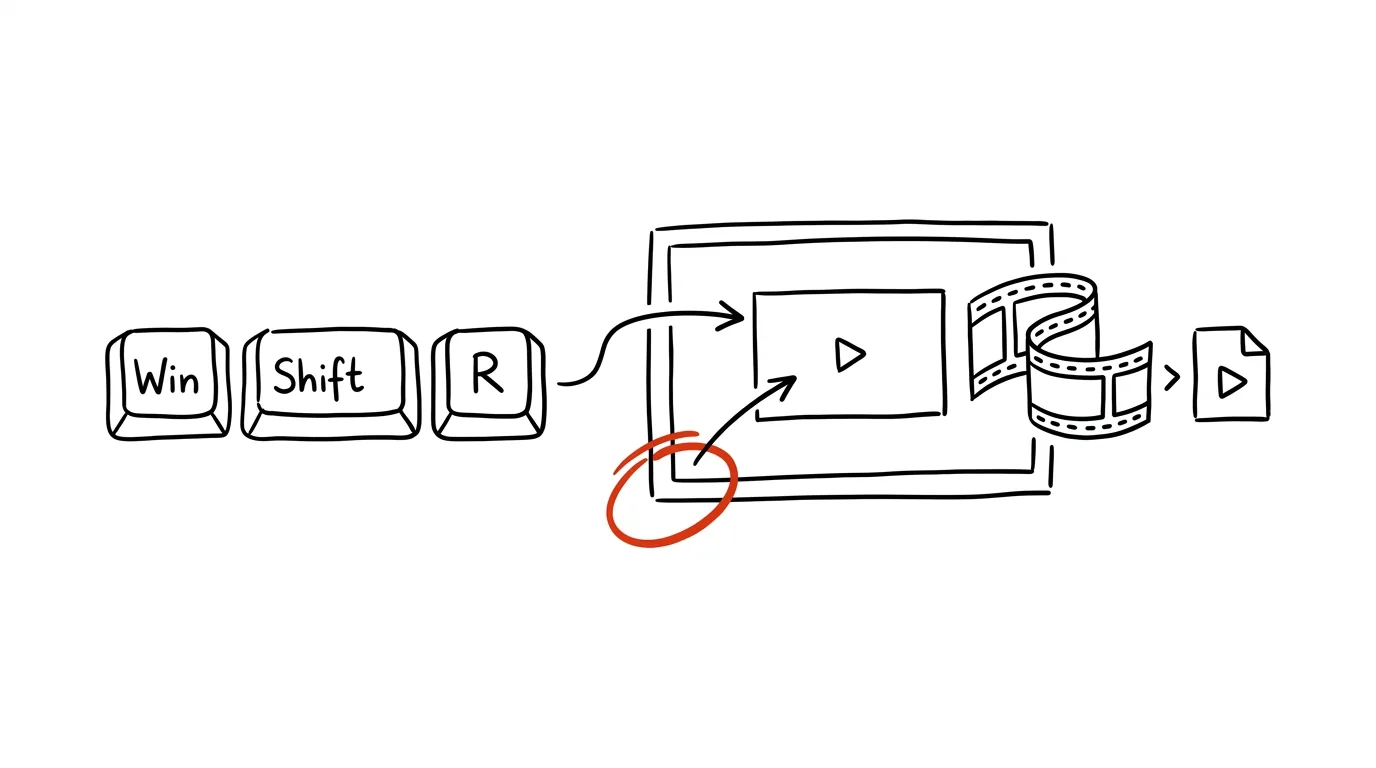
Explaining a computer procedure in text is a slog: “click top left, then the third tab, check the box there…” — and the recipient still gets it wrong. Video solves it in thirty seconds, yet plenty of people install special software just for that. No need: newer Windows 11 has screen recording built right into the Snipping Tool, complete with its own keyboard shortcut. Mark an area, click start, and save the result as an ordinary MP4.
How to do it
- Press Win + Shift + R — the screen dims just like with the Win+Shift+S screenshot, only in video mode. If the shortcut doesn't do anything, open the Snipping Tool from the Start menu and switch to the camera icon at the top; the feature is missing on older Windows versions.
- Drag with the mouse to mark the area you want to record — the whole screen, or just the window of the app in question.
- On the bar next to the selection, you can turn on the microphone (spoken commentary) and system audio before starting. Click start; a short countdown runs and then recording begins.
- Stop the recording with the stop button — the video opens in a preview, from which you save it as MP4 or copy it directly to paste into chat or email.
- For games and longer recordings, there's a second built-in route: the Xbox Game Bar on Win + G can record the active app in the background.
A typical scenario
An accountant asks for the fourth time where orders get approved in the system. Instead of a fourth phone call, you record a thirty-second video with commentary once: Win+Shift+R, mark the app window, turn on the microphone, click through the steps with spoken narration, save, send. She replays it whenever she's unsure — and the question never comes your way again.
The teacher's version: a short recording of “how to submit an assignment in Classroom” sent to students and parents saves dozens of repeated explanations — and it can be sent again at the start of the next school year.
What you get out of it
- One explanation instead of five: the video can be replayed as many times as needed — the instructions stop being explained and start being sent.
- Zero installs: no recording software, no watermarks, no registration — it's all in the system.
- Speed even for small things: when recording takes a minute, you'll make a video even for a minor point that wouldn't justify installing a tool.
Pro tip
Don't expect an editing suite — the built-in tool can trim the beginning and end at most. For captions, zoom, and montage you need a real editor. But for the vast majority of “click here like this” videos: record it in one take with commentary, send it, done — nobody expects perfection here.
Want to go deeper? The handbook has a whole chapter on it — The app categories that matter.
Similar tips
Two Lists Side by Side: AI Finds What's Missing
Attendance against sign-ups, payments against orders: paste two lists and AI lists what's in one and missing from the other — even through typos.
In-depth guide · 17 min
Prepping for a negotiation in twenty minutes: research, arguments, BATNA, and rehearsal
A guide with prompts: research the other side in twenty minutes, build arguments and a walk-away point, rehearse the hardest part, and get a one-pager.
In-depth guide · 20 min
Projects in AI: upload context once, not every time
A complete guide with prompts: what to upload to a Project, how to write its instructions, when to start a new one, and maintenance so it doesn't lie.
Was this helpful?
Liked this tip?
I send one like it every week by email. Two minutes to read, hours saved.
The Top 30 tips e-book, free — it lands in your inbox right away.
Then 1 tip a week · no spam · unsubscribe in one click
Prefer a system to single tips? The free email course — seven days, seven emails, one skill a day.