Tips & tricks · Shortcuts · Everywhere · ~5 min a day · 3 min read
Excel: Ctrl+Arrow Keys Jump to the Edge of Your Data
Last reviewed:
Ctrl+↓
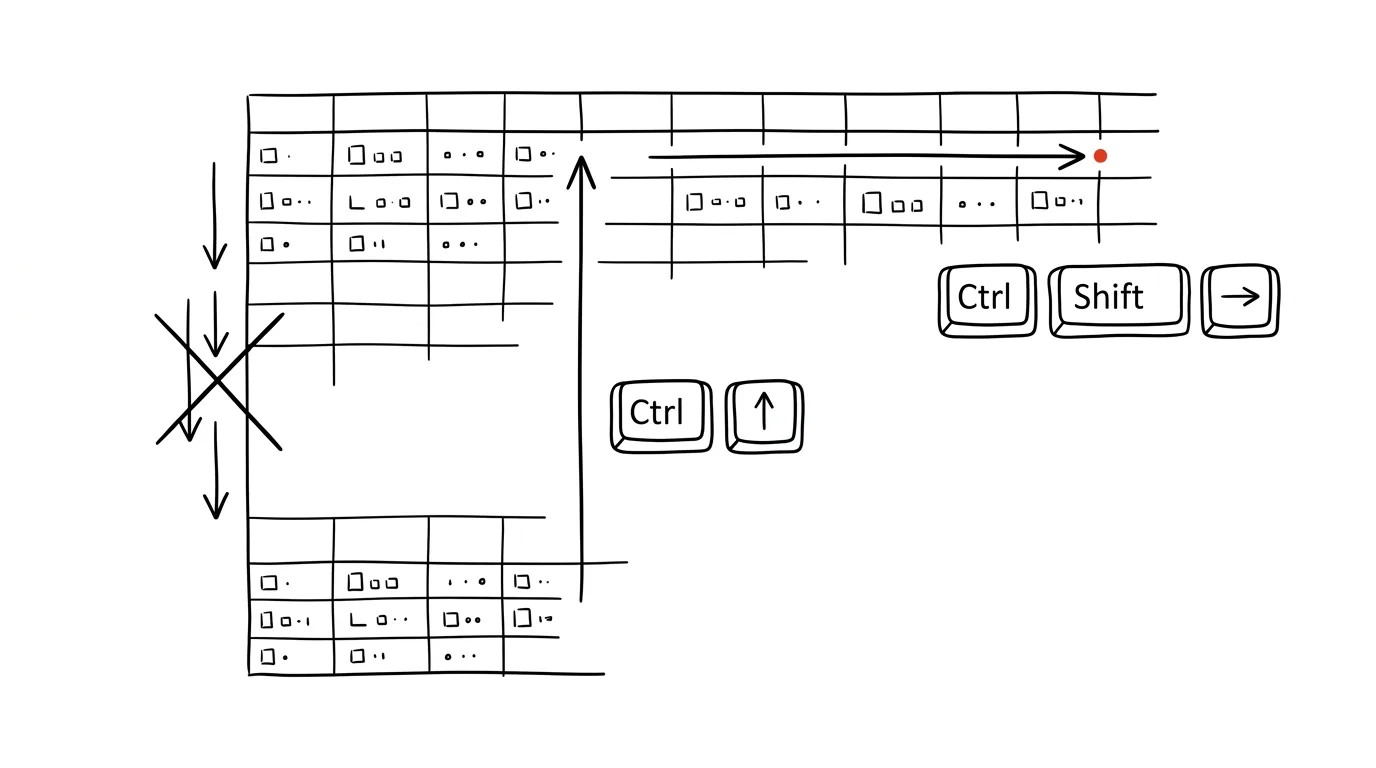
Nobody worries about reaching the end of a sheet with a few dozen rows — the scroll wheel is enough. Once a sheet has thousands of rows, scrolling turns into a slow, imprecise hunt for where the data actually ends. Ctrl combined with the arrow keys solves exactly that: one keypress jumps you to the edge of a contiguous block of data, whether the sheet has a hundred rows or a hundred thousand.
A typical scenario
Tomáš, a warehouse manager, gets an order export with 4,812 rows and needs to check the last entry. Scrolling with the mouse wheel would take tens of seconds and he'd easily miss the exact last filled row — either overshooting into blank space or stopping a bit too early.
With Ctrl+Down Arrow, he just clicks any cell in the data column and presses the combo — the cursor jumps straight to the last filled row of the block. He gets back to the top just as fast, or selects the whole block for copying with Ctrl+Shift+arrow, without dragging the mouse at all.
How to do it
- Click any cell inside a contiguous block of data.
- Press Ctrl + ↓ (or ↑, ←, →) — the cursor jumps to the last filled cell in that direction, wherever the data block ends or runs into an empty cell.
- Add Shift, i.e. Ctrl + Shift + ↓, and Excel selects the whole stretch between the starting and destination cell — ideal right before copying a column or row.
- Ctrl + Home takes you back to the very start of the sheet (cell A1), and Ctrl + End jumps to the last cell on the sheet that contains any data or formatting.
- The combo also works across blocks separated by empty cells — if there's a gap below the current block followed by more data, pressing Ctrl+arrow a second time carries you over the gap to the next block.
The best tools
- The built-in Ctrl+arrow shortcut (Excel) — works instantly in every version, nothing to set up.
- The Name Box to the left of the formula bar — to jump to a specific, exactly known cell (say, Z5000), just type the address there and press Enter.
- Google Sheets — the same Ctrl+arrow combo works identically, so the habit carries over between apps unchanged.
- A formatted table (Ctrl+T) — if your data keeps growing, a table makes orientation even easier, since the headers stay visible while scrolling.
What you get out of it
- Time: easily 5 minutes a day on larger sheets that would otherwise go to scrolling and hunting for where the data ends.
- Accuracy: no risk of accidentally missing the last few rows because you stopped scrolling too soon.
- Smoother work: the combo chains with Shift for selection, so navigating and selecting data becomes one fluid operation instead of two.
Pro tip
Ctrl + Shift + End selects everything from the current cell to the last used cell on the sheet — ideal right before copying an entire table, last row included, without needing to know exactly where the table ends.
Want to go deeper? The handbook has a whole chapter on it — The app categories that matter.
Similar tips
Ten Questions Your Audience Will Ask After Your Presentation
Before you present, have AI generate the audience's questions — curious, skeptical, and the one from your boss about money. You'll find out which ones you can't answer while there's still time.
Two Lists Side by Side: AI Finds What's Missing
Attendance against sign-ups, payments against orders: paste two lists and AI lists what's in one and missing from the other — even through typos.
In-depth guide · 18 min
AI translates with tone, not just words
A guide with prompts: steering translation with your own samples, translation versus localization, back-translation checks, and glossary workflows.
Was this helpful?
Liked this tip?
I send one like it every week by email. Two minutes to read, hours saved.
The Top 30 tips e-book, free — it lands in your inbox right away.
Then 1 tip a week · no spam · unsubscribe in one click
Prefer a system to single tips? The free email course — seven days, seven emails, one skill a day.