Tips & tricks · Workflow · Everywhere · ~3 h a month · 4 min read
Proposal, contract, and invoice templates: do it once, properly
Last reviewed:
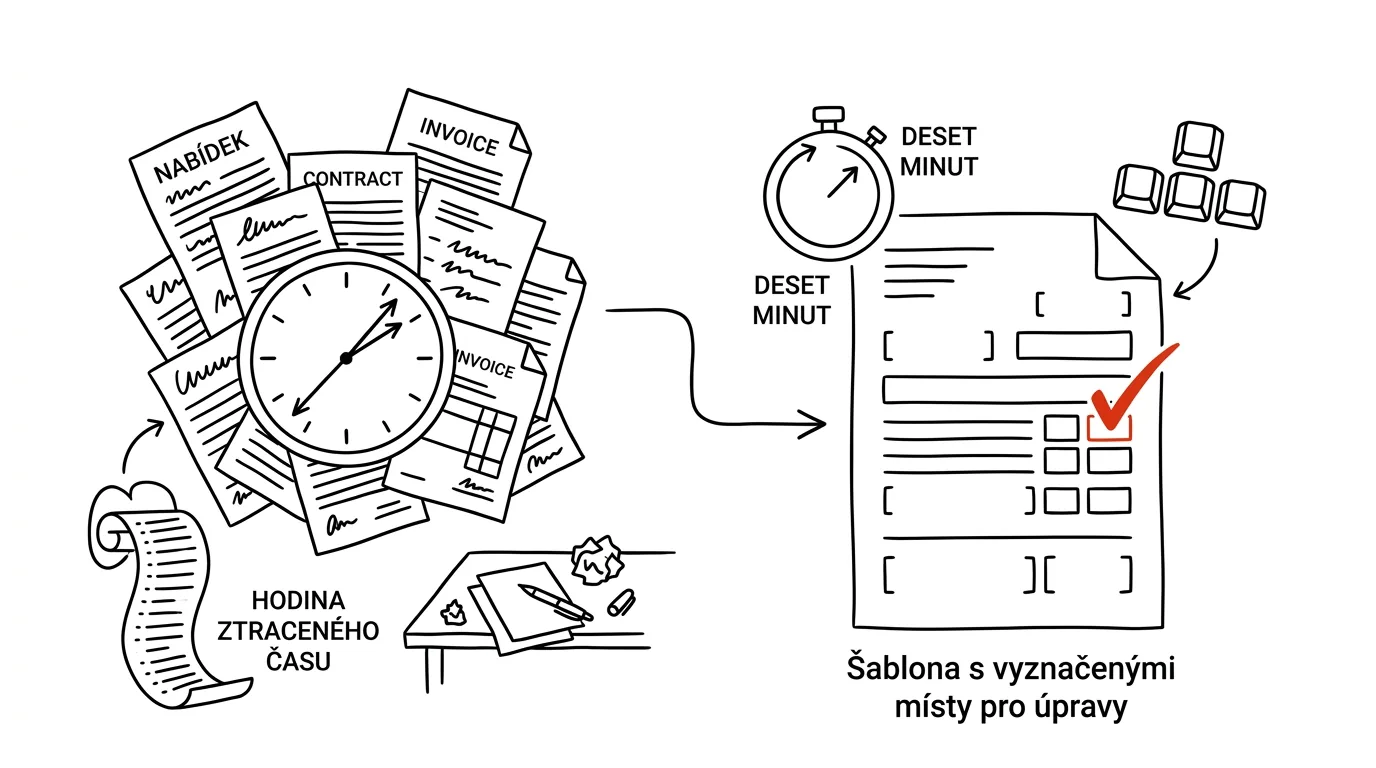
A freelancer's admin is made up of documents that are eighty percent the same every time — the client's name, the price, and the deadline change, and the rest of the text is identical from one proposal to the next. Yet plenty of people write it all over again from scratch each time, as if it were a brand-new task.
A typical scenario
Consultant Honza got an inquiry from a new client and spent an hour writing a proposal — wording the terms, digging through old emails to find how exactly he'd phrased the payment terms last time, copying bits of text from here and there. The proposal ended up looking good, but that hour was wasted time, because ninety percent of the content was practically identical to the proposal he wrote the month before.
Once Honza generalized an old proposal into a template with marked spots to fill in, his next proposal took ten minutes — he opened the template, filled in four variables, and sent it.
How to do it
- Take your last proposal, contract, or invoice that worked well and generalize it — clearly mark every variable spot, for example [CLIENT], [SCOPE], [PRICE], [DEADLINE].
- Save it as an actual template (a template in Google Docs or Word), not as a file named "copy of latest version" — with the second approach, you eventually lose track of which version is the clean one and which already has a specific client's details in it.
- Add a short checklist of spots to edit at the top of the document — a reminder of everything you need to fill in and double-check before sending.
- Delete the checklist from the document before sending it to the client — it's a working aid for you, not part of the final document.
- Build a set of templates for every recurring document: proposal, contract, invoice, and possibly even an intro email for a new client — each one saves time the next time you use it.
- For contracts, note which passages are legally significant and shouldn't be changed without careful thought — the checklist of editable spots then also protects against accidentally altering a term you once carefully worked out.
- Test the template on your next job and immediately note what was missing or unnecessary — the second version of a template is usually a lot better than the first.
The best tools
- Templates in Google Docs or Word — a built-in feature, nothing to install, just save the file as a template or in a dedicated folder.
- An invoicing tool with saved invoice templates — for invoices, you set the template up once and it generates the rest practically on its own.
- An e-signature tool with saved contracts — saves an extra step for contracts signed electronically.
- A shared "Templates" folder on Google Drive or in cloud storage — one place where the correct, current versions always live.
- A proposal-building tool with prebuilt blocks (e.g., PandaDoc or a similar service) — useful when you send proposals often and want to assemble them from reusable sections.
What you get out of it
- Time: from an hour of writing a proposal down to ten minutes of filling one in — for a few proposals a month, that's three or more hours saved.
- Consistency: every proposal or contract has the same structure and the same terms, so you never forget a clause in one that you have in another.
- A more professional impression: a template refined once, properly, looks better than a document thrown together in a rush under deadline pressure.
- Fewer mistakes: less room to forget an important term, like a payment deadline or scope of work, while writing in a hurry from scratch.
- A faster response to inquiries: the sooner you send a proposal after an inquiry, the higher your chances the client picks you — a template lets you respond the same day.
Pro tip
Review and update your templates every so often — terms you set a year ago may not match how you want to work today. Ten minutes of review a year pays off, because otherwise you'd repeat the same mistake in every proposal after.
Want to go deeper? The handbook has a whole chapter on it — Core systems: inbox, priorities, reviews.
Similar tips
A closed lid doesn't have to put your laptop to sleep: run it as just a monitor setup
With an external monitor and keyboard, a laptop can run closed and save desk space. Just change one setting for what closing the lid does.
Notion: the slash inserts anything
/
The / key opens the block menu — headings, tables, reminders, columns. Notion's core control.
The Notion formula that sorts your backlog for you
(Impact × Urgency) / Effort — three numbers per task, and the database sorts itself by actual value.
Was this helpful?
Liked this tip?
I send one like it every week by email. Two minutes to read, hours saved.
The Top 30 tips e-book, free — it lands in your inbox right away.
Then 1 tip a week · no spam · unsubscribe in one click
Prefer a system to single tips? The free email course — seven days, seven emails, one skill a day.