Tips & tricks · Gear · Everywhere · desk space · 3 min read
A closed lid doesn't have to put your laptop to sleep: run it as just a monitor setup
Last reviewed:
In this article
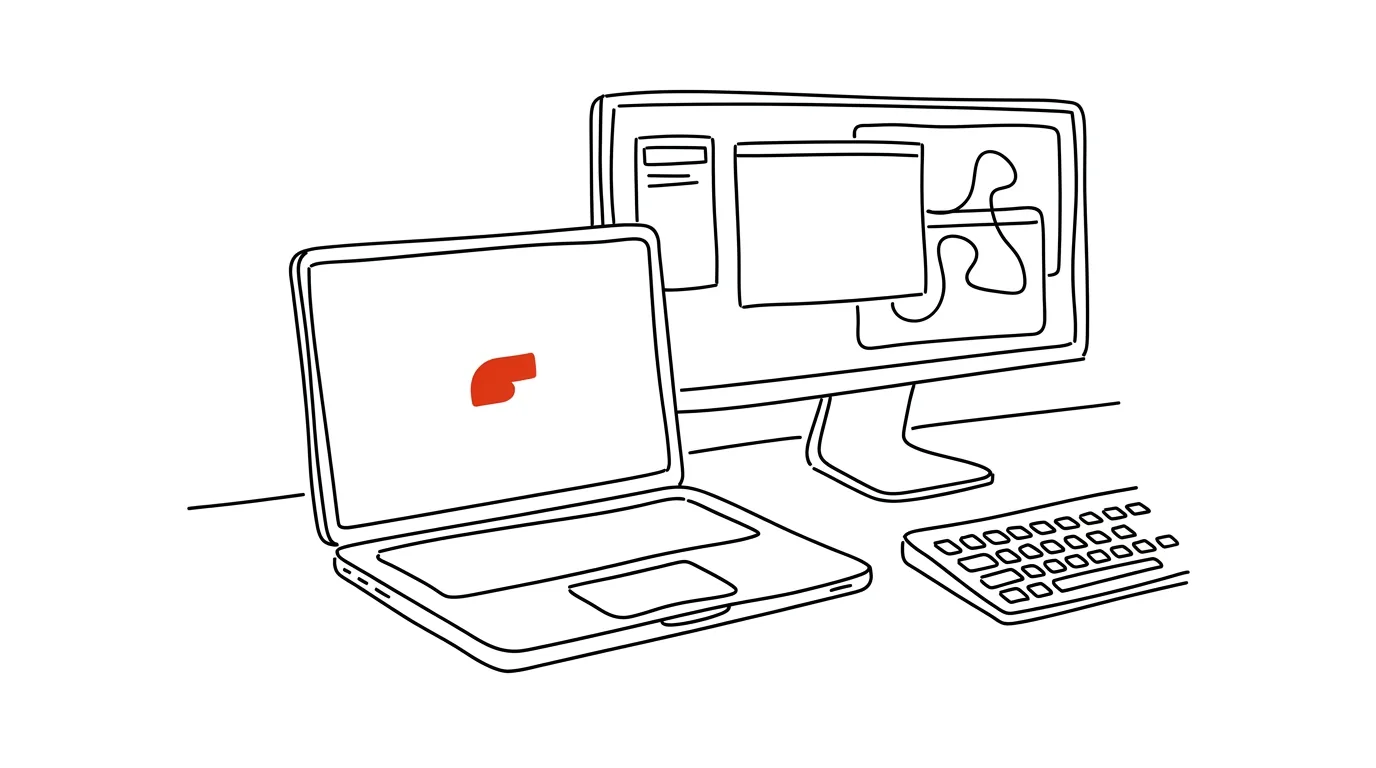
Anyone working with an external monitor and keyboard often just pushes the laptop aside — open, its screen lit, watched by nobody, taking up half the desk. You can't close it, because it would go to sleep. But that "going to sleep" is just a default setting, not a law of nature: you can tell the system that closing the lid should do nothing at all. The laptop then runs closed, happily standing upright in a stand next to the monitor, and your desk is suddenly a third emptier. The same setting also fixes another familiar frustration: a download or a long export getting interrupted because you snapped the lid shut.
How to do it
- On Windows, open Control Panel → Hardware and Sound → Power Options and click Choose what closing the lid does on the left.
- For When I close the lid, set the Plugged in column to Do nothing. Leave the On battery column set to sleep — a laptop closed in a bag has no reason to keep running.
- On Mac, there's nothing to configure: when it's connected to power, an external monitor, and a keyboard and mouse, it keeps running automatically once you close the lid (Apple calls this closed-display mode).
- Stand the laptop upright in a vertical stand, or lay it so its vents stay clear — a closed machine under full load still needs to breathe. Don't stack papers on it or shut it in a drawer.
- Keep in mind you'll lose the built-in camera and microphone once it's closed — open the lid for a call, or use an external camera or your phone as a webcam.
A typical scenario
Data analyst Jake kicks off a calculation in the evening that runs for two hours. He used to have to leave the laptop open and lit, or the task would get interrupted partway through. Now he just closes the lid — the machine keeps computing, just quietly and in the dark. During the day, he keeps the laptop closed in a stand next to his monitor: one big screen, with a keyboard, mouse, and coffee mug on the desk. A colleague with two monitors likewise appreciates that the laptop screen no longer glows in her peripheral vision as a third, smallest screen she wasn't using anyway.
What you get out of it
A tidier desk and a simpler workspace: one screen instead of "main plus a small one somewhere off to the side," meaning less eye-jumping and simpler window management. And the assurance that long-running tasks — downloads, syncing, rendering, backups — finish even after you close the laptop and step away from the desk.
Pro tip
If a closed laptop shouldn't keep running overnight, you don't need to revert the setting for that — just put it to sleep normally through the Start menu, or the Apple menu. "Do nothing" only cancels the lid's automatic behavior; manual sleep still works exactly as before.
Want to go deeper? The handbook has a whole chapter on it — The complete guide to an effective home office.
Similar tips
Split View: two apps side by side, full screen
Hold down the green button on a window and pick a half of the screen. Perfect for writing with reference material alongside.
Spotlight as a calculator and unit converter
Cmd+Space
No need to open a calculator or google an exchange rate. Spotlight calculates and converts currencies and units right in the search field.
Spotlight: launch apps without touching the mouse
Cmd+Space
Cmd+Space opens Spotlight — the fastest way to launch anything on a Mac. You can practically stop using the Dock.
Was this helpful?
Liked this tip?
I send one like it every week by email. Two minutes to read, hours saved.
The Top 30 tips e-book, free — it lands in your inbox right away.
Then 1 tip a week · no spam · unsubscribe in one click
Prefer a system to single tips? The free email course — seven days, seven emails, one skill a day.