Tips & tricks · Gear · Windows · pro-quality video for free · 2 min read
Android as a Windows webcam: you already own the best camera
Last reviewed:
In this article
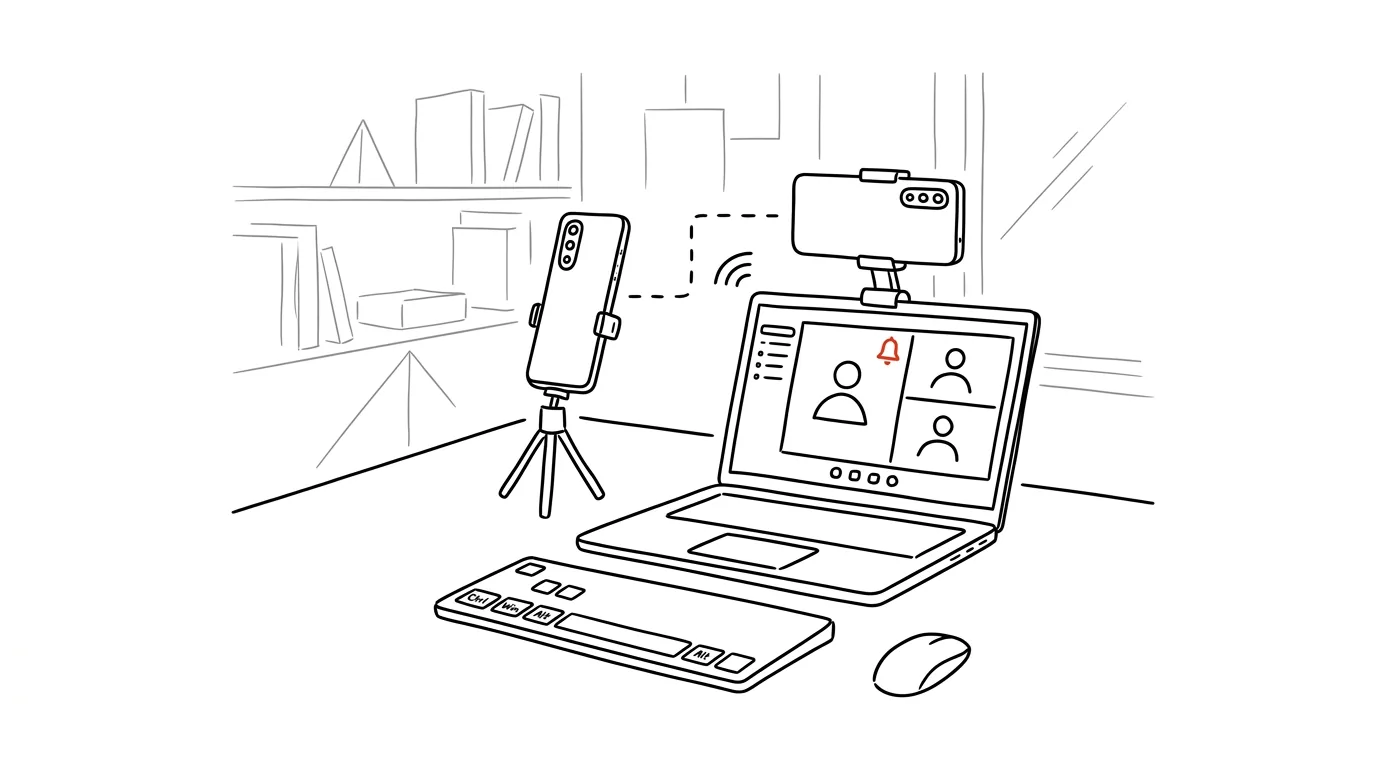
A laptop's built-in webcam is usually the worst thing its maker left inside it — grainy image, bad colors, dim light. Yet the best camera you own is sitting in your pocket: your phone's camera. Windows 11 can connect an Android phone wirelessly as a full-fledged webcam — it shows up in the camera list next to the built-in one, and Teams, Zoom, Meet, and anything else can pick it. No third-party apps to install, no cable.
How to do it
- Open Settings → Bluetooth & devices → Mobile devices and turn on Allow this PC to access your mobile devices.
- Click Manage devices and add your phone — Windows walks you through pairing via the Link to Windows app, which you install from the Play Store. You need Android 9 or newer, and both devices on the same Wi-Fi network.
- On the paired phone, turn on the Use as connected camera toggle.
- In your video call app, choose the phone as your camera in settings — the same way you'd pick an external webcam. During a call you can switch between the front and rear camera, or pause the feed.
- Prop or mount the phone on a small tripod next to your monitor, roughly at eye level, and plug it into a charger — streaming the camera draws a fair amount of power and the battery might not survive a long meeting. Turn on do-not-disturb on it too, so notifications don't pop up in the shot.
A typical scenario
Consultant Mark has an important presentation for a client. His built-in webcam produces a gray silhouette with a window behind him; the phone's rear camera, by contrast, delivers a sharp, well-lit picture even in an ordinarily lit home office. Mark turns on the connected camera, props the phone on a tripod behind his monitor, and switches the camera in Teams to the phone. The difference is obvious at a glance — and the client sees him, not a silhouette. A teacher gets the same benefit during online lessons, using the rear camera to show an experiment or a worksheet on the desk.
What you get out of it
A noticeably better image on every call without buying an external webcam — sharper detail, truer colors, and much better results in low light. Switching to the rear camera also gives you a “second camera” for showing things on your desk, something a regular webcam can't do. And because the phone is freely repositionable, you can pick a better angle than the one a camera bolted to the top edge of a laptop display offers.
Pro tip
The feature is part of newer Windows 11 builds — if you don't see the Mobile devices section in Settings, let the system update. On a Mac there's an equivalent for iPhone: see the tip iPhone as a webcam.
Want to go deeper? The handbook has a whole chapter on it — The complete guide to an effective home office.
Similar tips
Do Not Disturb with exceptions: family gets through, everything else waits
Do Not Disturb doesn't have to be a gamble. Chosen people and repeated calls always get through — so you can finally turn it on without the guilt.
Batched notifications: a summary instead of a drip
iOS and Android can both hold non-urgent notifications and deliver them as a summary at times you choose. Your phone stops yanking at your attention.
Hold an app icon: quick actions without opening it
A long press on an icon opens a shortcut menu: new email, selfie, private tab, navigate home. One tap instead of hunting inside the app.
Was this helpful?
Liked this tip?
I send one like it every week by email. Two minutes to read, hours saved.
The Top 30 tips e-book, free — it lands in your inbox right away.
Then 1 tip a week · no spam · unsubscribe in one click
Prefer a system to single tips? The free email course — seven days, seven emails, one skill a day.