Tips & tricks · Apps · Mobile · ~30 min a day · 3 min read
Batched notifications: a summary instead of a drip
Last reviewed:
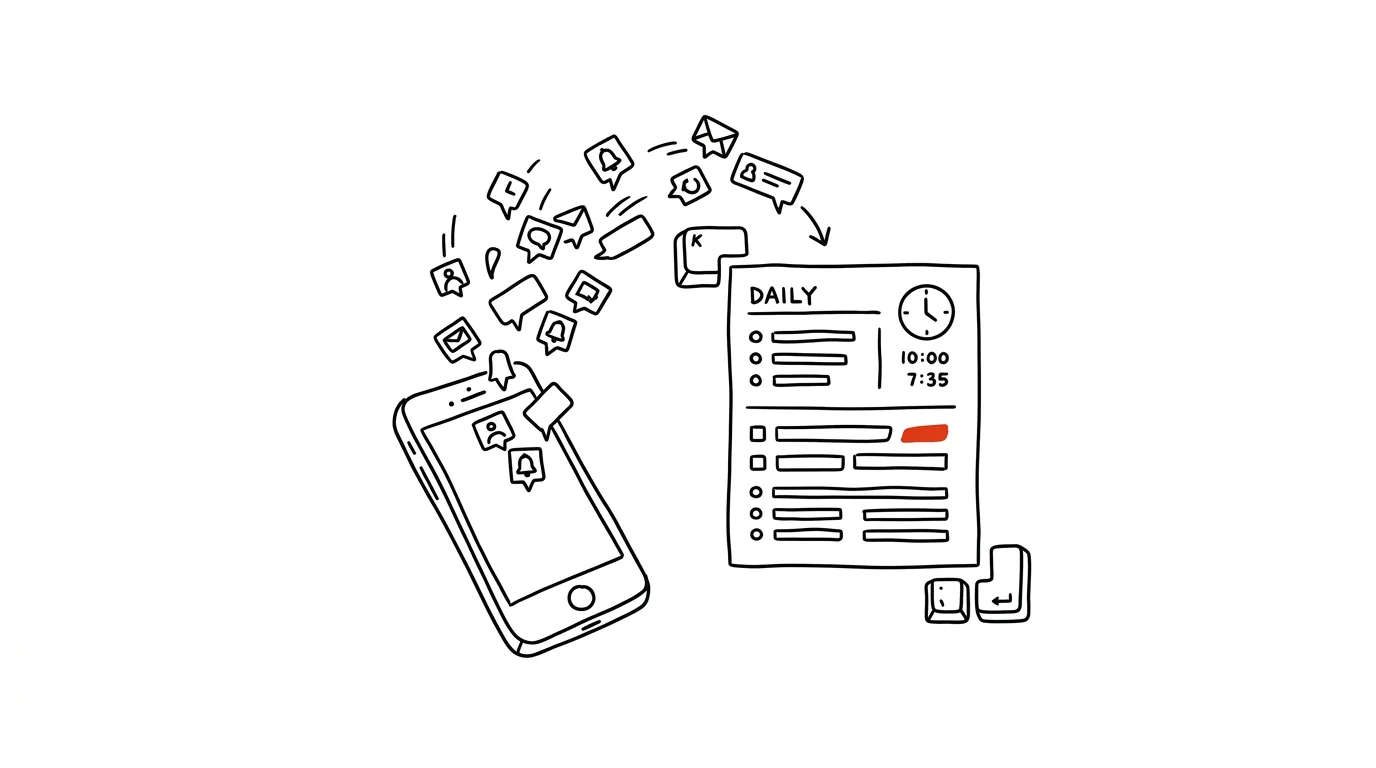
Every notification is a small tug away from whatever you're doing. Most of them don't need to arrive right away. App notifications are designed to pull you out of whatever you're doing — even for things that genuinely don't matter whether you see them now or three hours from now. A scheduled summary separates the truly important notifications (calls, messages from people) from everything else that can wait.
A typical scenario
Honza had his phone set up exactly the way apps “wanted” it — every like, every new podcast episode, every app store update interrupted him instantly, with a vibration and a lit-up screen. On a given day that added up to well over a hundred notifications, maybe five of which actually needed an immediate reaction. His work fell apart into fragments, because every buzz meant refocusing afterward — and according to attention research, returning to an interrupted train of thought can take tens of seconds, regardless of how brief the interruption itself was.
After setting up a scheduled summary for 12:00 and 18:00, non-urgent notifications now quietly collect and wait for their time. His phone only buzzes today for calls and messages from people — everything else arrives at once, twice a day, as a digest he skims through in a minute instead of being pulled away by it piece by piece all day long.
How to do it
- iOS: Settings → Notifications → Scheduled Summary — choose which apps fall into the summary and set delivery times, say 12:00 and 6:00 pm.
- Android: Settings → Notifications — set silent delivery (no sound or vibration) for individual non-urgent apps, or use your manufacturer's delayed-notification feature if it offers one.
- Include apps in the summary that you're fine having delayed — social media, shopping apps, game notifications, news.
- Leave instant notifications only for things that genuinely need a quick reaction: calls, messages and chats from specific people, calendar reminders.
- Pick summary times that fit your day — typically when you'd take a break anyway (lunch, end of the workday), not in the middle of focused work.
- After a few days, check whether you've grouped in anything you'd actually rather see sooner — the settings can be adjusted anytime.
- Feel free to skim the summary lightly — the point isn't to read everything, but to decide on the handful of items that genuinely matter and wave off the rest with a single glance.
The best tools
- iOS Scheduled Summary — a built-in system feature, works with every app with nothing extra to install.
- Android Digital Wellbeing and silent delivery — a similar built-in feature, its location varies by phone manufacturer.
- “Do Not Disturb” with exceptions — on both systems, you can also set select contacts to get through even in silent mode.
- Focus modes (iOS) — go even further, letting you set different notification rules for work and for personal time.
What you get out of it
- Time: roughly 20–30 minutes a day that would otherwise go to small interruptions and refocusing after each one.
- Focus: longer uninterrupted work blocks, since unimportant things simply don't ring.
- Peace of mind: less of a “must check this right now” feeling — you know the important things will still get through.
- Clarity: a twice-daily summary gets skimmed faster and with more perspective than a hundred individual interruptions scattered across the day.
Want to go deeper? The handbook has a whole chapter on it — The app categories that matter.
Similar tips
Notion: the slash inserts anything
/
The / key opens the block menu — headings, tables, reminders, columns. Notion's core control.
In-depth guide · 18 min
Notion vs. Obsidian vs. Built-In Notes Apps: What to Pick
A fair comparison of three camps across eight criteria — from capture speed to price. With a comparison table, a pick for your situation, and an exit plan.
The Notion formula that sorts your backlog for you
(Impact × Urgency) / Effort — three numbers per task, and the database sorts itself by actual value.
Was this helpful?
Liked this tip?
I send one like it every week by email. Two minutes to read, hours saved.
The Top 30 tips e-book, free — it lands in your inbox right away.
Then 1 tip a week · no spam · unsubscribe in one click
Prefer a system to single tips? The free email course — seven days, seven emails, one skill a day.