Tips & tricks · Shortcuts · Mac · ~5 min a day · 3 min read
Spotlight: launch apps without touching the mouse
Last reviewed:
Cmd+Space
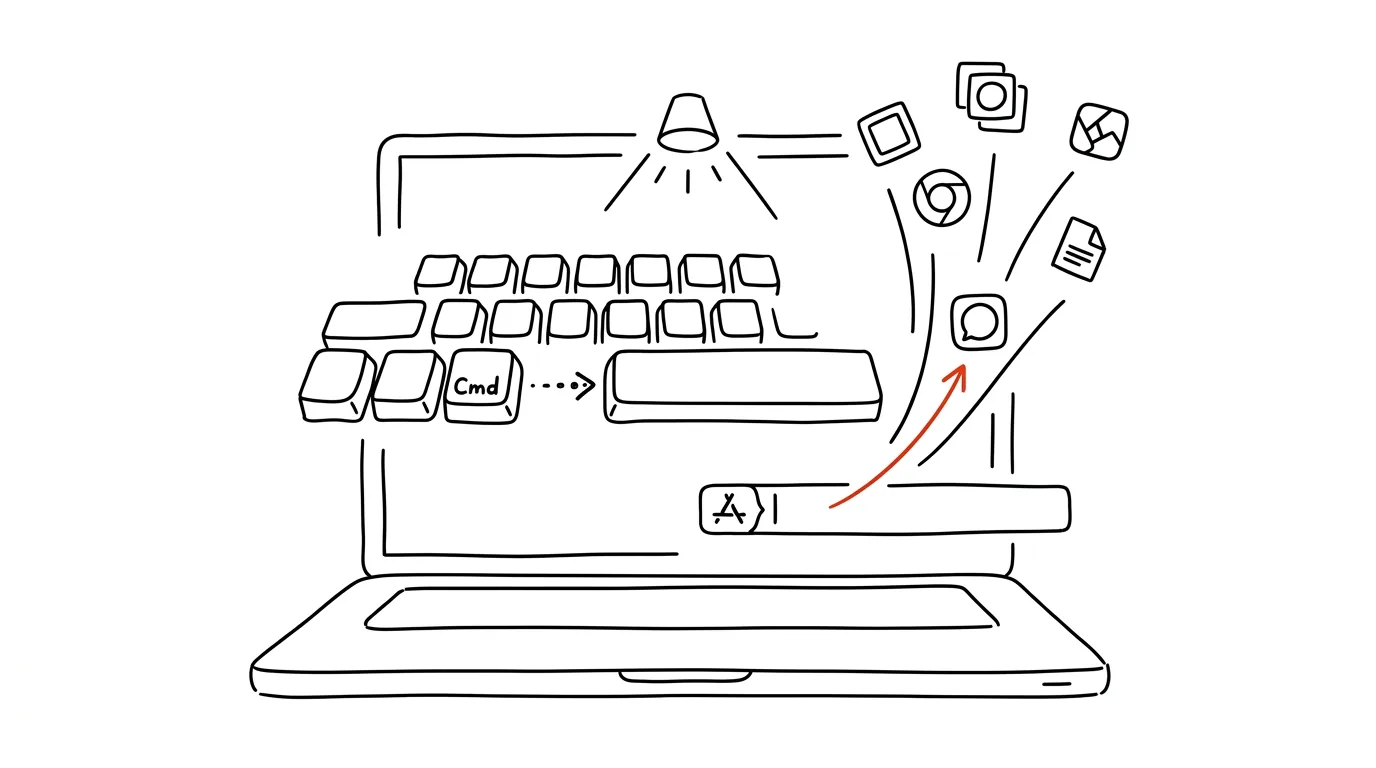
Hunting for an app in the Dock or Launchpad is slow. You have to move the mouse over there, maybe scroll through several pages of icons before you find the right one — just to launch a program you might open ten times a day. Spotlight, meanwhile, finds it in three letters, with not a single mouse click. It's one of the first shortcuts worth turning into a habit, because you'll use it practically every hour you're at the computer.
A typical scenario
Throughout the day, you switch between mail, calendar, a spreadsheet, and notes — and you don't have all of them pinned in the Dock, because it would get too crowded. Hunting for them in Launchpad means clicking through several screens of icons, and for less frequently used apps, you often can't even remember which page they're on.
With Spotlight, you open anything in under a second without ever touching the mouse. Your hands stay on the keyboard, which is especially handy while typing, when moving to the mouse and back breaks your rhythm.
How to do it
- Press Cmd + Space — a search field opens in the middle of the screen.
- Type the first letters of the app's name — say, "saf" for Safari or "pow" for PowerPoint. Spotlight offers the most likely match as the first result.
- Press Enter and the app launches (or comes to the front, if it's already running in the background).
- If the first result isn't the right one, use the down/up arrow keys to click through the other results — Spotlight also searches files, not just apps.
- Close Spotlight with Esc without launching anything, if you were just checking or changed your mind.
- If the app is already running in the background (say, minimized or on a different desktop), Spotlight just brings it to the front instead of launching it a second time — so you don't need to worry about duplicate windows opening.
The best tools
- Built-in Spotlight (Cmd + Space) — free, the fastest launcher with no installation, more than enough for opening apps.
- Raycast — a free Spotlight replacement with extensible plugins, faster search, and a clearer history.
- Alfred — a long-standing alternative with advanced workflows, for users who want to control not just app launching but other things on their computer with a single command.
- A Dock with a limited number of icons — even without an extra tool, keeping only the truly most-used apps pinned in the Dock and leaving the rest to Spotlight helps.
What you get out of it
- Time: launching an app through Spotlight takes under a second instead of hunting in the Dock or Launchpad — for dozens of launches a day, that's a noticeable difference.
- Fewer interruptions to your flow: your hands stay on the keyboard, since moving to the mouse and back turns out to be a small but repeated distraction.
- A cleaner Dock: once you rely on Spotlight, you don't need dozens of icons pinned there — just the most important ones, the ones you'd still reach for with the mouse.
- A faster start to the day: your morning routine — opening mail, calendar, and your work tools — goes through Spotlight in a few seconds instead of hunting down each app one by one.
Pro tip
Spotlight doesn't just find apps — it also finds files, emails, contacts, and system settings. Type "bluetooth," for instance, and you'll jump straight into the relevant setting, without navigating through the System Settings menus. It also works as a quick dictionary or unit converter, so over time it can replace other small tools you'd otherwise be launching separately.
Want to go deeper? The handbook has a whole chapter on it — The app categories that matter.
Similar tips
Virtual desktops: keep work and communication apart
Win+Ctrl+→
Win+Ctrl+D creates a new desktop, Win+Ctrl+arrows switch between them. Slack on one, focused work on the other.
PDFs opening in the wrong app? Change your default apps once and for all
Every PDF opens in Edge even though you read PDFs elsewhere. Photos open in an app you never chose. Two minutes in Settings → Default apps and files start opening where you actually want them.
Windows Search: extend the index to your working folders
Win+S
When Windows can't “find” your files, it's probably not indexing the right folders. One search setting fixes it all.
Was this helpful?
Liked this tip?
I send one like it every week by email. Two minutes to read, hours saved.
The Top 30 tips e-book, free — it lands in your inbox right away.
Then 1 tip a week · no spam · unsubscribe in one click
Prefer a system to single tips? The free email course — seven days, seven emails, one skill a day.