Tips & tricks · Communication · Browser · ~10 min a day · 3 min read
Gmail from the keyboard: E archives, R replies
Last reviewed:
E
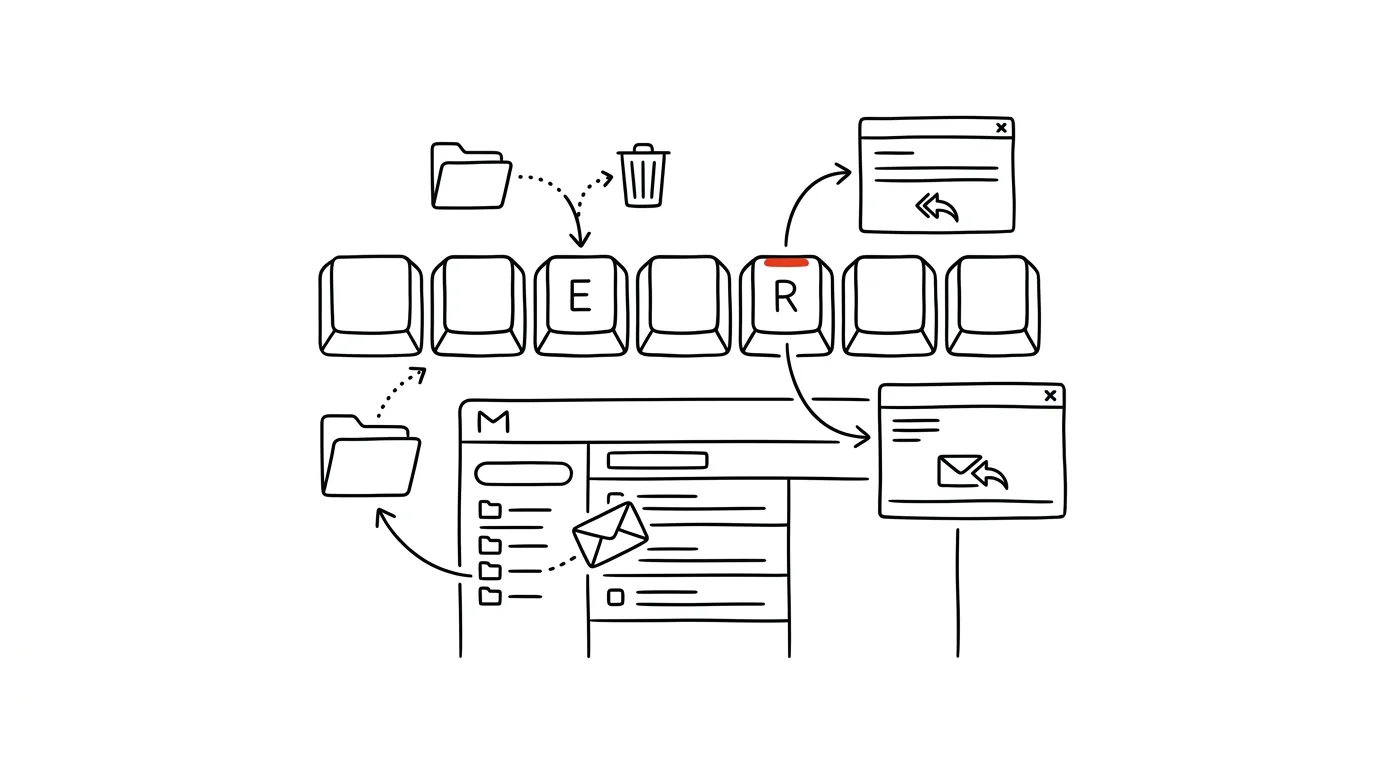
Processing email with a mouse is like typing with one finger — it works, but needlessly slowly, and every click is one more step between you and an empty inbox. Gmail's keyboard shortcuts close that gap, matching the pace of people who genuinely live in their inbox. Just turn them on once in settings, learn the first five, and you'll feel the difference in speed on day one.
A typical scenario
Manager Alena gets over a hundred messages a day, and most of them just need archiving, forwarding, or a short reply. With a mouse, that means: hover over a message, click the archive icon, wait for the interface to react, hover over the next one — dozens of small mouse movements a day that add up to a surprisingly long amount of time.
Once she turned on keyboard shortcuts, the same work happens without lifting her hand from the keyboard: J to the next message, E to archive, J again. The inbox that used to take her twenty minutes now takes ten.
How to do it
- Open Settings → See all settings → General tab → Keyboard shortcuts and select Keyboard shortcuts on. Don't forget to click Save Changes at the bottom of the page.
- Basic shortcuts for working with a message: E archive, R reply, A reply all, F forward, C compose a new message.
- Shortcuts for moving between messages: J and K jump between conversations in the list, Enter opens the selected conversation, U goes back to the list.
- More useful ones: # moves a message to trash, ! reports it as spam — both without needing to hover the mouse over icons in the top bar.
- You'll forget shortcuts the first few days — that's normal; after a week of regular use they become automatic.
- Press G then I to jump straight to your inbox from anywhere in Gmail, G then S for sent mail — both save you a click into the sidebar.
- Learn shortcuts five at a time, not all at once — trying to memorize twenty shortcuts in a day usually means remembering none of them.
The best tools
- Gmail's built-in keyboard shortcuts — free, just turn them on once in settings, no extension needed.
- A browser extension like Shortkeys — for power users who want to customize shortcuts further or unify them across multiple web apps.
- Outlook's built-in keyboard shortcuts — if you work in Outlook instead of Gmail, a similar set of shortcuts exists there too, just under different keys.
- Custom keyboard shortcuts (Settings → Advanced → Custom keyboard shortcuts) — if the default set doesn't fit you, Gmail lets you remap shortcuts to your own preferences.
What you get out of it
- Time: roughly 10 minutes a day for people processing dozens to hundreds of messages — your hand never has to leave the keyboard between reading, replying, and archiving.
- Flow: working through your inbox becomes more rhythmic and less tiring, since you're not constantly shifting attention between the keyboard and the mouse.
- Less wrist fatigue: fewer mouse movements when repeatedly processing a large volume of messages.
- Faster inbox zero: the inbox-zero method becomes noticeably more achievable with keyboard shortcuts, since each individual action (read, decide, archive) takes a fraction of the time it used to.
Pro tip
Shift + ? shows a complete overview of all available shortcuts right inside Gmail at any time — you don't need to memorize them all at once, just check in occasionally when you hit a recurring action you don't yet have a shortcut for.
Want to go deeper? The handbook has a whole chapter on it — Professional email communication.
Similar tips
Copy on your iPhone, paste on your Mac
Universal Clipboard works between Apple devices automatically — text, photos, and links travel over without emailing yourself.
Lock your Mac every time you step away
Ctrl+Cmd+Q
Ctrl+Cmd+Q locks the screen instantly. A two-second habit that protects your work and your data.
A written status instead of a status meeting
Three questions in a form on Friday: what went well, what's in progress, what's stuck. Suddenly the 45-minute status meeting is unnecessary.
Was this helpful?
Liked this tip?
I send one like it every week by email. Two minutes to read, hours saved.
The Top 30 tips e-book, free — it lands in your inbox right away.
Then 1 tip a week · no spam · unsubscribe in one click
Prefer a system to single tips? The free email course — seven days, seven emails, one skill a day.