Tips & tricks · Shortcuts · Mac · security · 3 min read
Lock your Mac every time you step away
Last reviewed:
Ctrl+Cmd+Q
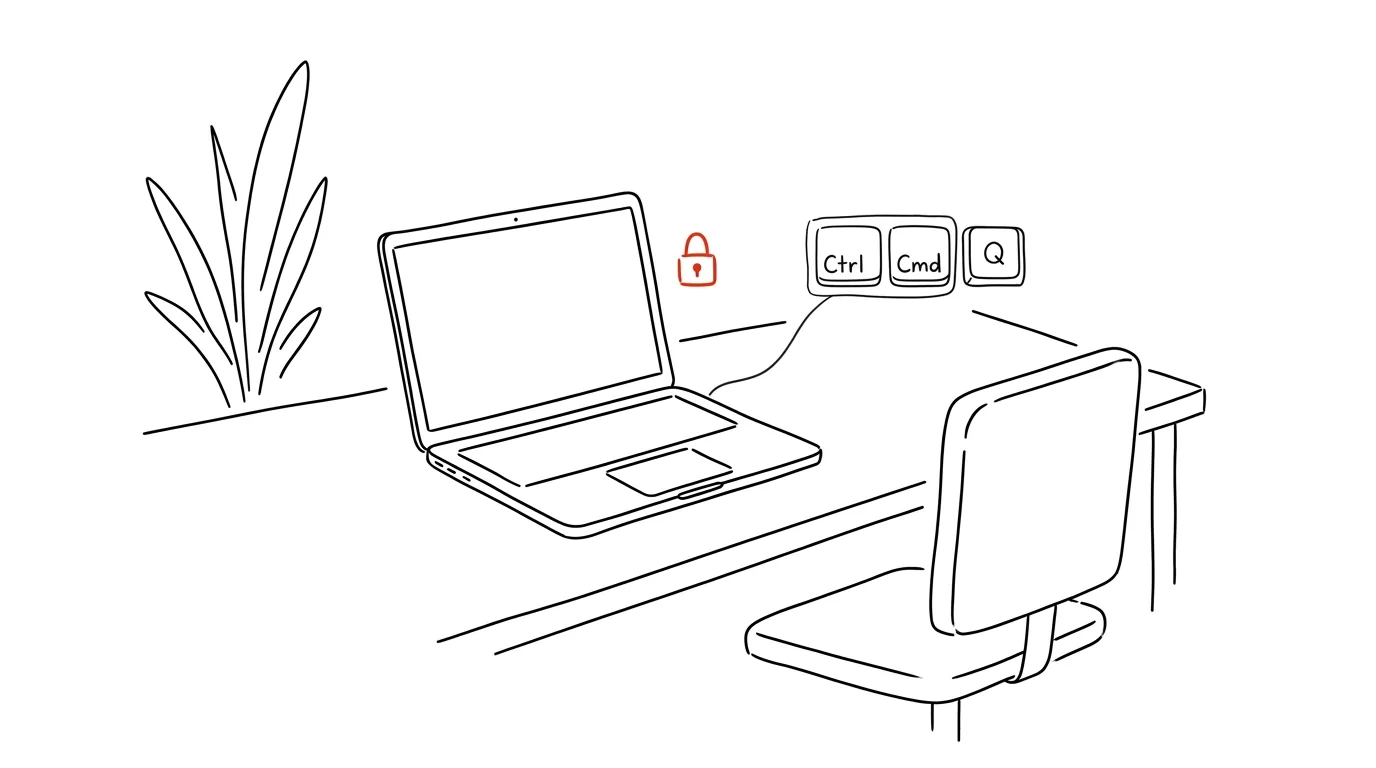
An unattended, unlocked computer is a risk — in the office and in a café alike. It only takes a few minutes of thinking “no one will notice” for anyone nearby to read an unfinished email, open your files, or log in to an account left signed in in a browser. Locking your screen takes two seconds and removes the risk entirely.
A typical scenario
A manager steps away from their desk for a quick meeting, leaving an open email with sensitive company data and a spreadsheet with the team's salaries. Without the habit of locking up, the computer stays accessible the whole time to anyone walking by — a coworker, cleaning staff, a visitor. In a café or a shared workspace, the risk is even higher.
With the habit in place, one keystroke every time you get up from your desk is all it takes. The screen locks instantly, your work stays exactly where it was, and no one gets to it without a password — no matter how long you're away.
How to do it
- Every time you step away from your computer, even briefly, press Ctrl + Cmd + Q.
- Your Mac locks immediately — the login screen appears in place of the desktop, but every running app and all your unfinished work keeps running in the background.
- When you're back, just sign in with your password, passcode, Touch ID, or Apple Watch — and you land exactly where you left off.
- Make the shortcut part of your leaving-the-desk routine, much like locking a door — after a few days it becomes automatic.
- On a shared or public computer (library, coworking space), this step matters even more, since anyone else there could have physical access to your open account.
- Locking your screen is worth doing at home with family or roommates too — it protects unfinished work communications and personal accounts from an unintended glance, without implying you don't trust the people close to you.
The best tools
- The built-in lock shortcut (Ctrl + Cmd + Q) — free, instant, works no matter what apps you have open.
- Automatic sleep and lock after inactivity — set it up in System Settings → Lock Screen, it acts as a backup in case you forget to lock manually.
- Apple Watch with automatic unlock — lets your Mac unlock automatically when your watch is nearby, so locking doesn't cost you any convenience.
- Touch ID (on supported models) — a quick fingerprint unlock instead of typing a password, so the locking habit doesn't turn into a slow unlocking chore.
What you get out of it
- Security: sensitive data, company documents, and personal accounts stay protected even during a brief absence from your desk.
- Peace of mind: no need to wonder who might have gotten to your unfinished work or signed-in accounts in the meantime.
- Professionalism: for management and other sensitive roles, locking your computer is often a formal requirement of company security policy, not just a good habit.
- No lost work: unlike shutting down, everything stays running exactly as you left it after locking.
Pro tip
In System Settings → Lock Screen, shorten the time before the lock kicks in on its own, in case you forget the manual shortcut. And if you own an Apple Watch paired with the same Apple ID, your Mac will unlock automatically when the watch gets close, with no password needed. A short auto-lock after a few minutes of inactivity also helps in the moments when you step away and simply forget to lock manually.
Want to go deeper? The handbook has a whole chapter on it — The app categories that matter.
Similar tips
Google Sheets: filtering that doesn't wreck your teammates' view
A filter view filters data just for you — everyone else in the shared sheet sees everything unchanged.
Version history: who changed what, and when
Ctrl+Alt+Shift+H
Google Sheets and Docs save every single change. Ctrl+Alt+Shift+H opens a timeline — and you can revert to any point.
IMPORTRANGE: connect two Google Sheets live
One function pulls data from another spreadsheet into yours — and keeps it current. No more manually copying numbers between files.
Was this helpful?
Liked this tip?
I send one like it every week by email. Two minutes to read, hours saved.
The Top 30 tips e-book, free — it lands in your inbox right away.
Then 1 tip a week · no spam · unsubscribe in one click
Prefer a system to single tips? The free email course — seven days, seven emails, one skill a day.