Tips & tricks · Shortcuts · Mac · ~2 min a day · 3 min read
Emoji and special characters with one key
Last reviewed:
Ctrl+Cmd+Space
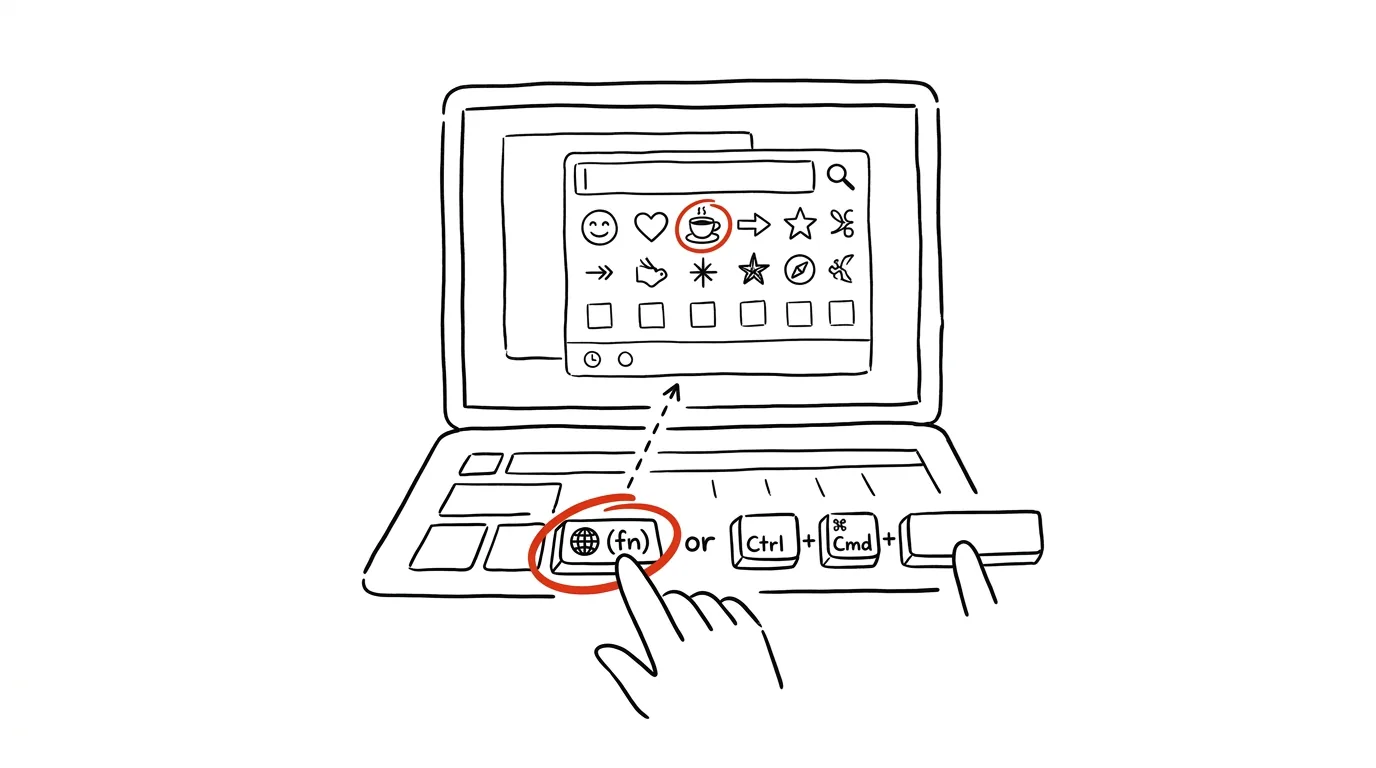
Arrows, dashes, emoji, math symbols, or accented characters your keyboard doesn't have — all of it is just a few keystrokes away. macOS has a built-in character panel that works like a full-text search across a huge library of symbols, and plenty of people have no idea it exists. Instead of searching the web and copying from some random site, you find the character right inside the window where you're typing.
A typical scenario
You're writing notes in a document and need an arrow "→" or a checkmark "✓". Without the built-in panel, that usually means opening a browser, finding a page of symbols, copying the character, and hoping the formatting doesn't fall apart when you paste it. Emoji are similar — you search for a site with an emoji table and copy characters one at a time.
With the character panel, you open a window right above what you're writing, type "arrow" or "check," and insert the character with Enter without ever leaving the document. It works the same way when you need just one specific accented character your keyboard layout doesn't know — say, an accented letter your English layout can't type, or a French "é."
How to do it
- Press Ctrl + Cmd + Space — on newer keyboards with a 🌐 (fn) key, pressing that alone is enough.
- A small window opens with the most frequently used emoji and a search field.
- Type what the character relates to — "arrow," "check," "thumbs up," "star." The list filters as you type.
- Select a character with the arrow keys or the mouse and confirm with Enter — it's inserted exactly where your cursor was.
- Click the icon in the top-left corner of the window to switch to the full view with all categories — currency symbols, math symbols, accented letters, technical symbols.
- Frequently used characters get sorted into a recently-used section, so you reach them faster the second time.
- The panel stays open until you close it yourself, so you can insert several characters into one piece of text in a row — search, pick, search again.
The best tools
- The built-in character panel (Ctrl+Cmd+Space) — works in every app, nothing to install.
- The 🌐 (fn) key — on Apple keyboards from the last few years, pressing it alone is enough, no modifiers needed.
- Third-party keyboard extensions (e.g. Rocket) — support emoji through colon syntax like on Slack, great for anyone who types emoji constantly.
- The Emoji & Symbols extension — for apps that support the panel as a keyboard extra, you can turn it on in Keyboard Settings and keep it permanently within reach as its own icon.
- Handoff between Apple devices — with the same Apple ID, a copied character can carry over to your iPhone or iPad too.
What you get out of it
- Time: a few dozen seconds saved with every symbol search — for anyone writing technical documentation or presentations, that's minutes a day.
- Consistency: characters from the built-in panel always match the surrounding text's font and size, unlike characters copied from a random web page.
- Peace of mind: no need to open a browser and risk getting distracted by something else along the way, like a notification or an interesting headline.
- A clean document: a character inserted from the panel carries no foreign formatting or hidden characters, which sometimes sneak in when copying from web pages.
Pro tip
A colon followed by a name can suggest emoji directly as you type in many apps (Slack, Messages, Mail) — like ":smile:". Combined with the built-in panel for less common characters, that covers practically anything you'll ever need. If you run into a character the panel doesn't recognize, try searching for the English term too — the symbol database is often richer in English than in other languages.
Want to go deeper? The handbook has a whole chapter on it — The app categories that matter.
Similar tips
Win + D: instant screen cleanup
Win+D
One press hides every window and shows the desktop. A second press brings it all back.
Win+E: File Explorer instantly
Win+E
A new folder, finding a file, copying — it all starts with File Explorer. Open it with a shortcut, not by hunting for an icon.
Win+H: dictate instead of typing
Win+H
Voice typing in Windows works in your language and starts wherever the cursor is blinking. Dictate a first draft of an email in a third of the time.
Was this helpful?
Liked this tip?
I send one like it every week by email. Two minutes to read, hours saved.
The Top 30 tips e-book, free — it lands in your inbox right away.
Then 1 tip a week · no spam · unsubscribe in one click
Prefer a system to single tips? The free email course — seven days, seven emails, one skill a day.