Tips & tricks · Shortcuts · Windows · ~1 min a day · 3 min read
Win + D: instant screen cleanup
Last reviewed:
Win+D
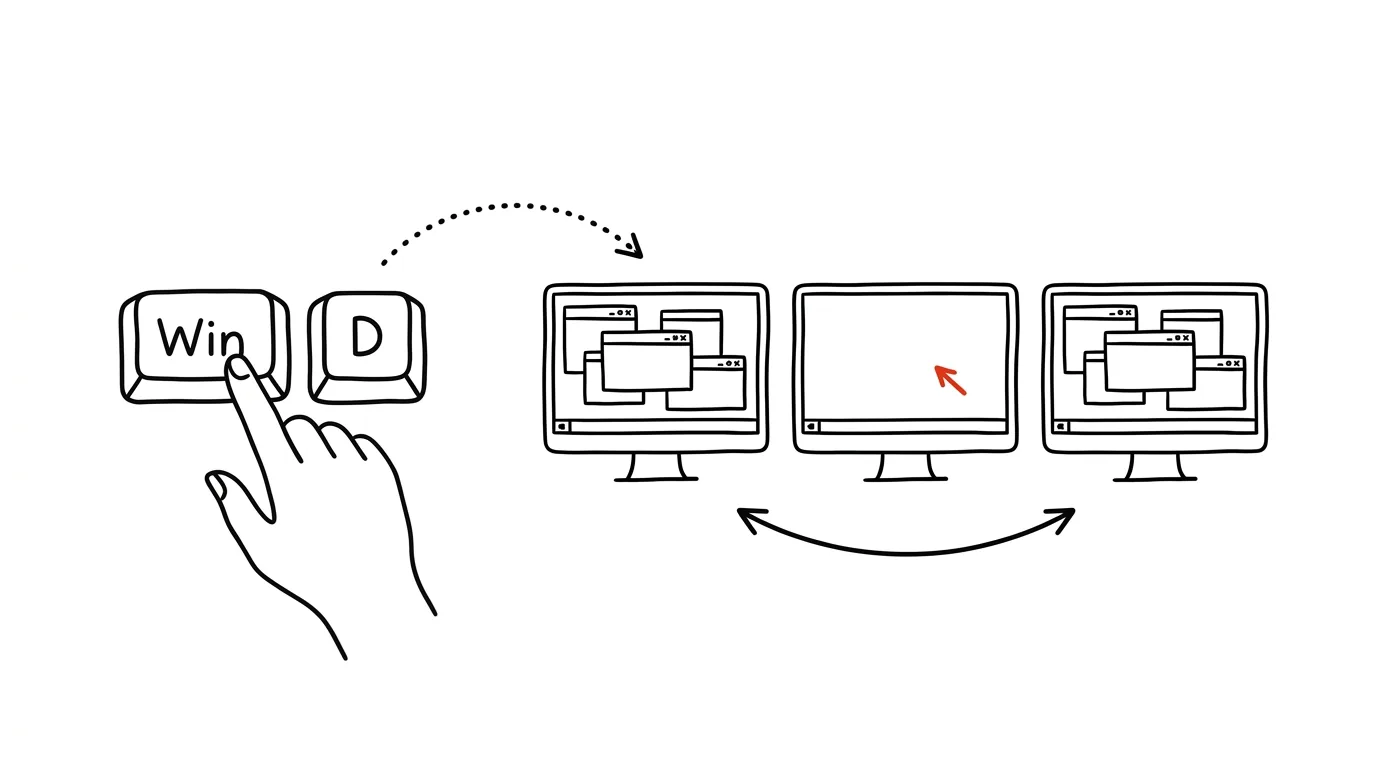
Fifteen windows open and you need a file from the desktop? Or a coworker walks by and there's something on screen you'd rather they didn't see — a half-written email, a private message, a document that isn't ready to be shared yet? Either way, the fix is exactly the same: one keypress, nothing to close or move by hand.
A typical scenario
Marek, an accountant, works across three apps at once — a spreadsheet, a mail client, and a browser with ten tabs. He needs to quickly check a file saved on the desktop, but with fifteen windows open, there's no way to get there except minimizing each window one by one, or clicking the tiny button all the way at the right end of the taskbar, which is easy to miss.
With Win + D, every window vanishes at once and a clean desktop appears. Once he's found the file, he presses the same shortcut again and every window comes back exactly where it was — nothing got closed, just hidden for a moment. The whole thing takes less time than moving the mouse to that corner button and hitting it precisely.
How to do it
- Press Win + D — every open window minimizes at once and the desktop appears.
- Press the same shortcut again — every window comes back exactly in the state and layout it was in before.
- Works regardless of how many windows are open or how many apps are running — everything minimizes at once, even ten or twenty windows.
- The shortcut doesn't close or save anything — it's purely a hide, so unsaved work in any app stays exactly as you left it.
- If you work across multiple monitors, windows on every screen minimize at once — the shortcut isn't limited to just the one your cursor happens to be on.
The best tools
- Windows' built-in shortcut (Win + D) — works instantly, nothing to install or configure.
- Show Desktop button — the same feature available via mouse too, a thin strip at the far right of the taskbar next to the clock.
- Win + M — an alternative that also minimizes every window, but unlike Win + D, restoring them needs a separate shortcut, Win + Shift + M, not a repeat press of the same combo.
- Virtual desktops (Win + Ctrl + D) — when instead of temporarily hiding windows you want a genuinely separate, empty desktop with its own set of windows.
What you get out of it
- Time: a few seconds saved every time you need to reach the desktop, multiplied by how often that happens during the day.
- Discretion: an instant way to clear the screen when a coworker or client walks by and the screen's contents aren't meant to be seen.
- Clarity: quick access to desktop files and shortcuts without closing or moving open windows one by one.
- A safe way back: unlike closing windows, nothing gets lost — the second press restores everything exactly where it was, including unsaved text or an unfinished form.
Pro tip
A related shortcut, Win + , (comma), only peeks at the desktop while you hold the keys down — release them and the windows come right back. Handy for a quick glance at the desktop, like checking the clock or a widget, without actually minimizing anything or having to restore it afterward.
Want to go deeper? The handbook has a whole chapter on it — The app categories that matter.
Similar tips
Switch tabs from the keyboard: Ctrl+Tab and the numbers
Ctrl+Tab
Ctrl+Tab moves through tabs in order, Ctrl+1 through 8 jumps to a specific position, and Ctrl+9 jumps to the last tab.
Three fingers on iPhone: copy, paste, and undo
The iPhone has gestures for working with text: a three-finger pinch copies, a spread pastes, and a swipe left undoes the last action.
iPhone: tapping the back triggers anything
A double-tap on the back of your phone can launch the flashlight, a screenshot, or a shortcut. A hidden button hardly anyone knows about.
Was this helpful?
Liked this tip?
I send one like it every week by email. Two minutes to read, hours saved.
The Top 30 tips e-book, free — it lands in your inbox right away.
Then 1 tip a week · no spam · unsubscribe in one click
Prefer a system to single tips? The free email course — seven days, seven emails, one skill a day.