Tips & tricks · Shortcuts · Browser · ~4 min a day · 3 min read
Switch tabs from the keyboard: Ctrl+Tab and the numbers
Last reviewed:
Ctrl+Tab
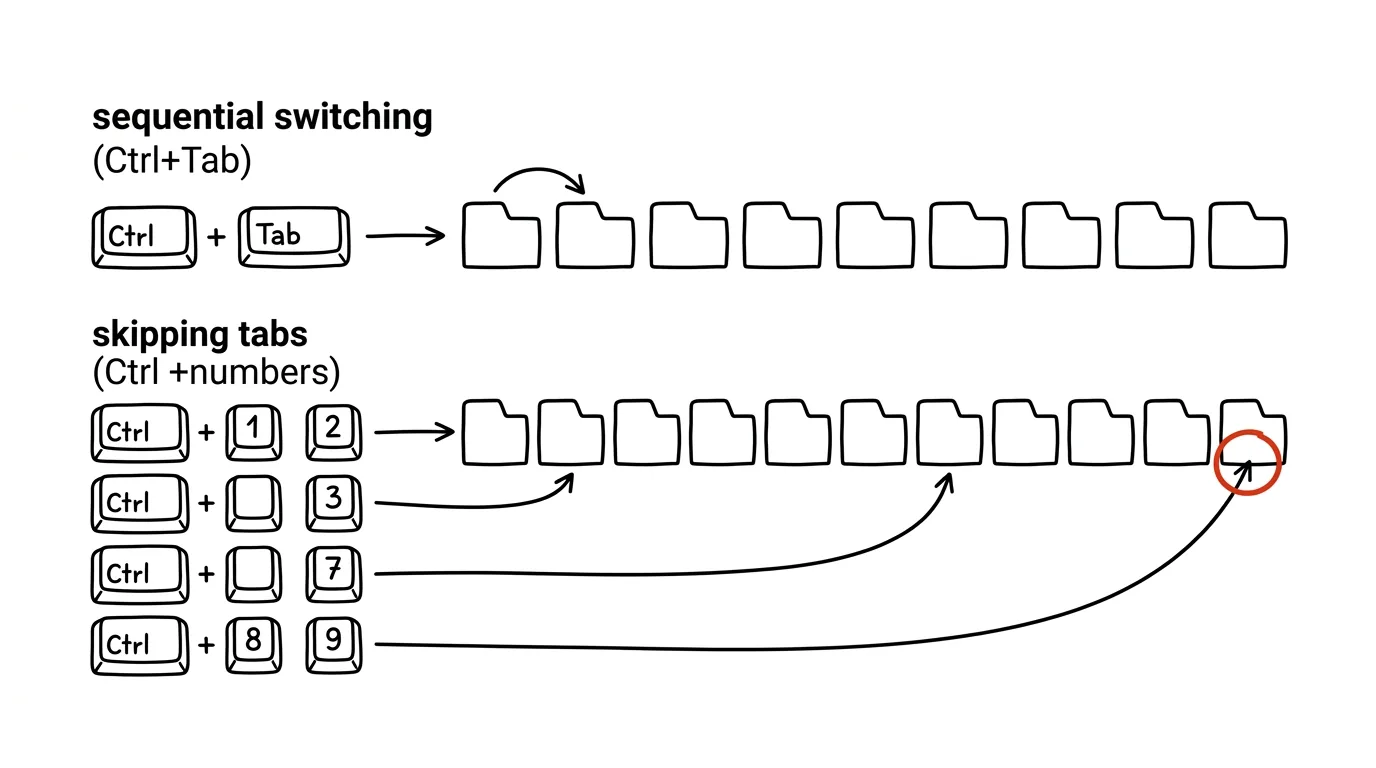
Hunting for the right tab with the mouse is a lottery — the more you have open, the harder it is to tell them apart by a tiny icon and a scrap of a title. The keyboard is the sure bet: a few Ctrl combinations get you to a specific tab without a single click and without scanning tabs with your eyes.
A typical scenario
You're working with six tabs at once — mail, calendar, a document in progress, two reference pages, and a work chat. You need to quickly jump from the document to your mail, check a coworker's reply, and get back to the document. With the mouse, that means moving up, hunting for the right icon among six similar-looking ones, clicking — and doing it all again on the way back to the document. With keyboard shortcuts, you press Ctrl + the mail tab's position number, read it, press the document's position number, and you're back. Your hands never leave the keyboard.
How to do it
- Ctrl + Tab switches to the next tab on the right; adding Shift (so Ctrl + Shift + Tab) moves one tab back to the left — useful for stepping through tabs in order, especially when you only have a few.
- Ctrl + 1 through Ctrl + 8 jumps straight to the tab at that position from the left, no matter how many tabs sit between your current one and the target — one shortcut and you're there.
- Ctrl + 9 always jumps to the very last tab on the right, no matter how many you have open in total — no need to count positions.
- The combination works the same way across every major browser (Chrome, Edge, Firefox), so you don't need to learn anything new when switching between them.
- On a Mac, Cmd + Option + right or left arrow does the equivalent for stepping through tabs — the principle stays the same as Ctrl+Tab on Windows.
The best tools
- The built-in Ctrl+Tab and Ctrl+1…9 shortcuts — work with zero setup in every major browser and cover the vast majority of tab-switching needs.
- Pinned tabs (right-click a tab → Pin) — tabs locked into fixed positions on the left, so “Ctrl+1” means the same thing day after day.
- Tab groups (available in Chrome and Edge) — color-coded groups of tabs by project or topic, which makes switching easier to navigate visually too.
- Vertical tabs (Edge, or an extension for Chrome) — for users with dozens of open tabs, where the list fits more clearly into a side panel than a single top row.
What you get out of it
- Time: a few seconds saved on every tab switch adds up to a few minutes a day across dozens of daily switches.
- Less distraction: a keyboard shortcut doesn't tempt you to “just glance” at other tabs on the way with the mouse, the way hunting for the right tab easily does.
- Precision: for visually similar tabs (two documents with the same icon), a position-based shortcut is more reliable than searching by eye.
Pro tip
Keep important tabs (mail, calendar) permanently pinned on the left with the Pin option — then “Ctrl+1 = mail” has a stable, predictable meaning, and you stop hunting for tabs by sight because you know exactly which position holds which. The same principle is worth applying to the work tools you use all day, like a company chat or a task spreadsheet — the more stable the order, the faster the switching.
Want to go deeper? The handbook has a whole chapter on it — The app categories that matter.
Similar tips
The middle mouse button: opens and closes tabs too
Middle-clicking a link opens it in a new background tab. Middle-clicking a tab closes it — no need to hit the tiny X.
Page behaving strangely? Try a hard refresh with Ctrl+F5
Ctrl+F5
Broken layout, an old version, a button that doesn't respond — Ctrl+F5 forces the browser to download the page again, from scratch.
Ctrl+Shift+D saves every tab into a single bookmarks folder
Ctrl+Shift+D
Have to close your browser right now but you're mid-research with twenty tabs open? One shortcut saves them all as a bookmarks folder.
Was this helpful?
Liked this tip?
I send one like it every week by email. Two minutes to read, hours saved.
The Top 30 tips e-book, free — it lands in your inbox right away.
Then 1 tip a week · no spam · unsubscribe in one click
Prefer a system to single tips? The free email course — seven days, seven emails, one skill a day.