Tips & tricks · Shortcuts · Browser · ~5 min a week · 2 min read
Page behaving strangely? Try a hard refresh with Ctrl+F5
Last reviewed:
Ctrl+F5
In this article
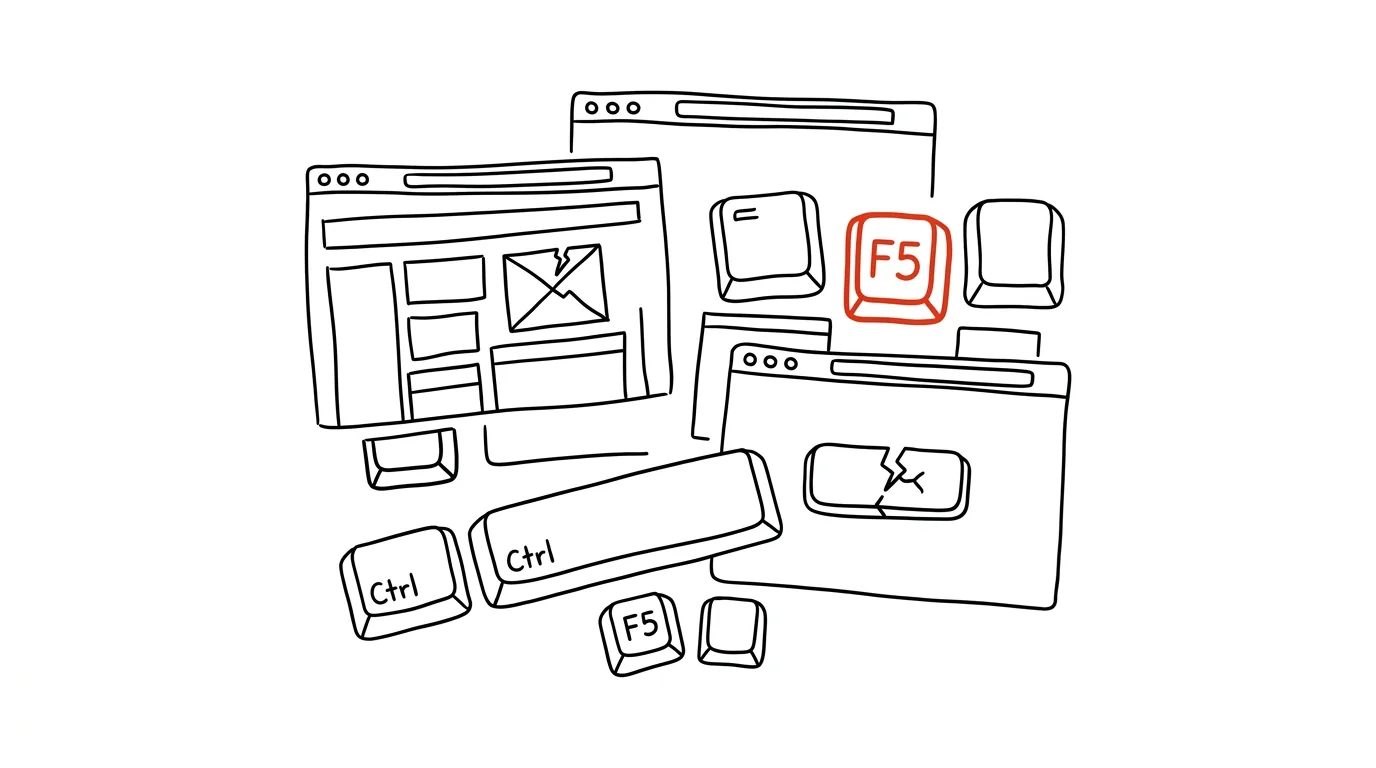
A page looks broken, a form won't submit, or you're seeing an old version of a site even though a coworker swears the new one is already live. A plain refresh with F5 often doesn't help — for speed, the browser loads parts of pages from its cache, a copy stored on your computer. When that copy is stale or corrupted, you're stuck in a loop. A hard refresh bypasses the cache and downloads the entire page again from the server.
How to do it
- Press Ctrl + F5, or alternatively Ctrl + Shift + R — both shortcuts do the same thing and work in Chrome, Edge, and Firefox. On a Mac, use Cmd + Shift + R.
- The browser ignores its stored copies and downloads the page, styles, and images again from the server. Loading takes a bit longer than usual — that's fine, more is happening than normal.
- Save or copy any in-progress form entries elsewhere before a hard refresh — the refresh reloads the page, so unfilled fields are lost just as they would be with a regular F5.
- If even that doesn't help, the problem lies elsewhere than the cache: on the site's end, in your login, or in a browser extension. A good next step is opening the page in an incognito window — it starts with no cache, login, or extensions, so you immediately see whether the fault is on your end or theirs.
A typical scenario
A marketer sent a designer a fix for a banner on the website. The designer uploaded it and wrote “done” — but she still sees the old banner and is already typing an irritated reply. In fact, she's looking at a cached copy: her browser decided it already has an image with that filename and won't download it again. Ctrl+F5, the new banner appears, conflict averted.
The same trap lurks after every update: an online store after a price list change, a company website after a new feature ships, an intranet after a form changes. “It doesn't work for me” vs. “it works for me” is, in a surprising number of cases, just the difference between a fresh and a cached copy of the page — and a hard refresh erases it in two seconds.
What you get out of it
You save yourself pointless back-and-forth about whether a website change is live or not — and false “broken page” complaints that one keypress fixes. A hard refresh is the first thing to try before telling anyone that something doesn't work.
Pro tip
Pair the shortcut with a simple rule: F5 when you want to see new content, Ctrl+F5 when something doesn't add up. A regular refresh is faster and usually enough; a hard one comes out when a page looks different than it should. If you only remember one troubleshooting shortcut, make it this one.
Want to go deeper? The handbook has a whole chapter on it — The app categories that matter.
Similar tips
Win+X: the hidden power-user menu
Win+X
Right-click the Start button (or press Win+X) to open a menu with Device Manager, Settings, Terminal — all two keystrokes away.
Alt+drag in Word: a vertical text selection
Hold Alt and drag with the mouse — Word selects a rectangle of text across lines. Perfect for deleting a column of characters that a normal selection can't grab.
Alt + Tab: switch windows without touching the mouse
Alt+Tab
The most famous shortcut, and most people only use half of it. Hold Alt and cycle through.
Was this helpful?
Liked this tip?
I send one like it every week by email. Two minutes to read, hours saved.
The Top 30 tips e-book, free — it lands in your inbox right away.
Then 1 tip a week · no spam · unsubscribe in one click
Prefer a system to single tips? The free email course — seven days, seven emails, one skill a day.