Tips & tricks · Shortcuts · Windows · ~3 min a week · 3 min read
Win+X: the hidden power-user menu
Last reviewed:
Win+X
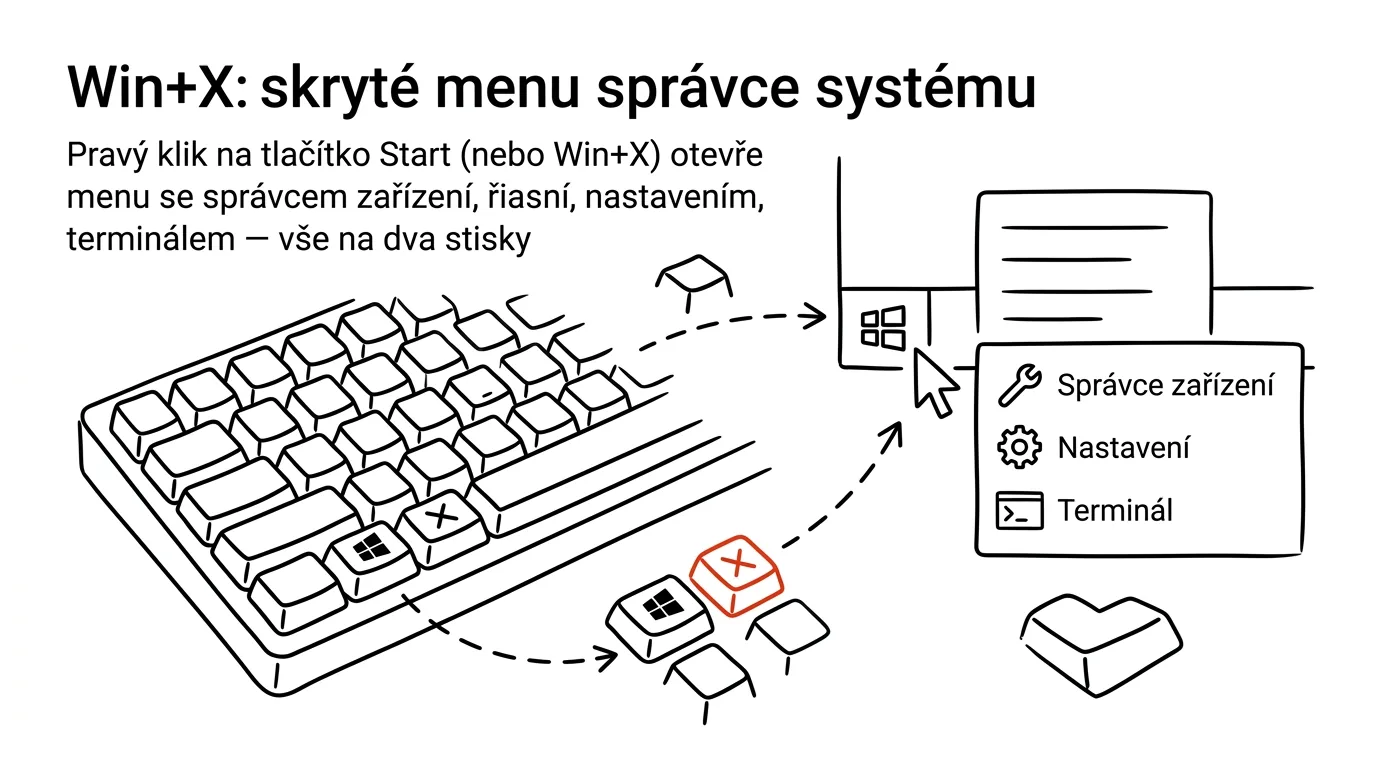
The path to system tools doesn't have to go through search. Windows has a hidden quick menu with all the key admin tools in one place — Device Manager, Task Manager, Settings, and Terminal — and it opens with a single press, without you needing to search for anything or click through the Start menu.
A typical scenario
You need to quickly open Task Manager because some app has frozen, or Device Manager because of a printer issue. The usual route is to open the Start menu, type the tool's name into search, wait for results, and click the right one. Three or four steps for something you'd want at hand instantly, especially when the computer isn't responding the way it should.
With Win + X (or a right-click on the Start button), a menu with all these tools opens right where your cursor is, with no waiting for search and no risk of typing the tool's name wrong.
How to do it
- Press Win + X, or right-click the Start button directly on the taskbar.
- A menu opens listing system tools — among others, Device Manager, Task Manager, Settings, Terminal (Windows PowerShell or Command Prompt depending on your setup), File Explorer, and the option to sign out or shut down the computer.
- Click an item to launch it directly, with no need to search or hunt through the Start menu.
- Items have underlined letters that act as their own shortcuts — after opening the menu with Win + X, just press T to open Task Manager directly, without touching the mouse.
- The same approach works for the other underlined letters — every menu item has its own.
The best tools
- The built-in Win + X menu — free, works on any Windows computer, the fastest way to system tools with no searching.
- Task Manager directly (Ctrl+Shift+Esc) — if you only need this one tool, it has its own direct shortcut.
- Windows Terminal — a modern unified interface for both PowerShell and Command Prompt, available right from the Win + X menu, good for quick command-line tasks.
- Control Panel (Settings) — for deeper system configuration, where the Win + X menu only offers a quick link.
What you get out of it
- Time: roughly 2–3 minutes a week saved on searching for tools you use only occasionally and whose exact name you don't remember.
- Faster troubleshooting: at the moment a computer is misbehaving and the Start menu responds slowly, Win + X works reliably and instantly.
- Less mouse dependence: the underlined-letter combinations let you control the whole menu from the keyboard alone.
- Clarity: all admin tools in one place, with no need to remember exactly where in Settings each one lives.
Pro tip
Items have underlined letters — Win + X followed by T opens Task Manager directly from the keyboard, without a single mouse click, which is especially handy at the moment your desktop isn't behaving as it should.
Want to go deeper? The handbook has a whole chapter on it — The app categories that matter.
Similar tips
Black screen? Win+Ctrl+Shift+B restarts graphics without restarting the PC
Win+Ctrl+Shift+B
The display freezes or turns black after connecting a monitor, but the computer is still running. Win+Ctrl+Shift+B restarts the graphics driver — the picture comes back and you lose nothing.
Win + L: lock your computer every time you step away
Win+L
The fastest security habit there is. One keypress and nobody can see what you're working on.
Alt+Space: the window menu that rescues a lost window
Alt+Space
The system window menu can move a window with arrow keys — a lifesaver when a window ends up off-screen after unplugging a monitor.
Was this helpful?
Liked this tip?
I send one like it every week by email. Two minutes to read, hours saved.
The Top 30 tips e-book, free — it lands in your inbox right away.
Then 1 tip a week · no spam · unsubscribe in one click
Prefer a system to single tips? The free email course — seven days, seven emails, one skill a day.