Tips & tricks · Shortcuts · Windows · ~10 min when things break · 3 min read
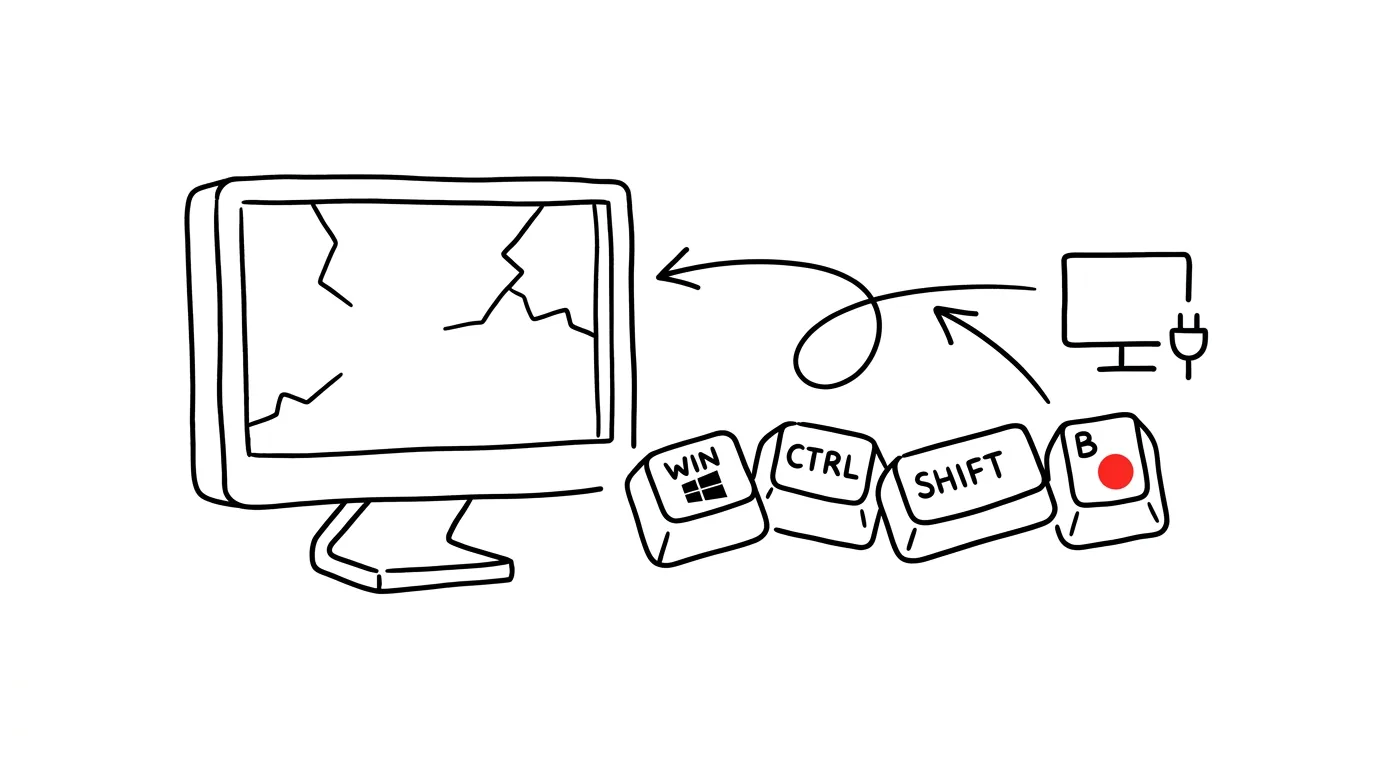
Black screen? Win+Ctrl+Shift+B restarts graphics without restarting the PC
Last reviewed:
Win+Ctrl+Shift+B
In this article
You connect your laptop to a docking station and one monitor stays black. Or after waking from sleep, the display “glitches” — the mouse moves but windows don't respond, or you see nothing but darkness even though the computer is audibly running. Most people at that point hold down the power button and sacrifice all their unsaved work. Yet Windows has a built-in rescue shortcut: Win+Ctrl+Shift+B restarts the graphics driver — the screen flashes, there's a beep, and the picture comes back. All your apps keep running the whole time; nothing closes, nothing is lost.
How to do it
- When the display freezes or goes black, press Win + Ctrl + Shift + B all at once. You can even do it blind — the shortcut works even when you can't see anything on screen.
- The screen goes dark or flickers for a second and the system beeps briefly — that's normal, it means the graphics driver just restarted.
- Within a few seconds the picture snaps back. Open apps, documents, and unfinished work all stay untouched; only the graphics layer of the system restarted.
- If the display doesn't come back, try the shortcut once more — and only if that doesn't help either, reach for a harder fix: Ctrl + Alt + Delete (works even with graphics trouble) and a restart via the power button in the corner of the screen.
A typical scenario
You finish clicking through a presentation in the morning, close your laptop, and connect it to a projector in the meeting room. The screen is black, so is the laptop, and colleagues are waiting. In the past, this meant a hard restart, minutes of embarrassment, and reopening everything from scratch. Now you press the four-key shortcut, the system beeps, the picture snaps back on both the laptop and the screen — and the presentation starts five seconds late, which nobody notices.
The same rescue works after disconnecting from a dock, when the display freezes in a game, or when the picture starts acting strange after a driver update.
What you get out of it
- Saved work: the difference between restarting the driver and hard-restarting the computer is the difference between “nothing happened” and lost unsaved work.
- Minutes instead of a quarter hour: the picture snaps back in seconds; restarting the computer and reopening everything takes considerably longer.
- A first-aid move you'll actually remember: for display problems, this is always the cheapest thing to try first — it can't make anything worse, and apps keep running.
Pro tip
The shortcut helps specifically with display trouble. When just one app freezes and the rest of the system is alive and well, the right tool is different: Ctrl+Shift+Esc opens Task Manager, where you can end the stuck program directly. And if black screens at the dock keep recurring every week, that's a signal to update your graphics drivers — the shortcut is first aid, not a permanent cure.
Want to go deeper? The handbook has a whole chapter on it — The app categories that matter.
Similar tips
Email three times a day in blocks, not sixty times in drips
Constantly checking your inbox shreds your focus into pieces. Three fixed blocks a day are enough for 95% of jobs.
The two-minute rule for your inbox
Anything that takes less than two minutes, do right when you read it. Longer things go to your task list — and archive the email.
In-depth guide · 64 min
How to write an email people answer
A complete guide to writing emails: subject lines, salutations, formal and casual English, ready-made wording for ten hard situations, and prompts for AI.
Was this helpful?
Liked this tip?
I send one like it every week by email. Two minutes to read, hours saved.
The Top 30 tips e-book, free — it lands in your inbox right away.
Then 1 tip a week · no spam · unsubscribe in one click
Prefer a system to single tips? The free email course — seven days, seven emails, one skill a day.