Tips & tricks · Apps · Mac · ~5 min a day · 3 min read
Handoff: pick up unfinished work from iPhone on your Mac with one click
Last reviewed:
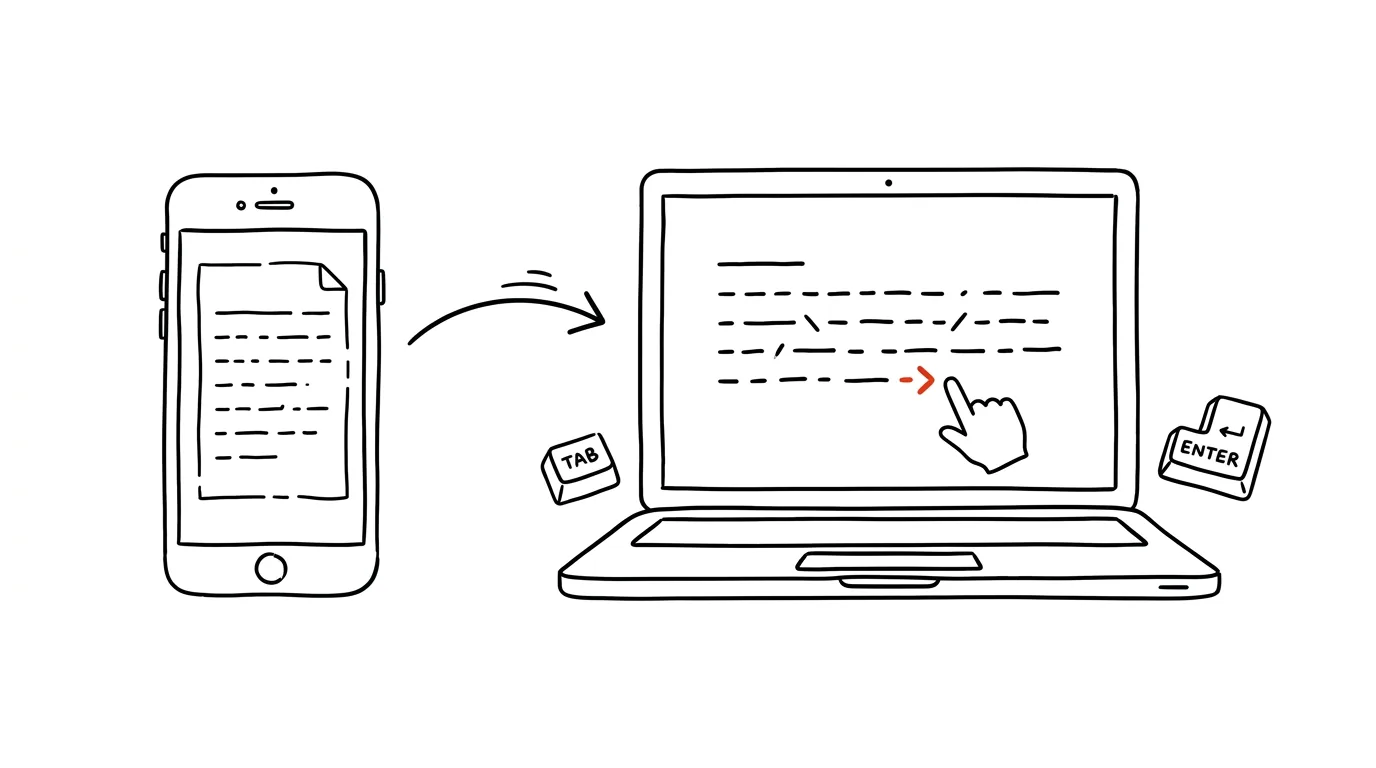
You start writing an email on your iPhone, but by the third sentence it's clear this one is going to run to ten paragraphs plus an attachment. Most people save it as a draft at that point, then painstakingly dig it up on their computer from the drafts folder — or just start over. Handoff removes that middle step: whatever you've got in progress on your phone offers itself up on your Mac, and one click continues it exactly where you left off. It works with Mail, Safari, Notes, Messages, Calendar, Maps, and plenty of third-party apps too.
How to do it
- Both devices need the same Apple ID, with Bluetooth and Wi-Fi turned on. On iPhone, check Settings → General → AirPlay & Handoff; on Mac, System Settings → General → AirDrop & Handoff and the Allow Handoff between this Mac and your iCloud devices option.
- Start something on your iPhone — an email or a note, say — and sit down at your Mac.
- Look at the Dock: an app icon with a small phone symbol appears at its edge. Click it and the in-progress content opens on the Mac, cursor and all, right where you stopped.
- The same icon shows up in the app switcher — hold Cmd + Tab and you'll see it at the end of the row.
- It works the other way too: a page open in Safari on your Mac shows up on your iPhone at the bottom of the app switcher (swipe up from the bottom of the screen and hold) as a "From Mac" strip.
- If the icon doesn't show up, check the three most common causes: Bluetooth is off on one of the devices, the devices are signed into different Apple IDs (typically work vs. personal), or the app on the other device is fully closed — Handoff only passes along activity that's genuinely in progress.
A typical scenario
A salesperson replies to a client from her phone on the way back from a meeting. Halfway through the message she arrives at the office — she needs to add a table from her computer and a link to the proposal. Instead of hunting for the draft, she clicks the Mail icon with the phone badge in the Dock, the in-progress message opens on the big screen, and she just finishes writing and drags in the attachment. She hands off webpages the same way: whatever she starts reading on her iPhone over lunch, she opens on the Mac that afternoon without emailing herself a link.
The reverse direction is worth trying too: a to-do note open on your Mac transfers to your phone with one tap as you leave the office — exactly as you left it, including your position in a long text.
What you get out of it
A whole category of small friction disappears: hunting for drafts, emailing yourself links, retyping the start of something. Work flows between devices so smoothly you stop thinking about which one you started it on. And if all you need to carry over is copied text or an image, follow up with Universal Clipboard — you turn on both features with the same switch.
Want to go deeper? The handbook has a whole chapter on it — The app categories that matter.
Similar tips
Grouping Sheets: Edit a Dozen Excel Sheets at Once
Ctrl+click on sheet tabs groups them — and whatever you type into one gets written into all of them. Fix twelve monthly sheets in one move.
Sum and Average Without a Formula: Just Select
Select the cells and look down at the status bar — the sum, average, and count are always right there.
Text to Columns: Split a CSV Export Apart
Data separated by commas or semicolons crammed into one column? The Text to Columns wizard splits it correctly.
Was this helpful?
Liked this tip?
I send one like it every week by email. Two minutes to read, hours saved.
The Top 30 tips e-book, free — it lands in your inbox right away.
Then 1 tip a week · no spam · unsubscribe in one click
Prefer a system to single tips? The free email course — seven days, seven emails, one skill a day.