Tips & tricks · Shortcuts · Mac · ~10 min a month · 3 min read
Show hidden files with a single shortcut
Last reviewed:
Cmd+Shift+.
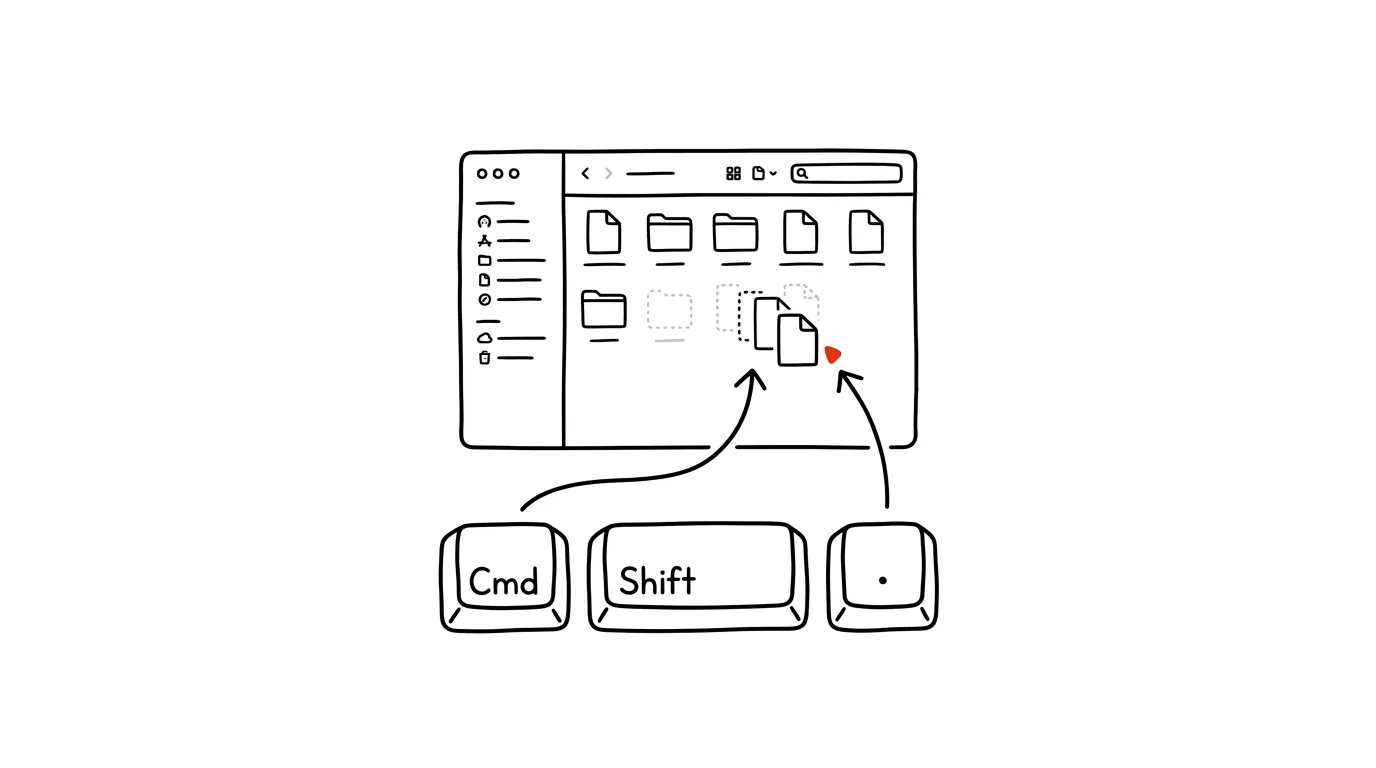
Finder normally hides files that start with a period — and there can easily be a few dozen of them in your home folder, with most users not even aware they exist. Sometimes, though, you need to see them: config files like .env or .gitconfig, system backups, or hidden app settings that Finder otherwise won't let you reach.
A typical scenario
A developer needs to edit a .env file at the root of a project — it holds the environment variables the app reads on startup. In Finder, though, it's nowhere to be found, because macOS doesn't show files with the hidden flag (the ones starting with a period) by default. Without knowing the shortcut, next comes Terminal and commands like ls -a, just to confirm the file even exists.
With the shortcut, all it takes is opening Finder to the right location and toggling the view with a single keypress. Hidden files appear right alongside the rest, grayed out to set them visually apart, and you can work with them exactly like any other file — drag them, open them, edit them.
How to do it
- Open Finder and navigate to the folder where you're looking for hidden files (typically your home folder or a project root).
- Press Cmd + Shift + . (period) — hidden files and folders appear grayed out among the regular ones.
- Work with them normally: open, rename, move, or copy them just like visible files.
- The same shortcut hides them again — they don't stay visible permanently unless you set that up separately.
- Showing hidden files applies to all of Finder, not just one window, so once toggled on, you'll see them in every open folder.
- The hidden-files view doesn't necessarily stick around forever — if you find after a while that hidden files are gone again, just press the same shortcut once more.
The best tools
- Finder's built-in shortcut (Cmd + Shift + .) — free, an instant toggle, nothing to configure.
- Terminal and the
ls -acommand — for developers who work from the command line anyway and want a quick listing without opening Finder. - Path Finder — a paid Finder replacement with more advanced file management, including a permanent toggle for showing hidden items.
- VS Code / a text editor — for a project's config files (.env, .gitignore), it's often faster to just open the whole project folder directly in an editor, which shows hidden files in its file tree automatically.
What you get out of it
- Time: saves you a detour into Terminal just to confirm a file exists, or to make a quick edit.
- Visibility: you see the actual contents of a folder, including configs and backups, which helps when debugging environment or version-control issues.
- A safer cleanup: hidden files and app caches can surprisingly eat up a lot of space — without showing them, you'd never see them, let alone be able to clear them out.
- Less switching to Terminal: working with config files stays in Finder, where renaming, copying, and moving with the mouse is more comfortable than typing commands.
Pro tip
Hidden files don't disappear when you toggle the view off — they still exist, just tucked away again. If you want to permanently reveal a specific file (say, because you edit it often), you can rename it without the leading period — just make sure first that the program reading it won't choke on the change. For config files like .env, it's safer to leave them hidden and access them only via the shortcut, since plenty of tools expect the filename to start with a period, and renaming it would stop them from recognizing it.
Want to go deeper? The handbook has a whole chapter on it — The app categories that matter.
Similar tips
Universal Control: one mouse and keyboard for both Mac and iPad
Move the cursor past the edge of your Mac's screen — and it shows up on the iPad. One keyboard, one mouse, two devices, zero setup.
Raycast: a launcher that replaces half a dozen apps on the Mac
A faster Spotlight with clipboard history, window management, text snippets, and thousands of extensions. Free at its core.
AirDrop: a file on the next device in two seconds
Don't email files between Apple devices. AirDrop is faster, doesn't compress anything, and has no size limits.
Was this helpful?
Liked this tip?
I send one like it every week by email. Two minutes to read, hours saved.
The Top 30 tips e-book, free — it lands in your inbox right away.
Then 1 tip a week · no spam · unsubscribe in one click
Prefer a system to single tips? The free email course — seven days, seven emails, one skill a day.