Tips & tricks · Apps · Mac · ~5 min a week · 3 min read
AirDrop: a file on the next device in two seconds
Last reviewed:
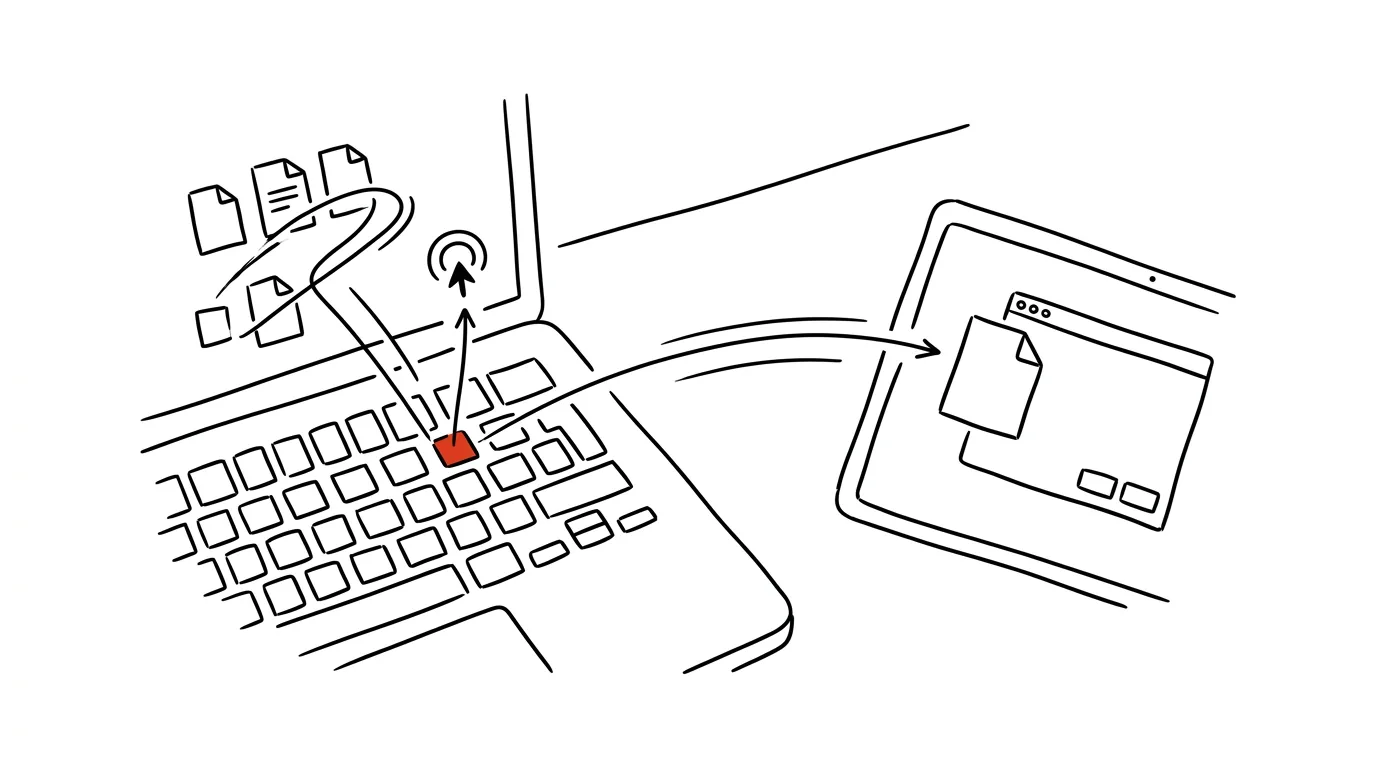
Emailing a presentation from your Mac to your iPhone is a pointless detour — you have to write yourself an email, wait for it to send, then download it on your phone, all over the internet even though both devices are sitting side by side on the same desk. AirDrop sends the file directly between devices with no compression, no size limit, and no need to even be connected to the internet.
A typical scenario
You finish a presentation on your Mac and need it on your iPhone so you can show it to a client straight from your phone. Over email that means writing yourself a message, attaching the file, waiting for it to send, switching to your phone, opening the email, downloading the attachment — and for larger files, running into an attachment size limit. Over AirDrop, you just select the file in Finder, share it, and confirm receipt on your phone within seconds — the file travels directly between devices, not through some third-party server.
How to do it
- In Finder, right-click the file (or Ctrl + click) and select Share → AirDrop.
- Make sure both devices have Bluetooth and Wi-Fi turned on — AirDrop needs both, even though the transfer itself doesn't go over the internet.
- In the AirDrop window, select the target device, which appears in the list once both devices are close enough to each other.
- On the receiving device, an acceptance request pops up — confirm it; between your own devices signed into the same Apple ID, it's accepted automatically without confirmation.
- AirDrop works the same way in reverse — straight from a photo on your iPhone into a folder on your Mac, or between two Macs.
- If a device isn't showing up in the list, check Settings → General → AirDrop to make sure receiving isn't restricted to contacts only, which the other party may not be part of.
The best tools
- AirDrop (built into macOS and iOS) — free, no internet required, no file size limit, works between any Apple devices.
- Nearby Share — the equivalent for Android and Windows devices, if you're sending a file outside the Apple ecosystem.
- Shared iCloud Drive folder or Documents — for files that multiple people need ongoing access to, not just a one-time transfer.
- Universal Clipboard — if you just need to move a short bit of text or a link rather than a whole file, copy and paste between devices without AirDrop at all.
What you get out of it
- Time: transferring a large file takes seconds instead of minutes spent uploading and downloading through email or the cloud.
- Quality: no compression of photos and videos the way email or most messaging apps do — the file arrives exactly as it was.
- No dependence on the internet: it works even without a Wi-Fi connection to a router, as long as both devices have Wi-Fi and Bluetooth on.
- Less email clutter: you stop accumulating dozens of "to self" emails with attachments you'll delete anyway.
Pro tip
If AirDrop isn't working reliably between your own devices, make sure both are signed into the same Apple ID and have Handoff turned on in Settings — without it, automatic receiving between your own devices may not kick in.
Want to go deeper? The handbook has a whole chapter on it — The app categories that matter.
Similar tips
Windows Search: extend the index to your working folders
Win+S
When Windows can't “find” your files, it's probably not indexing the right folders. One search setting fixes it all.
Quake mode: a terminal that slides out from anywhere on Win+`
Win+`
Windows Terminal has a mode like an old game console: Win+` slides it down over the top half of the screen, press it again to hide it. Always at hand, never in the way.
winget: install and update programs with one command
No more hunting for installers across the web: winget install installs a program from a verified source, and winget upgrade --all updates everything at once.
Was this helpful?
Liked this tip?
I send one like it every week by email. Two minutes to read, hours saved.
The Top 30 tips e-book, free — it lands in your inbox right away.
Then 1 tip a week · no spam · unsubscribe in one click
Prefer a system to single tips? The free email course — seven days, seven emails, one skill a day.