Tips & tricks · Workflow · Mac · ~10 min a day · 3 min read
Stage Manager: one window on stage, the rest wait in the wings
Last reviewed:
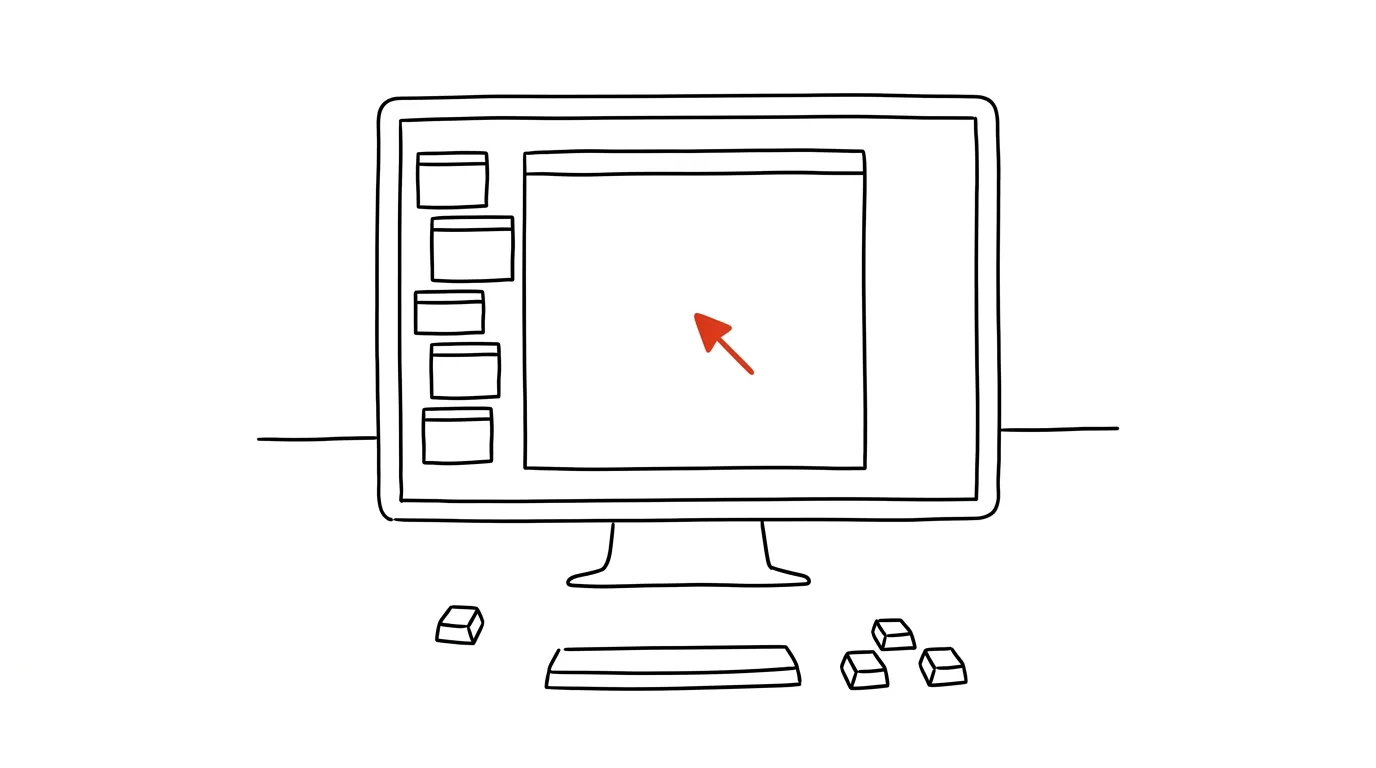
When overlapping windows pile up beyond control, try putting them on stage. Stage Manager is a macOS feature that changes how you work with windows — instead of a tangle of overlapping windows scattered across your desktop, one window always takes center stage while the rest wait lined up on the side as small thumbnails.
A typical scenario
A designer has a graphics editor open, a browser with reference images, notes with client feedback, and email with the latest comments. Without Stage Manager, all four windows overlap on one desktop, finding the right one means clicking and shuffling around, and it's easy to lose track of a window you forgot about.
With Stage Manager turned on, only one app sits center stage in focus at a time, while the rest wait in a neat row of thumbnails along the side. Switching to another window is one click, no digging through a pile of overlapping windows.
How to do it
- Turn on Stage Manager from Control Center (the toggles icon in the menu bar), or via System Settings → Desktop & Dock → Stage Manager.
- The active window enlarges and stays centered on screen, while other open apps shrink into thumbnails lined up along the left edge.
- Click a thumbnail to switch the “scene” — the selected window becomes the main one in the center, and the previous main window moves back into the thumbnail row.
- New windows you open automatically become the main scene, while the previous ones wait on the side until you return to them.
- Turn Stage Manager off the same way you turned it on — from Control Center or System Settings — and your windows return to the normal, freely arranged view.
- In Stage Manager's settings, you can choose whether thumbnails should also show windows from other apps, or whether the scene should include only windows from the app you're currently using.
The best tools
- Built-in Stage Manager — free, part of macOS, no installation or extra setup needed.
- Mission Control (built-in feature) — an alternative overview of all open windows and desktops at once, useful when you want to see absolutely everything, not just one scene.
- Split View — a simpler option for when you just need two apps side by side, without the whole scenes-and-thumbnails concept.
- Rectangle or Magnet — manual window-arranging tools for people who'd rather see several windows at once than one scene in the foreground.
What you get out of it
- Focus: only one main thing is ever visible, nothing else distracts from the edge of the screen.
- Time: switching between tasks is one click on a thumbnail, instead of hunting for a window under a pile of overlapping apps.
- A tidier desktop: even with many apps open, the screen stays visually calm because most windows are shrunk and tucked away.
- Fewer lost windows: a window you forgot about doesn't get buried behind others — it stays visible as a thumbnail until you actively close it.
Pro tip
Drag a window from the side thumbnail strip straight into the center of the screen to create a window group that then switches together as a single scene — handy for an editor-and-browser pair you always need together. You can expand the group with another window the same way, by dragging it in, if you find the task needs a third app on stage.
Want to go deeper? The handbook has a whole chapter on it — Core systems: inbox, priorities, reviews.
Similar tips
The parking file: unfinished work survives every interruption
Before a meeting or a coworker pulls you away, write one sentence: what you're doing and what the next step is. Coming back then takes seconds, not a quarter hour.
Free trial? Cancel it right away — it runs the full course anyway
For subscriptions through the App Store or Google Play, you can cancel the trial a minute after activating it: it still runs to the end, and nothing gets charged. Elsewhere, a reminder does the job.
The shutdown ritual: close the day so it doesn't follow you
Five minutes at the end of work: write down loose ends, glance at tomorrow, close the laptop. Work stays at work — even in your head.
Was this helpful?
Liked this tip?
I send one like it every week by email. Two minutes to read, hours saved.
The Top 30 tips e-book, free — it lands in your inbox right away.
Then 1 tip a week · no spam · unsubscribe in one click
Prefer a system to single tips? The free email course — seven days, seven emails, one skill a day.