Tips & tricks · Apps · Everywhere · ~4 min a day · 3 min read
Notion: Ctrl+P jumps to any page
Last reviewed:
Ctrl+P
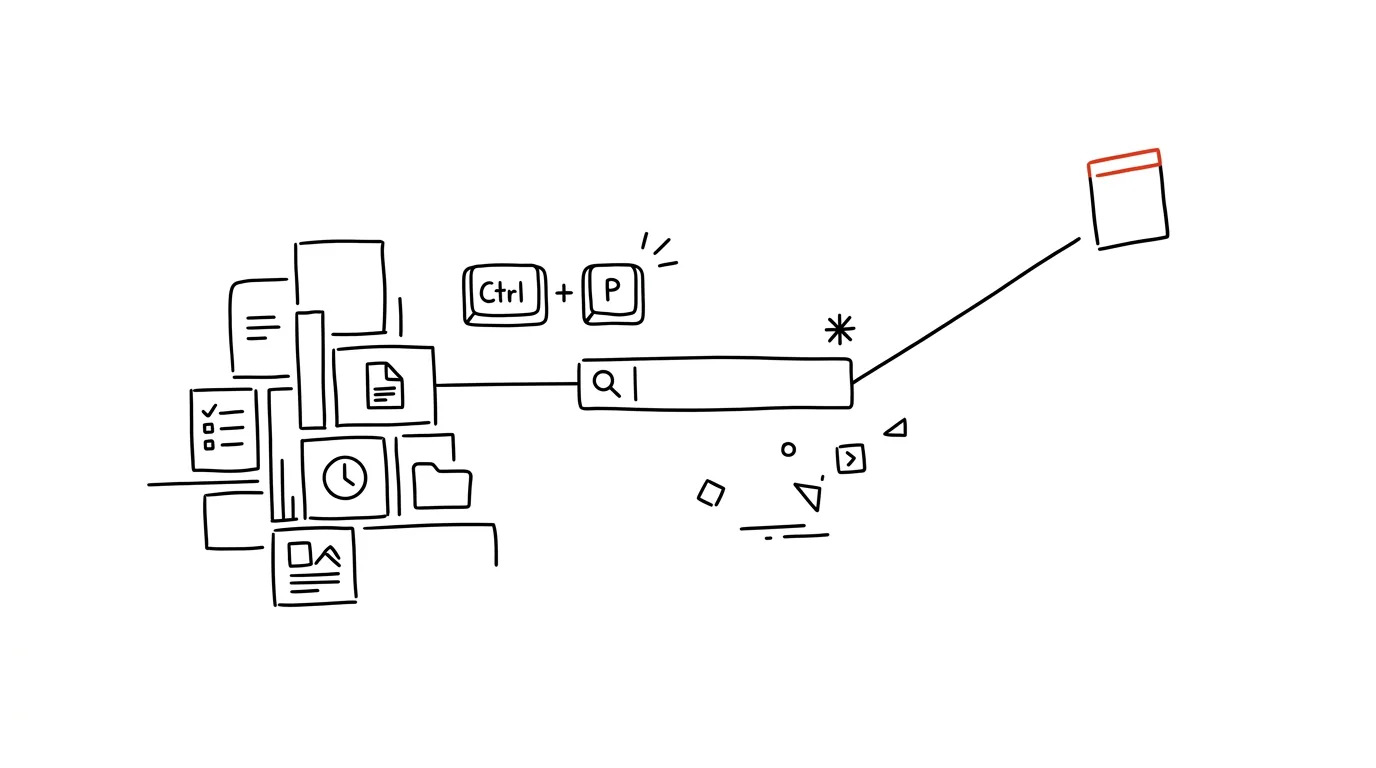
Clicking through the page tree in the left sidebar stops working around your twentieth page in a workspace — and in a real company or personal Notion, there will quickly be hundreds. Quick search is the only navigation that scales: it doesn't matter how deeply a page is nested or how many subpages it's buried under, you'll find it from the keyboard in a few seconds.
A typical scenario
Filip has dozens of project pages in his company's Notion, each with its own subpages — brief, timeline, meeting notes. When he needs to quickly find the meeting notes for a specific project from last month, clicking through the tree means opening the project, then the subpage, then the right month — four or five clicks and a guess at exactly where he filed it back then. With quick search, he just presses the shortcut, types a few words from the title or even the content of the page, and the note he's looking for shows up in a moment, even if it's hidden five levels deep.
How to do it
- Press Ctrl + P (on Mac, Cmd + P) anywhere in Notion, no matter what page you're currently on.
- Start typing the title of the page you're looking for, or even just text you know appears in it — Notion searches content too, not just titles.
- Results filter as you type each character, so usually a few letters are enough for the page you want to show up near the top.
- Press Enter to open the highlighted result, or use the up and down arrows to move through the options offered.
- Recently visited pages show up at the top even without typing a search term, so the shortcut also works as a quick switcher between pages you were just working on.
- It also works across shared workspaces — if you have access to multiple team spaces at once, search covers all of them you have permission for, so you don't have to switch between them manually first.
The best tools
- Quick search in Notion (Ctrl+P) — a built-in, free feature that works instantly with no setup.
- Notion AI search — for more complex queries, when you're not sure of the exact page title but remember roughly what it was about.
- Favorites — for pages you return to regularly, it's worth pinning them to the sidebar as well, for an even faster route.
- A page structure with clear titles — no search, however good, replaces consistent naming, which lets you instantly recognize the right page among the search results.
What you get out of it
- Time: several minutes a day you'd otherwise spend clicking through the page tree and guessing where you filed something.
- Less frustration: an end to the feeling of “I know I wrote this down somewhere, but I don't know where.”
- Smoother work: your hands stay on the keyboard, so searching doesn't break your focus the way switching to the mouse and clicking through panels does.
- A workspace that scales: it works just as well with twenty pages as with five hundred, so it's worth building the habit early, not once the tree has grown out of control.
Pro tip
The same shortcut also works as a quick switcher between your most recently opened pages — press it and you'll see your history right away, without typing anything. Handy when you're bouncing back and forth between two or three pages.
Want to go deeper? The handbook has a whole chapter on it — The app categories that matter.
Similar tips
Two Lists Side by Side: AI Finds What's Missing
Attendance against sign-ups, payments against orders: paste two lists and AI lists what's in one and missing from the other — even through typos.
In-depth guide · 18 min
AI translates with tone, not just words
A guide with prompts: steering translation with your own samples, translation versus localization, back-translation checks, and glossary workflows.
In-depth guide · 17 min
Prepping for a negotiation in twenty minutes: research, arguments, BATNA, and rehearsal
A guide with prompts: research the other side in twenty minutes, build arguments and a walk-away point, rehearse the hardest part, and get a one-pager.
Was this helpful?
Liked this tip?
I send one like it every week by email. Two minutes to read, hours saved.
The Top 30 tips e-book, free — it lands in your inbox right away.
Then 1 tip a week · no spam · unsubscribe in one click
Prefer a system to single tips? The free email course — seven days, seven emails, one skill a day.