Tips & tricks · Apps · Everywhere · ~3 min a day · 3 min read
Obsidian: the command palette controls everything from the keyboard
Last reviewed:
Ctrl+P
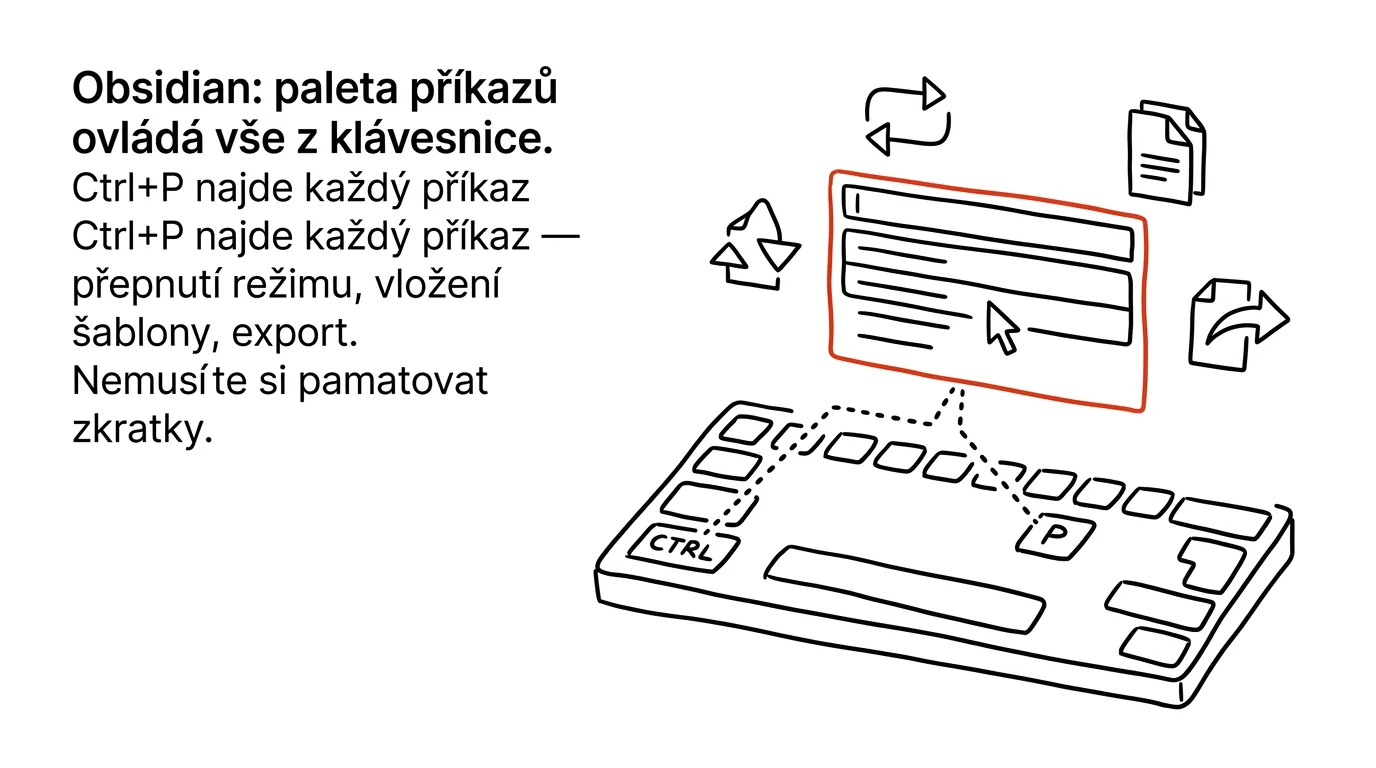
You only need to remember one shortcut — it finds all the others. Obsidian has hundreds of features and commands with their own keyboard shortcuts, but nobody memorizes them all. The command palette solves that problem simply: you type what you want to do, and Obsidian shows you the exact command and its shortcut, if it has one.
A typical scenario
Developer Jakub uses Obsidian daily for technical notes, but he just doesn't remember the shortcuts for things like switching to preview mode, inserting a template, or exporting to PDF — he uses them too rarely for them to stick. Without the command palette, he'd have to browse menus looking for exactly where each feature is hiding, which is slow and breaks his focus on writing. With the command palette, he presses the shortcut, types part of a word like “export” or “template,” and Obsidian immediately offers the matching command — with its keyboard shortcut shown right next to it, which he gradually picks up in passing through repetition.
How to do it
- Press Ctrl + P (on Mac, Cmd + P) anywhere in Obsidian.
- The command palette opens with a search field. Type part of the name of the command you're looking for, like “template” for working with templates, “export” to export a note, or “split” to split the view into two side-by-side panes.
- Results filter as you type and are ranked by relevance and by how often you use that command.
- Each command in the list shows its keyboard shortcut next to it, if it has one set — through repeated use of the palette, you pick these up incidentally, without deliberately memorizing them.
- In Obsidian's settings, under the Hotkeys section, you can assign a custom shortcut to any command from the palette if you use it often and want to trigger it even faster.
- The palette also remembers commands you've used recently and ranks them higher the next time you open it — the more you use it, the faster you navigate it, since your most frequent commands are practically always within reach of the first keystroke.
The best tools
- The command palette in Obsidian (Ctrl+P) — a built-in, free feature that works instantly with no setup.
- The Hotkeys section in settings — for assigning custom shortcuts to the palette's most-used commands.
- Community plugins — every installed plugin adds its own features to the command palette, so the palette gradually becomes a universal control center for the entire app.
- Quick file switching (Quick Switcher) — a sibling feature to the command palette, but it searches among your notes themselves, not the app's commands.
What you get out of it
- Time: several minutes a day from not hunting for features by clicking through menus.
- Less mental load: you don't have to memorize dozens of shortcuts at once — just one, which finds all the others.
- Smoother work: your hands stay on the keyboard even for features you only use occasionally.
- Learning shortcuts effortlessly over time: repeated use of the palette quietly teaches you the shortcuts for your most common commands on its own.
Pro tip
The command palette also works for installed plugins' features, not just Obsidian's built-in ones — after installing a new plugin, it's worth peeking into the palette once to check what new commands it added.
Want to go deeper? The handbook has a whole chapter on it — The app categories that matter.
Similar tips
iPhone as a webcam: the best camera you already own
Your Mac's built-in camera is mediocre. Just set your iPhone near the monitor and the Mac offers it as a webcam — wirelessly, with nothing to install.
Quick edits to PDFs and images without Photoshop
Preview handles arrows, boxes, text, and blurring sensitive info. For 90% of everyday edits, you don't need anything else.
Sign PDFs in Preview — no printer or scanner needed
The Preview app can drop your signature straight into a PDF. Capture it once, then sign in two clicks from then on.
Was this helpful?
Liked this tip?
I send one like it every week by email. Two minutes to read, hours saved.
The Top 30 tips e-book, free — it lands in your inbox right away.
Then 1 tip a week · no spam · unsubscribe in one click
Prefer a system to single tips? The free email course — seven days, seven emails, one skill a day.