Tips & tricks · Communication · Everywhere · ~5 min a day · 3 min read
Drag an email onto your calendar and it becomes a meeting
Last reviewed:
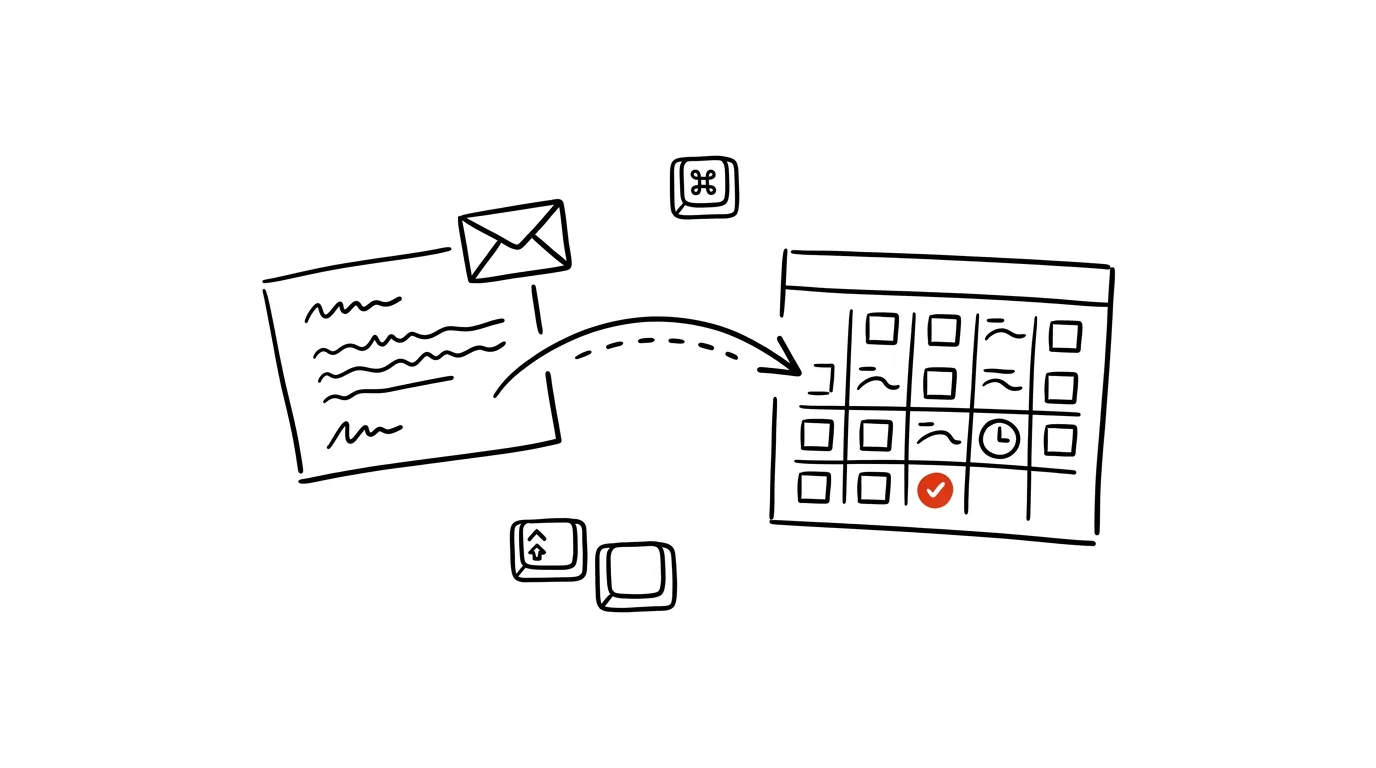
“Let's meet Thursday” belongs on your calendar, not in your inbox. Yet most people, when they spot a proposed date in an email, open the calendar as a separate window and manually retype the date, time, and context from the email into a new event — even though Outlook can turn an email into an event with a single drag, with nothing to copy by hand.
A typical scenario
Manager Radek gets several emails a day proposing meeting times — from clients, coworkers, and outside partners. Without this trick, he opens the calendar next to each such email, manually retypes the date, time, and purpose of the meeting into a new event, and occasionally makes a typo or forgets to carry over an important detail from the email while copying it. By dragging the email onto the calendar icon instead, a new event is created in a second, with the entire email text already inside as a note — all that's left is to fine-tune the exact time and invite the attendees. Five steps become one motion of the mouse.
How to do it
- In classic Outlook for Windows, grab a message with your mouse and drag it onto the calendar icon in the bottom-left corner, among the icons for mail, calendar, contacts, and tasks.
- A new event window opens — the email's subject automatically becomes the event's title, and the entire email text is inserted into the notes, so all the context stays intact.
- Fill in the exact start and end time, plus the location or a link to an online meeting if needed, and invite attendees if necessary.
- The same trick is just as useful in reverse: dragging an email onto the tasks icon creates a new task with the email's text as its description instead of an event — handy for emails that require action but not a specific meeting time.
- In new Outlook or on the web, a similar principle works through the message menu, though direct mouse-dragging may not be available in every version — if dragging doesn't work, look for an option to convert the message into an event in the top bar or context menu of the open message.
The best tools
- Dragging an email onto the calendar in classic Outlook — a built-in, free feature that works instantly with no setup.
- Dragging an email onto tasks — the same principle for emails that require action but no specific deadline.
- Quick Steps — for recurring combinations of actions around the same type of email; see the separate tip on Quick Steps.
- Categories and color labels — color-code the resulting event by meeting type right away, so you can see your week's layout at a glance.
What you get out of it
- Time: an estimated five minutes a day from not manually retyping the date, time, or context of a meeting.
- Fewer mistakes: the email text sits verbatim in the notes, so there's no risk of a date typo or a forgotten detail from the original message.
- Less window-switching: the event is created directly from the email, with no need to open the calendar separately and hunt for a free slot while copying details from the email next to it.
- Full context on the event: whenever you return to the meeting, the entire original email is right there in the notes, so you never have to go digging for what it was actually about.
Pro tip
Just like with the calendar, dragging an email onto the tasks icon works too — the email becomes a task with the message text as its description, so even small requests from your mail land straight in your task list instead of sitting in your inbox.
Want to go deeper? The handbook has a whole chapter on it — Professional email communication.
Similar tips
Templates in Notion databases: a new entry, pre-filled
A record template pre-fills the structure — meeting notes, task briefs, client profiles. Set it up once, use it forever.
A link that jumps straight to one sentence on the page
Select text, right-click, “Copy link to highlight” — the recipient lands exactly on that sentence, highlighted in yellow.
Closed a document without saving? Office can bring it back
Word, Excel, and PowerPoint quietly save copies of your work as you go. File → Info → Manage Document recovers even files you never saved.
Was this helpful?
Liked this tip?
I send one like it every week by email. Two minutes to read, hours saved.
The Top 30 tips e-book, free — it lands in your inbox right away.
Then 1 tip a week · no spam · unsubscribe in one click
Prefer a system to single tips? The free email course — seven days, seven emails, one skill a day.