Tips & tricks · Communication · Everywhere · better impression · 3 min read
Delayed delivery in Outlook
Last reviewed:
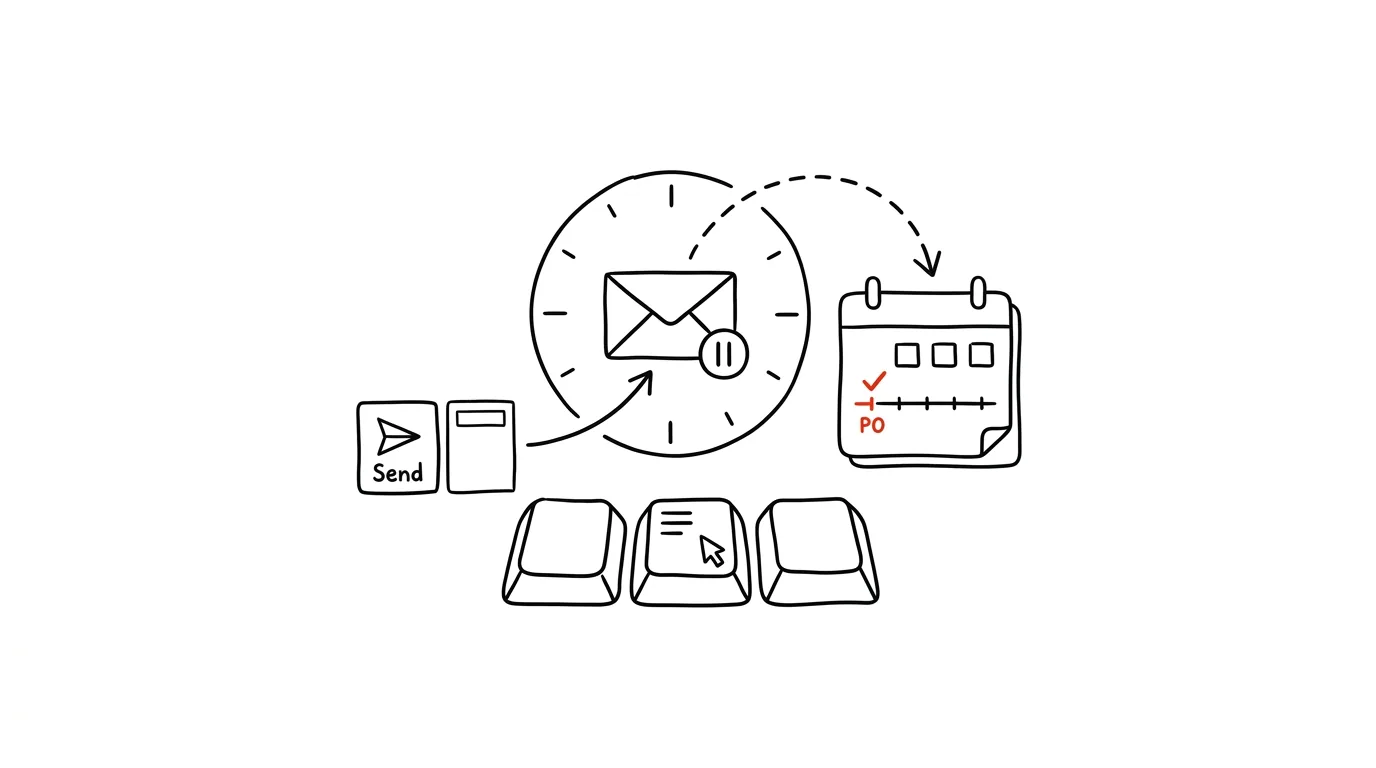
Working in the evening doesn't have to mean sending your colleagues emails in the evening. When you sit down to work on Sunday night or you're finishing something up late, sending the email in that moment creates the impression that the team is expected to be just as available — even if that's not what you mean at all. Delayed send solves this: you write the email whenever suits you, and it goes out whenever suits the recipient.
A typical scenario
Tomáš, a project lead, has a habit of clearing out admin work on Sunday evenings so his Monday is free for real work. Without delayed send, an email sent at ten on Sunday night would land with the team at exactly that moment — and even though no one expects an instant response, a weekend phone notification quietly signals a culture where people work outside business hours. With delayed send, Tomáš writes the email on Sunday, whenever he has the time and the headspace for it, but schedules it to go out Monday morning. The team gets the message right as they sit down to work, and Tomáš doesn't have to wait until Monday himself to finish it.
How to do it
- In new Outlook or on the web: click the arrow next to the Send button in the compose window and choose Schedule Send — pick the exact date and time the message should go out.
- In classic Outlook for Windows: in the compose window, open Options → Delay Delivery and set the desired date and time in the "Do not deliver before" field.
- Once set, send the message as usual — it won't go out right away, but will wait in the Outbox until the scheduled time.
- You can still edit or cancel a scheduled message before it sends by opening it directly in the Outbox, in case something changes in the meantime.
- It's worth making scheduled send your default habit for all off-hours work, not just an occasional move for sensitive emails — that way it becomes automatic and you don't have to think about it every time.
The best tools
- Schedule Send in new Outlook and on the web — built in, free, available right next to the Send button.
- Delay Delivery in classic Outlook — the same feature in the older interface, available via Options in the message window.
- The equivalent feature in Gmail (Schedule Send) — if you work across multiple mail clients, the principle is the same and it's worth applying consistently everywhere.
What you get out of it
- A better impression with your team: colleagues don't get notifications outside working hours, even though you yourself work whenever it suits you.
- A healthier company culture: scheduled send quietly signals that no one is expected to reply on evenings or weekends.
- Freedom in structuring your own work: you can work whenever suits you without worrying you're setting a bad example for others.
- Less pressure on yourself: you don't have to wait for the "right" time to finish an email — you write it right away and just schedule the send.
Pro tip
Scheduled send pairs well with recurring routine emails — you can prepare a weekly report or summary ahead of time and have it go out at the same time every week, without having to remember to send it manually at the exact right moment.
Want to go deeper? The handbook has a whole chapter on it — Professional email communication.
Similar tips
A PivotTable in Two Minutes
A revenue summary by month and category out of thousands of rows? Insert → PivotTable, then drag three fields.
New Window in Excel: Two Sheets of the Same Workbook, Side by Side
Switching back and forth between the sheet with source data and the sheet with results? View → New Window shows both at once.
Removing Duplicates in Three Clicks
Data → Remove Duplicates cleans up a list of contacts or line items — and tells you how many it deleted.
Was this helpful?
Liked this tip?
I send one like it every week by email. Two minutes to read, hours saved.
The Top 30 tips e-book, free — it lands in your inbox right away.
Then 1 tip a week · no spam · unsubscribe in one click
Prefer a system to single tips? The free email course — seven days, seven emails, one skill a day.