Tips & tricks · Apps · Everywhere · ~15 min a week · 3 min read
Removing Duplicates in Three Clicks
Last reviewed:
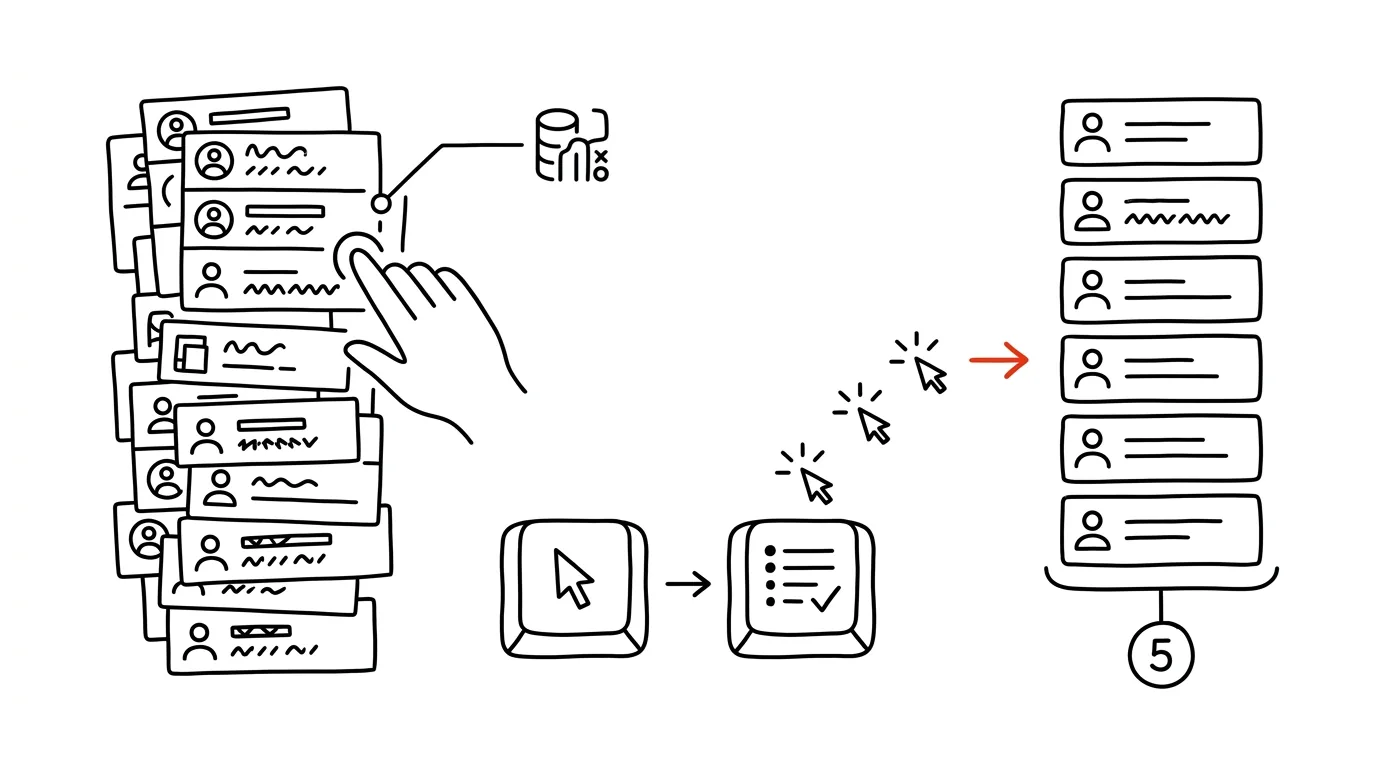
Finding the contacts that show up twice in a list of a thousand isn't work worth doing by eye, or by sorting and scrolling through manually — it's exactly the kind of task one built-in tool handles on its own. The Remove Duplicates feature scans the selected data, compares it by the columns you choose, and deletes the duplicate rows itself, including a summary of how many there actually were.
A typical scenario
Barbora manages a contact database that's been built up over years of imports from various events and forms. The result is a list where the same email address shows up as often as three times — once lowercase, once uppercase, once with a typo in the name. Manually scanning a thousand rows and figuring out what's a duplicate and what isn't would take a whole afternoon, and something would still slip through.
With Remove Duplicates, she selects the data, chooses to compare by the Email column, and gets a message within seconds telling her how many records Excel deleted. The rest of the list stays untouched, just without the repeated emails.
How to do it
- Click into the data and go to Data → Remove Duplicates.
- In the dialog, check the columns to compare by — if you check only Email, Excel treats any row with the same email address as a duplicate, regardless of whether the name or phone number differs.
- Confirm, and Excel deletes the duplicate rows and shows a message with the count of removed and remaining records.
- Consider whether you want to compare by one key column (typically email or tax ID) or by a combination of several columns — the more columns you check, the stricter the match has to be for a row to count as a duplicate.
- The operation isn't reversible the normal way, aside from Ctrl+Z right after running it, so it's worth having a backup or a copy of the sheet before running it on important data.
The best tools
- Excel's built-in Remove Duplicates — the fastest three-click solution, with no extra data prep.
- Power Query — if you clean duplicates regularly on data that gets re-imported over and over, Power Query can fold the deduplication step into a repeatable process that runs itself on every refresh.
- Google Sheets — a similar feature is found under Data → Data cleanup → Remove duplicates, with very similar behavior.
What you get out of it
- Time: roughly 15 minutes a week compared with manually sorting and scanning a list for repeated records.
- Cleaner data: a contact or item list without duplicates means more accurate totals, more accurate mail merges, and fewer awkward moments like the same email going out twice to the same person.
- A sense of scope: the message with the deleted-row count immediately shows how messy the data really was.
Pro tip
If you're not sure you want to delete duplicates outright, have them highlighted first — Conditional Formatting → Highlight Cells Rules → Duplicate Values colors the repeated records without deleting anything, so you can decide case by case.
Want to go deeper? The handbook has a whole chapter on it — The app categories that matter.
Similar tips
In-depth guide · 57 min
Vetting a business partner with Hlídač státu: a risk profile before you sign
A complete guide with 23 prompts: run a counterparty through the Register of Contracts, the insolvency register, corporate criminal records, subsidies and political party sponsorship via Hlídač státu's MCP server — then save the result as a versioned risk profile you update with a single prompt before the next contract.
A new folder without the right-click: Ctrl+Shift+N
Ctrl+Shift+N
You create folders all the time — and every time via right-click and a menu. Ctrl+Shift+N creates a new folder instantly, already primed for naming.
Ctrl+Z works on files too: undoes a move, rename, or delete
Ctrl+Z
Accidentally dragged a file who-knows-where? Ctrl+Z in File Explorer undoes the last file operation — move, copy, rename, and delete to the recycle bin.
Was this helpful?
Liked this tip?
I send one like it every week by email. Two minutes to read, hours saved.
The Top 30 tips e-book, free — it lands in your inbox right away.
Then 1 tip a week · no spam · unsubscribe in one click
Prefer a system to single tips? The free email course — seven days, seven emails, one skill a day.