Tips & tricks · Shortcuts · Windows · ~1 min a day · 2 min read
A new folder without the right-click: Ctrl+Shift+N
Last reviewed:
Ctrl+Shift+N
In this article
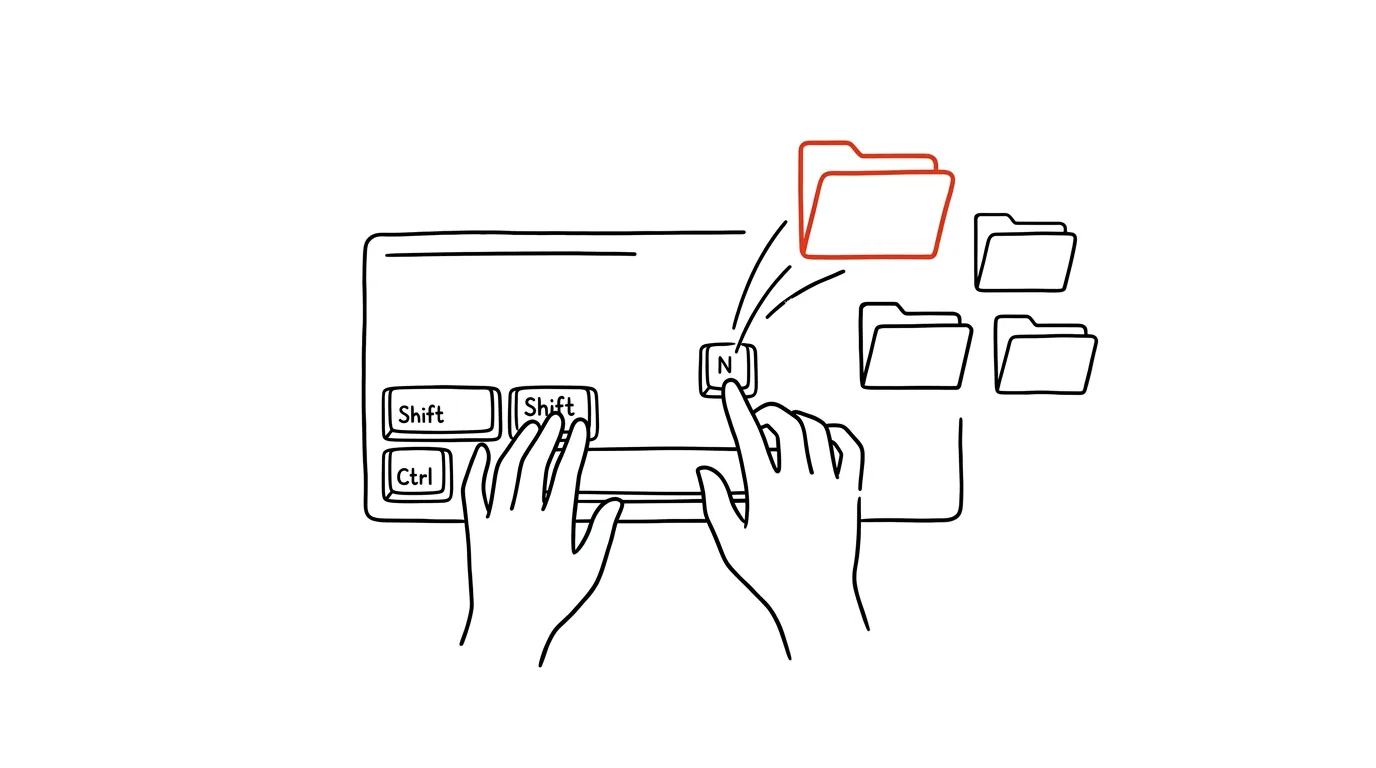
Right-click → New → Folder → type a name. Most people run through this sequence several times a day for years without ever suspecting there's a shortcut for it. Ctrl+Shift+N creates a new folder in File Explorer with one press — and with the name already selected as “New folder,” so you start typing and the name is done. Small thing? Sure. But a small thing you do a thousand times a year.
How to do it
- Open File Explorer (Win + E) and navigate to where you want the folder. It works on the desktop too.
- Press Ctrl + Shift + N — a new folder appears with an editable name.
- Just start typing the name (nothing to delete — the text “New folder” is already selected) and confirm with Enter.
- If you need to fill the folder right away, pressing Enter after naming keeps you in the current view — enter the folder with a second Enter, or drag files straight into it.
- Worth knowing this shortcut's sibling too: Ctrl + N opens a second Explorer window on the same folder — ideal for dragging files between two locations.
A typical scenario
You're starting a new project and setting up the structure: a client folder, and inside it “Materials,” “Drafts,” “Invoices,” “Communication.” Via right-click, that's sixteen precise mouse clicks and a fair bit of patience. With the shortcut: Ctrl+Shift+N, type a name, Enter, repeat — four folders in twenty seconds, hands never leaving the keyboard.
The same applies when saving from apps: the “Save As” dialog in most programs supports the shortcut too, so if you discover mid-save that the target folder doesn't exist yet, you create it on the spot — no switching to Explorer and hunting for where you actually were.
What you get out of it
- Speed where it matters most: creating a folder is one of the most common operations in File Explorer — and four mouse steps become one keypress.
- Flow: a new project's folder structure comes together in one continuous stretch of typing instead of a series of clicks.
- Works in dialogs too: creating a folder right inside the “Save As” window means you save the file in the right place immediately, instead of “on the desktop for now.”
Pro tip
Tidiness is a side effect: when creating a folder costs nothing, you stop putting off organizing “for later,” and files land exactly where they belong right away. It pairs nicely with Win+E for instantly opening Explorer — together they form a sequence you can do blind: Win+E, jump to projects, Ctrl+Shift+N, name, Enter. A new structure for anything new exists before a right-click context menu would even finish loading.
Want to go deeper? The handbook has a whole chapter on it — The app categories that matter.
Similar tips
Alt+arrows: move lines of code instead of cutting and pasting
Alt+↓
Alt+up/down arrow moves a line or block to a new spot, Shift+Alt+arrow duplicates it. No more juggling Ctrl+X and Ctrl+V.
F2 renames a function across the whole project — no searching, no replacing
F2
Renaming a symbol with F2 changes a function or variable everywhere it's used, across files. Smarter than find and replace.
Multi-cursor editing: edit ten lines at once
Ctrl+D
Ctrl+D in VS Code selects the next occurrence of a word — and you type in all of them at once. Small refactors without find and replace.
Was this helpful?
Liked this tip?
I send one like it every week by email. Two minutes to read, hours saved.
The Top 30 tips e-book, free — it lands in your inbox right away.
Then 1 tip a week · no spam · unsubscribe in one click
Prefer a system to single tips? The free email course — seven days, seven emails, one skill a day.