Tips & tricks · Shortcuts · Everywhere · ~5 min a day · 2 min read
Alt+arrows: move lines of code instead of cutting and pasting
Last reviewed:
Alt+↓Shift+Alt+↓
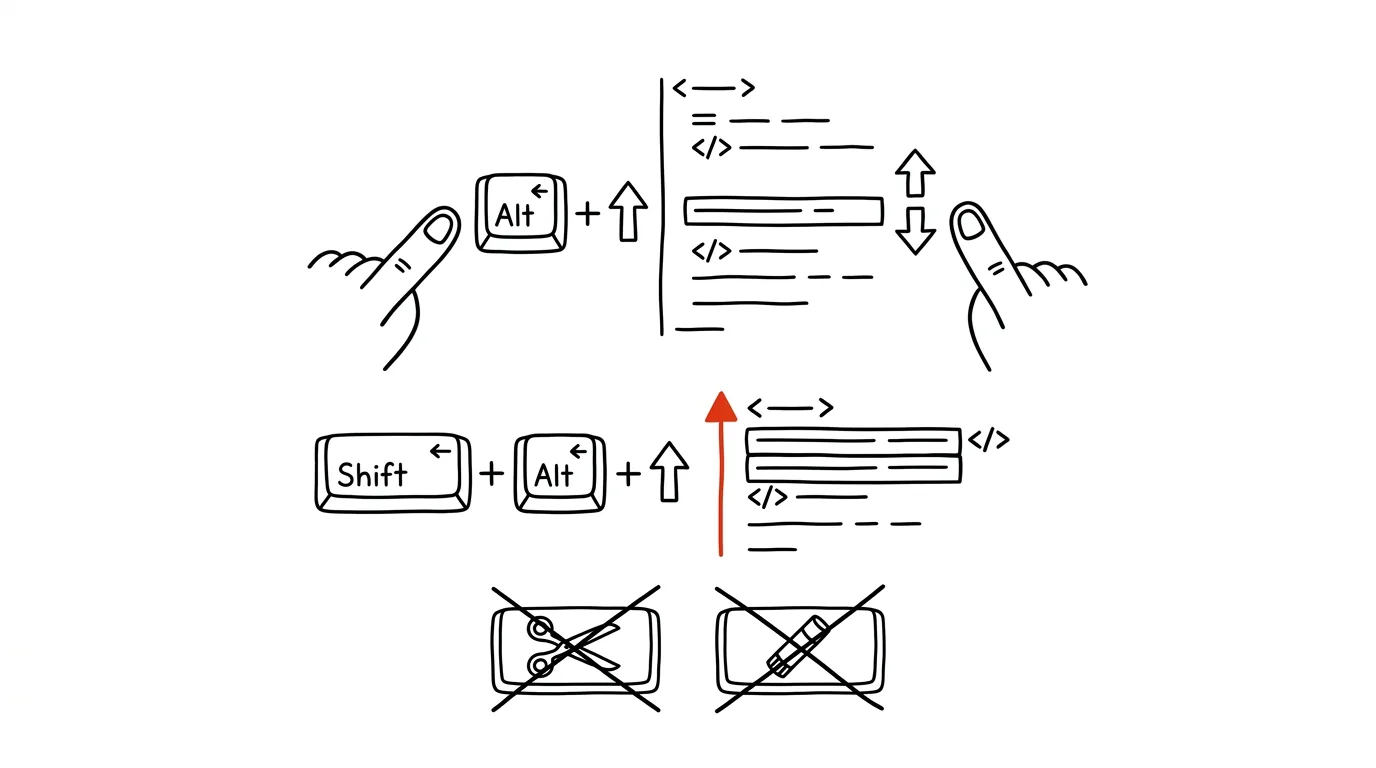
Moving a line of code three positions down is one of the most common small edits there is — and the classic approach of select, cut, navigate, paste has a surprising number of steps and one trap: the clipboard, whose contents you end up overwriting. Editors handle it in one motion: Alt + ↑/↓ moves the current line up or down while you watch it travel through the code in real time. The sibling shortcut Shift + Alt + ↑/↓ duplicates the line — the foundation for every “same thing, just a different value” kind of edit.
How to do it
- Put the cursor anywhere on the line you want to move — you don't need to select anything. Press Alt + ↓ or Alt + ↑ and the line swaps places with its neighbor; hold and press repeatedly until it lands where it belongs.
- Multiple lines at once: select them (even partially) and the same shortcut moves the whole block together.
- Duplicating: Shift + Alt + ↓ creates a copy of the line or selected block right below the original — and the clipboard stays untouched, so you don't lose whatever was in it.
- On a Mac it's Option + arrows, or Shift + Option + arrows for duplicating. The shortcuts work in VS Code; in JetBrains IDEs, Shift + Alt + arrows moves a line and Ctrl + D duplicates it.
- In VS Code, moving also triggers automatic indentation adjustment — when you move a line inside a block, the editor adapts its indentation.
A typical scenario
A developer is assembling a configuration: a list of rules where order matters. One rule needs to move above the others — Alt+up arrow, four times, done, and the whole time she can see exactly where the line is. Then she adds three nearly identical entries: Shift+Alt+down arrow three times duplicates the pattern, and she only rewrites the values in the copies. A year ago the same task would have been a minute of selecting, cutting, and pasting — with the risk of overwriting the clipboard that held a chunk of text copied from documentation.
Duplicating is worth promoting into a habit when writing new code too: instead of writing a similar line from scratch, duplicate the neighboring one and edit the difference. It's faster and more consistent — the structure, spacing, and punctuation stay the same, and you only touch what actually differs.
What you get out of it
The micro-edits you make ten times a day shrink to one motion and stop destroying the contents of your clipboard. Moving “while watching” also means fewer mistakes — you drop the line exactly where it belongs instead of counting lines before pasting. Together with multi-cursor editing, it forms the core toolkit of fast editing that strips the mechanical drudgery out of writing code.
Want to go deeper? The handbook has a whole chapter on it — The app categories that matter.
Similar tips
Ctrl+Shift+D saves every tab into a single bookmarks folder
Ctrl+Shift+D
Have to close your browser right now but you're mid-research with twenty tabs open? One shortcut saves them all as a bookmarks folder.
Quick settings and notifications without a mouse
Win+A
Win+A opens quick settings (Wi-Fi, volume, focus), Win+N opens the notification center with a calendar.
Win+Alt+K: mute your microphone from anywhere
Win+Alt+K
You don't have to hunt down the meeting window to mute yourself. Win+Alt+K in Windows 11 toggles the microphone even while you're working in a completely different app.
Was this helpful?
Liked this tip?
I send one like it every week by email. Two minutes to read, hours saved.
The Top 30 tips e-book, free — it lands in your inbox right away.
Then 1 tip a week · no spam · unsubscribe in one click
Prefer a system to single tips? The free email course — seven days, seven emails, one skill a day.