Tips & tricks · Shortcuts · Windows · ~2 min a day · 2 min read
Win+Alt+K: mute your microphone from anywhere
Last reviewed:
Win+Alt+K
In this article
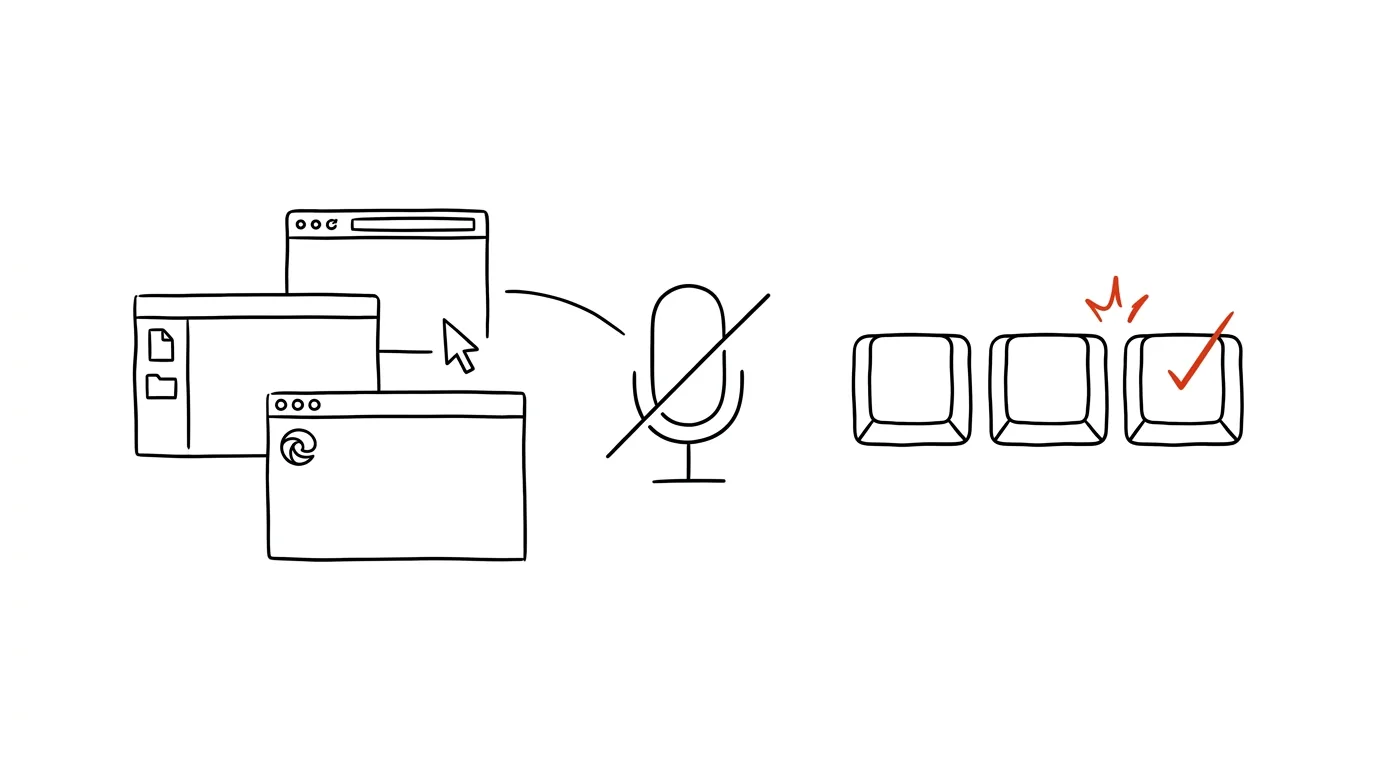
You're sharing notes at a meeting, looking something up in a second window — and right then you need to say something quickly. Or the opposite: someone's knocking at the door and you need to mute yourself instantly. But the meeting window is buried somewhere under five others and you're frantically hunting for it through Alt+Tab. Windows 11 has a system-wide shortcut for exactly this: Win+Alt+K toggles microphone muting from anywhere, no matter which app you're currently in.
How to do it
- During a call, press Win + Alt + K — the microphone mutes, and a brief confirmation with the mic's status appears on screen.
- Press the same shortcut again to unmute — ideal for a quick “just one comment” and back to silence.
- The shortcut is part of Windows 11 and works most reliably with apps that support system-level call controls — Microsoft Teams above all. With other apps, test it once before an important meeting.
- When an app is using the microphone, Windows 11 shows a microphone icon on the taskbar near the clock — clicking it lets you mute the call with the mouse too, and it also serves as a check: a crossed-out icon means you really can't be heard.
A typical scenario
An online class: the teacher is sharing a presentation and, in the meantime, looking up an answer to a student's question in the browser. In the background, her dog starts barking. Instead of hunting for the Teams window among the presentation, the browser, and her notes, she presses Win+Alt+K — muted within a second. Once the dog decides it's successfully defended the mail, she uses the same shortcut to return to the lesson.
A manager's version: a long meeting with twelve people, where you speak once every twenty minutes. You stay muted, work in other windows, and when a question comes your way, you answer instantly — Win+Alt+K, a sentence, Win+Alt+K — instead of an awkward pause of “…hang on, looking for the button.”
What you get out of it
- Reacting without hunting: muting and unmuting stops depending on where the meeting window happens to be.
- Fewer embarrassing moments: muting fast for a sudden noise — a doorbell, kids, a dog — is a matter of one shortcut, not five seconds of panic.
- Certainty: the microphone icon on the taskbar tells you plainly, any time, whether you can be heard.
- One reflex for every meeting: the shortcut is system-wide, so you learn it once — and don't need to remember where the mute button lives in each individual app.
Pro tip
If you meet in Teams, it's also worth knowing the shortcuts inside the Teams window itself — combined, the two mean you can always control your microphone entirely from the keyboard: system-wide via Win+Alt+K, in-app via Ctrl+Shift+M.
Want to go deeper? The handbook has a whole chapter on it — The app categories that matter.
Similar tips
Quake mode: a terminal that slides out from anywhere on Win+`
Win+`
Windows Terminal has a mode like an old game console: Win+` slides it down over the top half of the screen, press it again to hide it. Always at hand, never in the way.
winget: install and update programs with one command
No more hunting for installers across the web: winget install installs a program from a verified source, and winget upgrade --all updates everything at once.
In-depth guide · 19 min
Data Analysis with AI: From CSV to a Conclusion You Can Defend
A guide with prompts: why a language model must not do the math in chat, how to turn a table into a script that recalculates, and how not to overreach.
Was this helpful?
Liked this tip?
I send one like it every week by email. Two minutes to read, hours saved.
The Top 30 tips e-book, free — it lands in your inbox right away.
Then 1 tip a week · no spam · unsubscribe in one click
Prefer a system to single tips? The free email course — seven days, seven emails, one skill a day.