Tips & tricks · Shortcuts · Windows · ~5 min a week · 2 min read
Ctrl+Z works on files too: undoes a move, rename, or delete
Last reviewed:
Ctrl+Z
In this article
Everyone knows Ctrl+Z as undo while typing text. Few people know the same shortcut also works in File Explorer — and undoes file operations. Accidentally dragged a folder inside another folder and have no idea where? Renamed the wrong file? Deleted something you didn't mean to? Ctrl+Z puts it all back the way it was, no searching, no panic.
How to do it
- If you click wrong, press Ctrl + Z in an Explorer window (or on the desktop) — the last file operation gets undone.
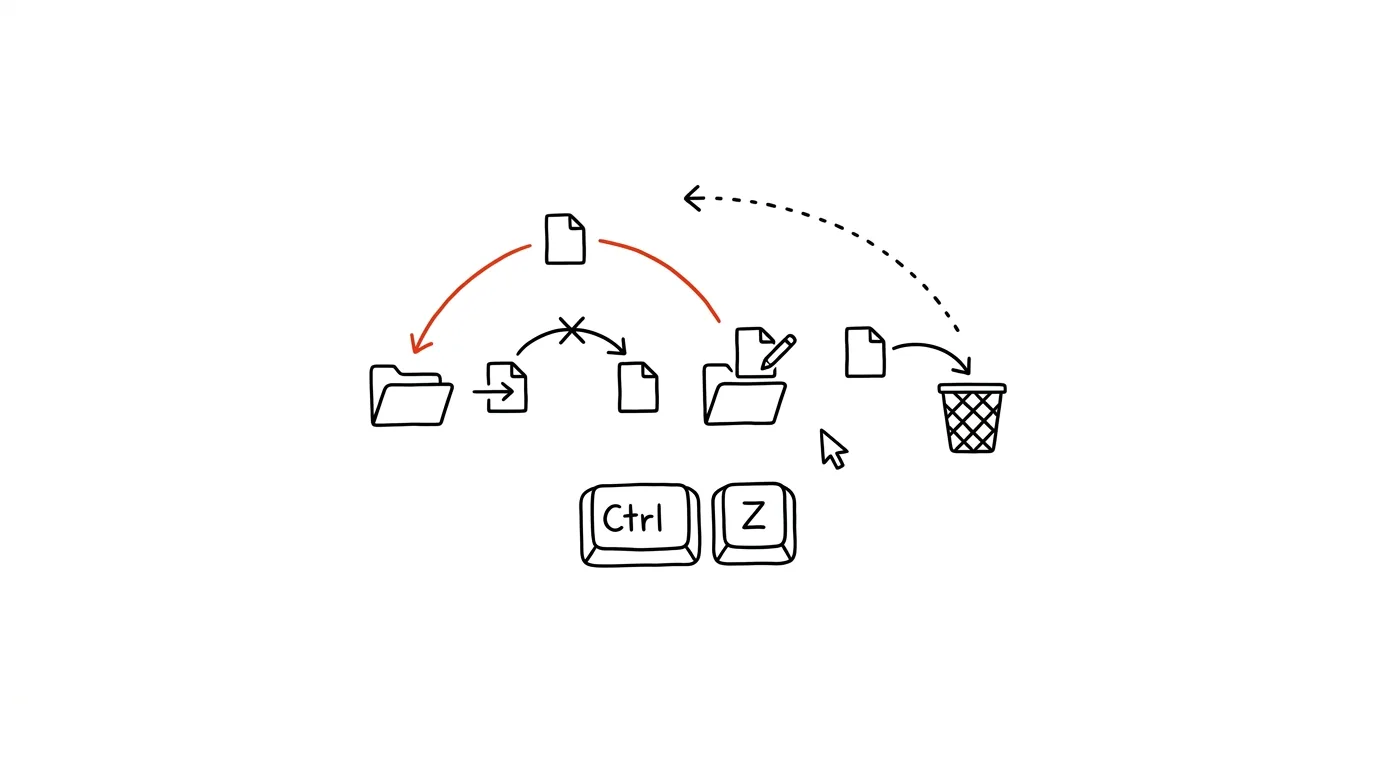
- It works on a move (the file returns to its original folder), a copy (the copy gets deleted), a rename (the original name comes back), and a delete to the recycle bin (the file is restored to its place).
- Pressing it repeatedly undoes further back — Windows remembers a history of the last several operations.
- If you're not sure exactly what will get undone, right-click an empty spot in the folder: the Undo entry also shows a description of the action, like “Undo Move.”
- There's a redo too: Ctrl + Y repeats the undone action.
A typical scenario
A classic on shared drives: you go to click the “Invoices” folder, but your mouse twitches and the folder vanishes — you accidentally dropped it inside one of the neighboring folders. Which one? Nobody knows. Without Ctrl+Z, that's followed by a quarter hour of searching nearby folders, or a sheepish question in the team chat asking if anyone “sees Invoices.” With Ctrl+Z, you press two keys and the folder's back like nothing happened.
The same lifesaver works at home: a kid “tidied up” the desktop, you renamed the wrong file, or during a quick cleanup you selected one file too many for deletion. One shortcut, no stress.
What you get out of it
- A rescue at an unpleasant moment: a lost folder move on a shared drive is one of the most common small disasters of office work — and it's fixed with two keys instead of a quarter hour of searching.
- Confidence for bulk actions too: undo works on whole batches — bulk-renaming a hundred files or moving several folders at once undoes just as reliably as a single file.
- The courage to tidy up: knowing every step can be undone means you sort and move files faster, without anxious hesitation.
- Time: one shortcut instead of searching through folders and restoring files one by one from the recycle bin.
Pro tip
Watch for one exception: Ctrl+Z won't undo a permanent delete via Shift + Delete, which bypasses the recycle bin. And on shared drives, undo works most reliably right after the action — the sooner you press Ctrl+Z, the better. If it's too late, try the recycle bin, or version history on OneDrive or SharePoint.
Want to go deeper? The handbook has a whole chapter on it — The app categories that matter.
Similar tips
Send and Archive: Two Actions, One Button
A hidden Gmail setting adds a second button to Reply that sends the email and tidies the conversation out of your inbox in one move. One click instead of two.
Schedule your email to send at the right time
An email written Saturday evening can go out Monday at 8 AM. Scheduled sending respects the recipient's time — and your reputation.
Snooze an email until you can actually do something about it
The Snooze feature hides an email from your inbox and brings it back at a time you choose. Your inbox stays clean and nothing gets lost.
Was this helpful?
Liked this tip?
I send one like it every week by email. Two minutes to read, hours saved.
The Top 30 tips e-book, free — it lands in your inbox right away.
Then 1 tip a week · no spam · unsubscribe in one click
Prefer a system to single tips? The free email course — seven days, seven emails, one skill a day.