Tips & tricks · Shortcuts · Everywhere · ~3 min per presentation · 3 min read
PowerPoint: Shift+F5 starts the show from the current slide
Last reviewed:
Shift+F5
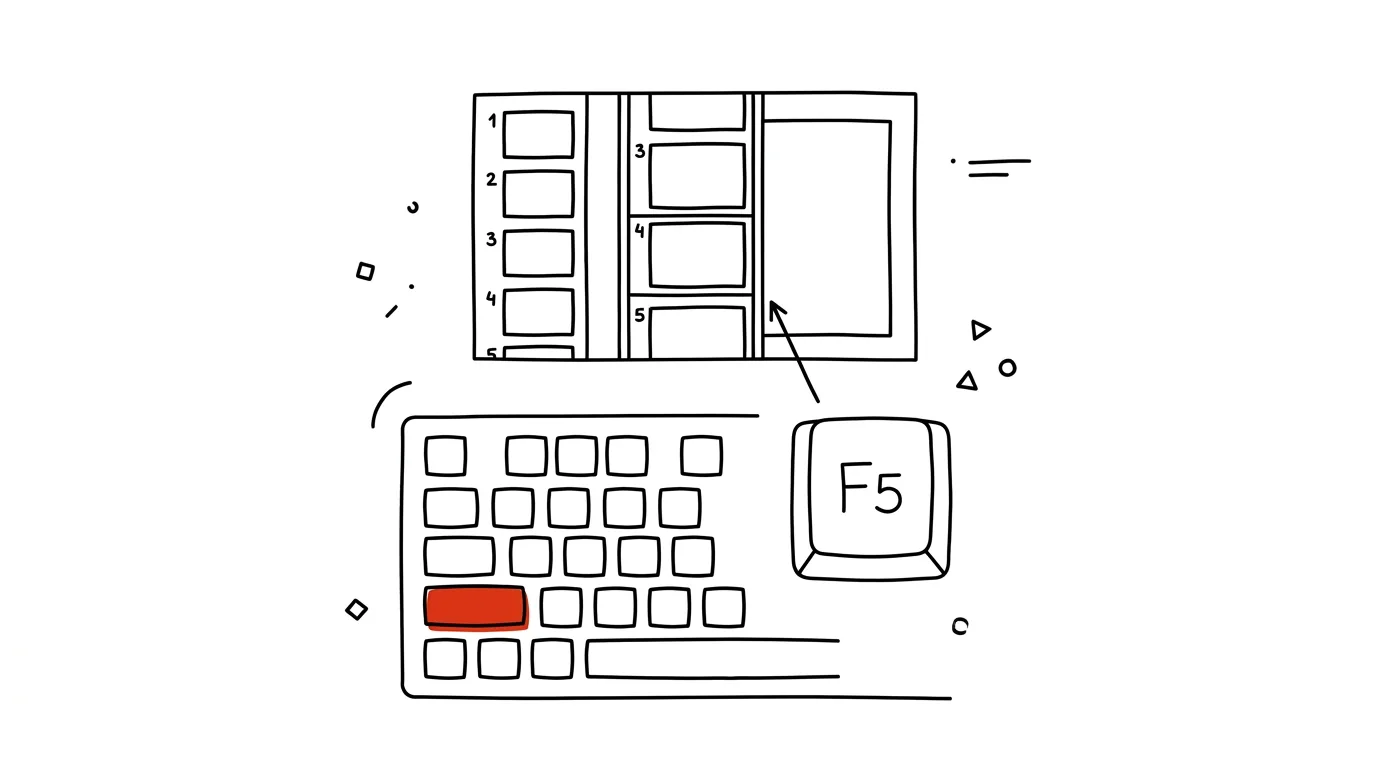
Clicking your way to slide 34 through an entire presentation is pointless, especially when you're just fine-tuning an animation or a line of text in one specific spot. PowerPoint has its own shortcut for exactly this case, one letter different from the usual one, and it saves dozens of clicks every time you're fine-tuning a longer presentation.
A typical scenario
You've got a finished forty-slide presentation, and all that's left is fine-tuning an animation on slide 34 — text should appear one line at a time, not all at once. Without the shortcut, you start the slideshow with F5, which drops you on slide 1, and then you have to click through thirty-three more slides before you reach the one you need to test. You fix the animation, want to check it right away — and click through the whole thing from the start again. With Shift + F5, the slideshow jumps straight to the slide your cursor is on in the editor, so the "tweak → check" cycle takes seconds instead of minutes.
How to do it
- In editing view, open the slide you're currently working on by clicking its thumbnail in the left-hand panel.
- Press Shift + F5 — the slideshow starts in presentation mode right from this slide, no clicking through from the beginning.
- Check how the animation or transition looks for real.
- Press Esc to return to editing on the same slide, make your adjustment, and press Shift + F5 again for another test.
- For comparison: plain F5 always starts the presentation from the very beginning — good for a full dress rehearsal, not for tuning one spot.
- The same logic works in Google Slides too: playing from the current slide is in the presentation menu, though without the same keyboard shortcut as PowerPoint.
The best tools
- The built-in Shift+F5 shortcut — works directly in PowerPoint with nothing to configure.
- The "From Current Slide" icon on the Slide Show tab — the same feature with the mouse, in case you forget the shortcut.
- Presenter view paired with Shift+F5 — even testing from a specific slide, you still see your notes and the timer, so you can rehearse your spoken delivery at the same time.
What you get out of it
- Time: roughly 2–3 minutes saved on every round of tuning on a longer presentation, where clicking through from the start would otherwise take longer than the edit itself.
- Smoother iteration: the "tweak, check, tweak again" cycle can run in quick succession, without losing focus waiting.
- Less frustration: on presentations with dozens of slides, you skip the annoying repeated clicking back to the same spot.
- Focus on content: the time you'd otherwise spend navigating stays on actually fine-tuning the animation or text.
Pro tip
You'll appreciate the shortcut for a final check right before a meeting too — instead of replaying the whole presentation from the start (and risking running out of time), jump straight to the slides you're least sure look right live.
Want to go deeper? The handbook has a whole chapter on it — The app categories that matter.
Similar tips
Camera at eye level and light from the front: two minutes for a better impression
A laptop sitting on the desk shoots your chin and the ceiling from below, and a window behind you turns you into a silhouette. Camera height and light direction fix more than a new webcam ever will.
In-depth guide · 58 min
A conference as a system: one program that generates everything
A complete guide with 23 prompts: the event program as structured data — generating the website, name badges, signage, posts, and MC notes. When a speaker cancels the day before, you fix one file, not eight outputs at 3 a.m.
AirDrop: a file on the next device in two seconds
Don't email files between Apple devices. AirDrop is faster, doesn't compress anything, and has no size limits.
Was this helpful?
Liked this tip?
I send one like it every week by email. Two minutes to read, hours saved.
The Top 30 tips e-book, free — it lands in your inbox right away.
Then 1 tip a week · no spam · unsubscribe in one click
Prefer a system to single tips? The free email course — seven days, seven emails, one skill a day.