Tips & tricks · Shortcuts · Windows · ~3 min a day · 2 min read
F2 renames a file — and Tab jumps straight to the next one
Last reviewed:
F2
In this article
Two slow clicks on a filename, trying to land exactly between “open” and “rename” — that's how most people rename files. Yet there's a key for it: F2 opens the name for editing instantly. And that's just the start. Few people know the Tab key, while renaming, saves the new name and immediately opens editing on the next file in line. Or that selecting several files at once lets F2 rename them all in one go.
How to do it
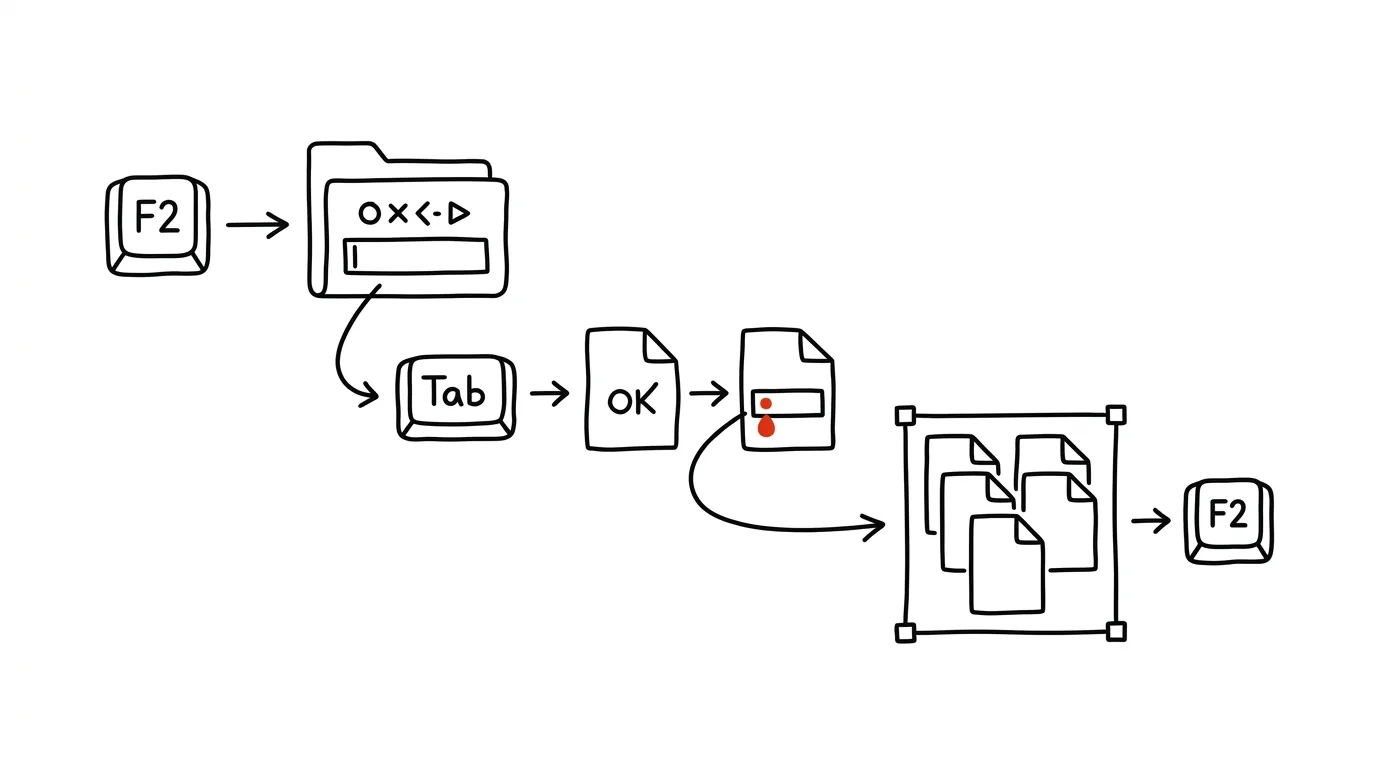
- In File Explorer, click a file and press F2 — the name opens for editing, with the extension smartly left unselected so you don't overwrite it by accident.
- Type the new name and press Tab instead of Enter — the name saves and editing opens right on the next file. Shift + Tab jumps back to the previous one.
- For bulk renaming, select multiple files (Ctrl + click, or Ctrl + A for all), press F2, and type a shared name, like “Italy Vacation.”
- After confirming with Enter, every file gets that name plus a sequence number in parentheses — “Italy Vacation (1),” “Italy Vacation (2),” and so on.
- If you make a mistake, Ctrl + Z undoes the rename — it works on a whole batch too.
A typical scenario
Photographer Jane comes back from a shoot with a memory card full of files named “DSC_4711.jpg.” She used to rename each one separately: a slow double-click, overwrite, Enter, again. Thirty photos, five minutes of tedious work. Now she selects every shot from one shoot, presses F2, types “Smith Wedding,” and Enter — done in ten seconds. And when she later needs to add “preview” to the name of five selected photos, she runs through them with F2 and Tab without touching the mouse once.
The same trick works for a student saving lecture scans, and for an accountant who saves invoices under a consistent naming pattern every month.
What you get out of it
- Time: renaming one file is a small thing, but you do it constantly — downloaded attachments, scans, photos, exports. A few minutes a day adds up.
- Tidier files: when renaming is fast, you actually do it — and folders stop being a graveyard of names like “document_final_v2 (copy).”
- Less mouse use: you can run through a series of files entirely from the keyboard, which is faster and easier on your wrist.
Pro tip
For more complex renaming — replacing part of the text across a hundred names, adding a date, numbering from a specific number — Microsoft has the free PowerToys PowerRename tool, which shows up right in Explorer's context menu.
Want to go deeper? The handbook has a whole chapter on it — The app categories that matter.
Similar tips
In-depth guide · 34 min
AI in the newsroom: a journalist's guide
The hub for the whole journalism section: research, public data, writing, graphics, social media, and source protection. Eighteen prompts, one hard line.
In-depth guide · 17 min
Custom instructions: set up AI once, it applies forever
A complete guide to standing instructions: what belongs in them, how they differ from a Project, testing them — and ready sets for common professions.
In-depth guide · 21 min
AI search engines with citations: research with verifiable sources
A complete guide with prompts: when to use AI search instead of Google, how to ask so the answer rests on sources — and where the tool reliably fails.
Was this helpful?
Liked this tip?
I send one like it every week by email. Two minutes to read, hours saved.
The Top 30 tips e-book, free — it lands in your inbox right away.
Then 1 tip a week · no spam · unsubscribe in one click
Prefer a system to single tips? The free email course — seven days, seven emails, one skill a day.