Tips & tricks · Apps · Browser · ~10 min a day · 3 min read
Tab groups: a cleanup for chronic tab hoarders
Last reviewed:
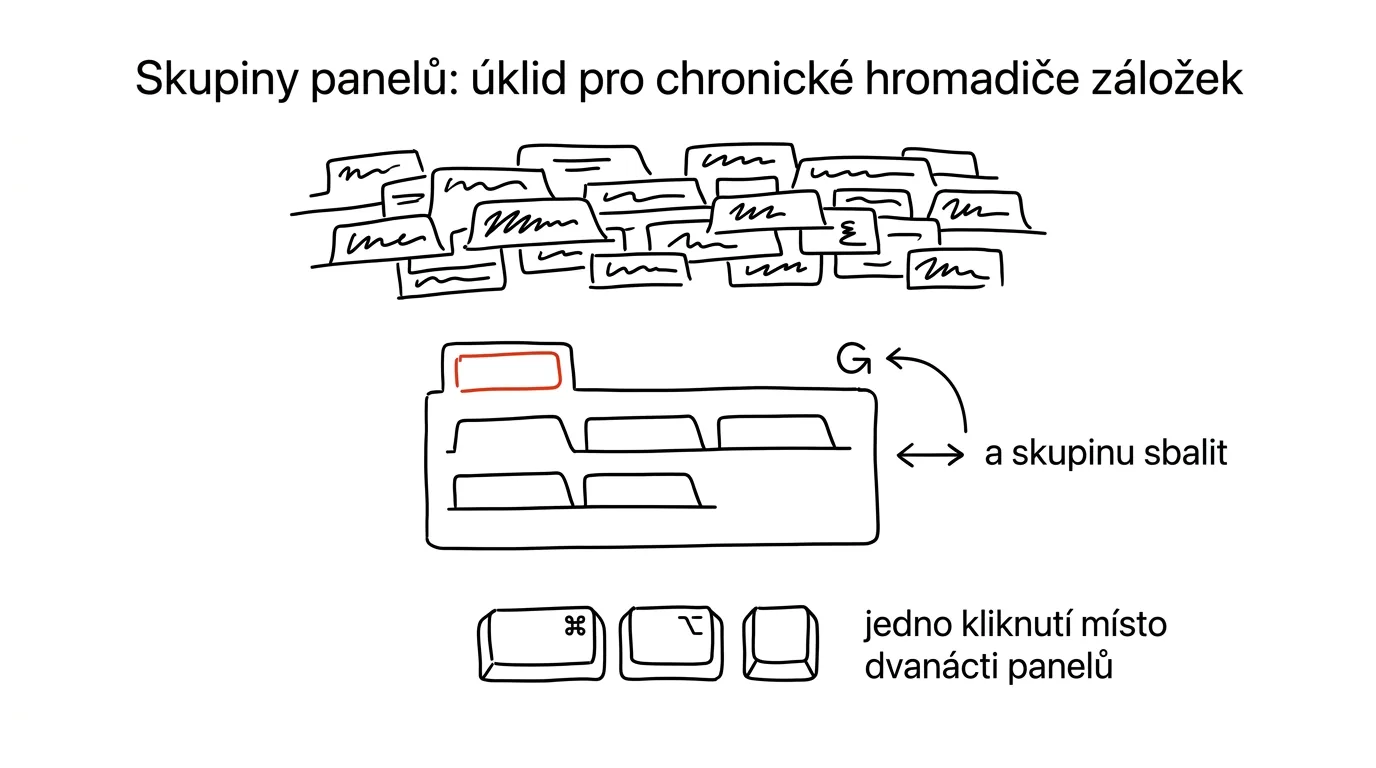
Twenty open tabs aren't a system, they're anxiety blinking at you from the top of the browser. Tab groups turn the chaos into an overview: related tabs get tucked under one colored label and reopened all at once, exactly when you need them. The feature also solves a second, less visible problem — the feeling that “I have to keep everything open or I'll lose it,” which means nothing ever gets closed and the tab bar grows forever.
A typical scenario
Student Lucie is writing her thesis and has five tabs open for the theory section, four for source research, three for citation formatting, plus email and her schedule. Finding one specific source among them means clicking through fifteen tabs by trial and error.
With tab groups, she splits her tabs into three groups — “Theory,” “Sources,” “Citations” — each in a different color. When she's working on the theory section, she collapses the other two groups with one click and is left with a clean bar of three tabs instead of twelve. Getting back is just as fast, one click on the label. Working on the thesis breaks down into clearly separated chapters that she switches between deliberately, not randomly based on whichever tab happens to catch her eye.
How to do it
- Right-click a tab and choose Add tab to new group.
- Name the group after what the tabs are about (say, “Project X” or “Research”) and pick a color for it — the color coding helps you orient at a glance, even before you've had time to read the label.
- Drag other tabs that belong together by content — not just by when you happened to open them — into the same group.
- Clicking the colored label collapses the group — the tabs vanish from view but stay running and within reach, one click brings them back.
- You can create as many groups at once as you like and switch between them depending on what you're working on.
- You can rename a group, change its color, or pull a tab back out of it at any time — the system stays flexible, it's not a one-time decision that's hard to undo.
The best tools
- Built-in tab groups in Chrome and Edge — free, right in the browser, no extension needed.
- Tab groups in Firefox — a similar built-in feature for those who prefer Firefox.
- OneTab — an extension that turns open tabs into one tidy list and frees up your computer's memory, handy for stashing research away long-term.
- Workona — a tool for managing tabs by project, including sharing workspaces with others, especially useful for team work on a longer task.
What you get out of it
- Time: less clicking around and hunting for that one tab among fifteen similar-looking ones.
- Clarity: the browser bar stops being an endless row of shrinking icons and becomes a readable map of what you're working on.
- Peace of mind: tabs you don't want to lose sit safely in a collapsed group, instead of staying open as a constant visual reminder of unfinished work.
- Faster return to unfinished work: after a break or a computer restart, you land exactly where you left off, no reconstructing from history.
- Less distraction: a collapsed group doesn't tempt you into accidentally opening a tab for something you're not supposed to be working on right now.
Pro tip
Collapsed groups survive even a computer or browser restart. Instead of the feeling “I have to keep this open or I'll lose it,” let a group sit collapsed at the edge of the bar for days if you need to — the tabs stay exactly where you left them, and meanwhile the bar doesn't take up any space.
Want to go deeper? The handbook has a whole chapter on it — The app categories that matter.
Similar tips
Swiped Away a Notification by Accident? Android Has a History
Notification history shows everything from the last 24 hours — including notifications you swiped away before you had a chance to read them.
A Kid's Account: Limits and App-Install Approval
A child's first phone doesn't have to be a battle. Family Link and Screen Time give parents install approval and time limits — set up in advance, not after the conflict.
Dictate instead of typing: you talk 3x faster
Win+H
Win + H on Windows, or the microphone on your phone's keyboard. Dictate a first draft of an email in a third of the time.
Was this helpful?
Liked this tip?
I send one like it every week by email. Two minutes to read, hours saved.
The Top 30 tips e-book, free — it lands in your inbox right away.
Then 1 tip a week · no spam · unsubscribe in one click
Prefer a system to single tips? The free email course — seven days, seven emails, one skill a day.