Tips & tricks · Apps · Browser · ~10 min a month · 2 min read
Wipe cookies for one site only — and stay logged in everywhere else
Last reviewed:
In this article
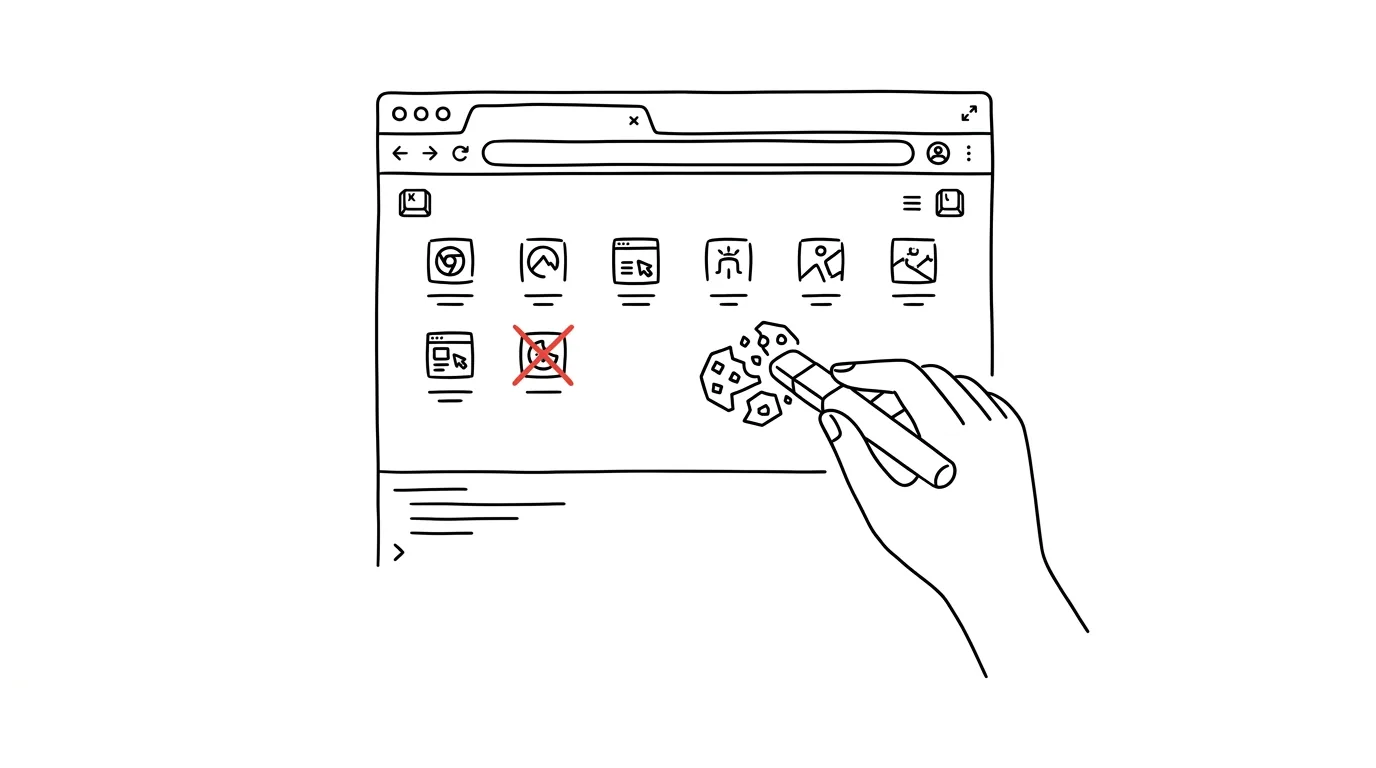
The classic advice “clear your cookies and cache” works, but it comes at a brutal cost: it logs you out of every site at once. Because of one misbehaving online store, you then have to re-enter passwords for your mail, your bank, and every other service you use. There's a more surgical option, though — the browser can clear data for just one specific site, right from the address bar, without touching any of your other logins.
How to do it
- Open the problem site and click the icon on the left side of the address bar (a padlock, or a sliders icon, depending on the browser).
- In Firefox you'll see the option Clear Cookies and Site Data… right away — confirm it and you're done, no further submenus.
- In Chrome, in the menu that opens, click Cookies and site data, then Manage on-device site data, and delete the entries with the trash icon. Edge works the same way, via its cookies item.
- Reload the page afterward (feel free to use a hard refresh). The site will see you as a new visitor: you'll have to log in again and dismiss the cookie banner — but only there, everything else stays exactly as it was.
- When to use it: a site gets stuck in a login loop, the cart behaves erratically, a page remembers the wrong setting (language, branch, currency), or it refuses to cooperate after a password change. Saved passwords aren't affected — they stay in your password manager and offer themselves automatically the next time you log in.
A typical scenario
A parent is trying to log in to the school system, but after entering the password it just bounces back to the login page. Again and again, with no error message — a classic symptom of a corrupted login cookie. The advice from the internet says “clear your browser data,” which would also log them out of mail and banking, turning the evening into a login marathon. Instead: the icon by the address bar, clear data for just the school site, refresh, log in. Two minutes, one password.
A freelancer, meanwhile, finds that a client portal stubbornly shows an old account they thought they'd logged out of. Clearing one site's data is a reset of the relationship with that one site — a clean slate with no collateral damage.
What you get out of it
You can fix a broken site without logging out of everywhere else — and without spending the evening logging back into everything. The dreaded advice “clear your cookies” turns into a two-minute, targeted fix instead of a blanket demolition.
Pro tip
The same menu by the address bar icon also hides a site's permissions: camera, microphone, location, or notifications. If you ever accidentally clicked “block” on the microphone and video calls have been silent ever since, one toggle here brings it right back.
Want to go deeper? The handbook has a whole chapter on it — The app categories that matter.
Similar tips
Finder Quick Actions: PDF from photos and background removal with a right-click
Select photos, right-click, Create PDF — done. Finder's Quick Actions can even convert formats or remove a background without opening an editor.
Handoff: pick up unfinished work from iPhone on your Mac with one click
Finish an email you started on the tram, on your Mac, exactly where you left off. Handoff passes work in progress between your devices automatically.
Hot corners: reveal the desktop or lock your screen with one flick
Assign actions to the corners of your screen — flicking into a corner shows the desktop, starts the screensaver, or locks the screen.
Was this helpful?
Liked this tip?
I send one like it every week by email. Two minutes to read, hours saved.
The Top 30 tips e-book, free — it lands in your inbox right away.
Then 1 tip a week · no spam · unsubscribe in one click
Prefer a system to single tips? The free email course — seven days, seven emails, one skill a day.