Tips & tricks · Workflow · Everywhere · ~2 min a day · 2 min read
cd - takes you back to the folder you came from
Last reviewed:
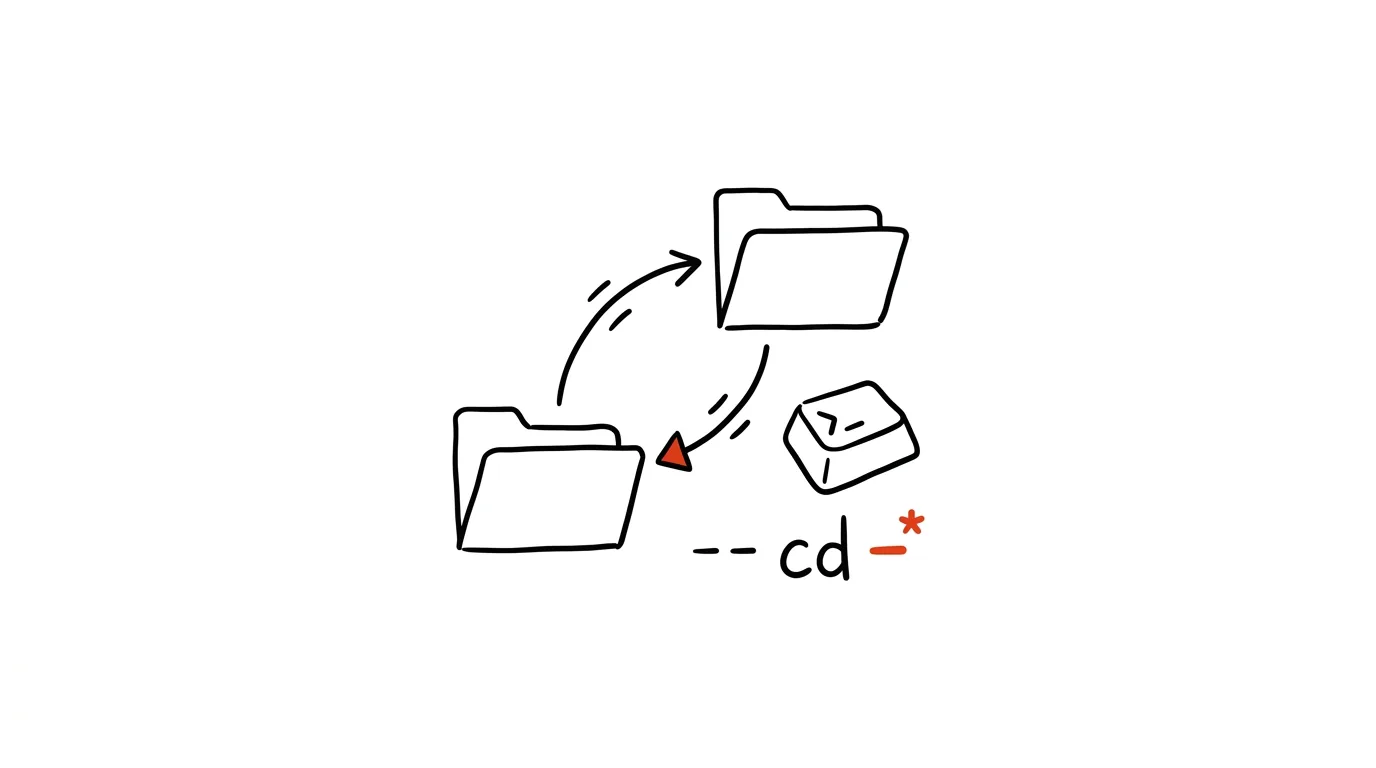
A typical terminal situation: you're working in a project, hop over to a completely different folder to check something — and now you need to get back. You don't want to type out the full path to the project again. That's exactly what the two-character command cd - is for: it switches you to the directory you were in immediately before. And because the shell always remembers the last folder you visited, cd - also works as a toggle — running it repeatedly bounces you between two places, like Alt+Tab between windows.
How to do it
- You're in a project folder, say
~/projects/shop/backend/api. Go somewhere else, for examplecd /var/log. - When you're done, type
cd -— the shell prints the path it's returning you to, and you're instantly back in~/projects/shop/backend/api. - Another
cd -throws you back into/var/log. The two directories you're currently commuting between are always just one short command away. - It works in bash and zsh everywhere, and in PowerShell from version 7 as well (and
cd +jumps forward again there). The previous directory is also stored in the$OLDPWDvariable, so you can use it inside other commands too, likecp file.txt $OLDPWD. - When you need to juggle more than two folders, take a look at
pushdandpopd— they store directories on a stack. For an ordinary day, though,cd -is more than enough.
A typical scenario
A developer is debugging a deployment: in one window he edits configuration deep inside the project structure, while regularly darting over to /etc/nginx to compare settings. Without cd - he'd either keep typing out both long paths over and over, or open a second terminal window and switch between them. Instead he just alternates cd -, cd -, cd - — and is always exactly where he needs to be, without typing out a single path.
The same trick is a lifesaver when working with two projects that reference each other: a library in one folder, the app that uses it in another. Edit, switch, test, switch back — a whole afternoon on two keys and a dash.
The dash as “the previous one” shows up once more in git, and it's worth knowing: git checkout - (or the newer git switch -) switches to the branch you came from. Fixing something on main and going back to your working branch is just as fast as hopping between folders — the same mental pattern, two different tools.
What you get out of it
The most annoying part of working in a terminal — typing out long paths — disappears exactly in the situation where it's most common: going back to where you just were. Two characters instead of thirty, many times a day. And unlike clicking around a graphical file manager, your hands never leave the keyboard — exactly the kind of small thing that makes terminal work so fast.
Want to go deeper? The handbook has a whole chapter on it — Core systems: inbox, priorities, reviews.
Similar tips
Hide the Dock and reclaim a slice of your screen
Cmd+Option+D
Cmd+Option+D hides the Dock. On a laptop that gets you a noticeable strip of extra screen — the Dock slides out only when you want it.
Jump to any folder with Cmd+Shift+G
Cmd+Shift+G
You don't have to click through the folder structure. Cmd+Shift+G in Finder opens a field where you just type the path.
Quick Finder jumps: Desktop, Applications, Downloads
Cmd+Option+L
Finder has shortcuts for the folders you use most — Cmd+Shift+D for Desktop, Cmd+Option+L for Downloads, and more.
Was this helpful?
Liked this tip?
I send one like it every week by email. Two minutes to read, hours saved.
The Top 30 tips e-book, free — it lands in your inbox right away.
Then 1 tip a week · no spam · unsubscribe in one click
Prefer a system to single tips? The free email course — seven days, seven emails, one skill a day.