Tips & tricks · Workflow · Everywhere · ~2 min a day · 3 min read
From the terminal to File Explorer or Finder: open . and explorer.exe .
Last reviewed:
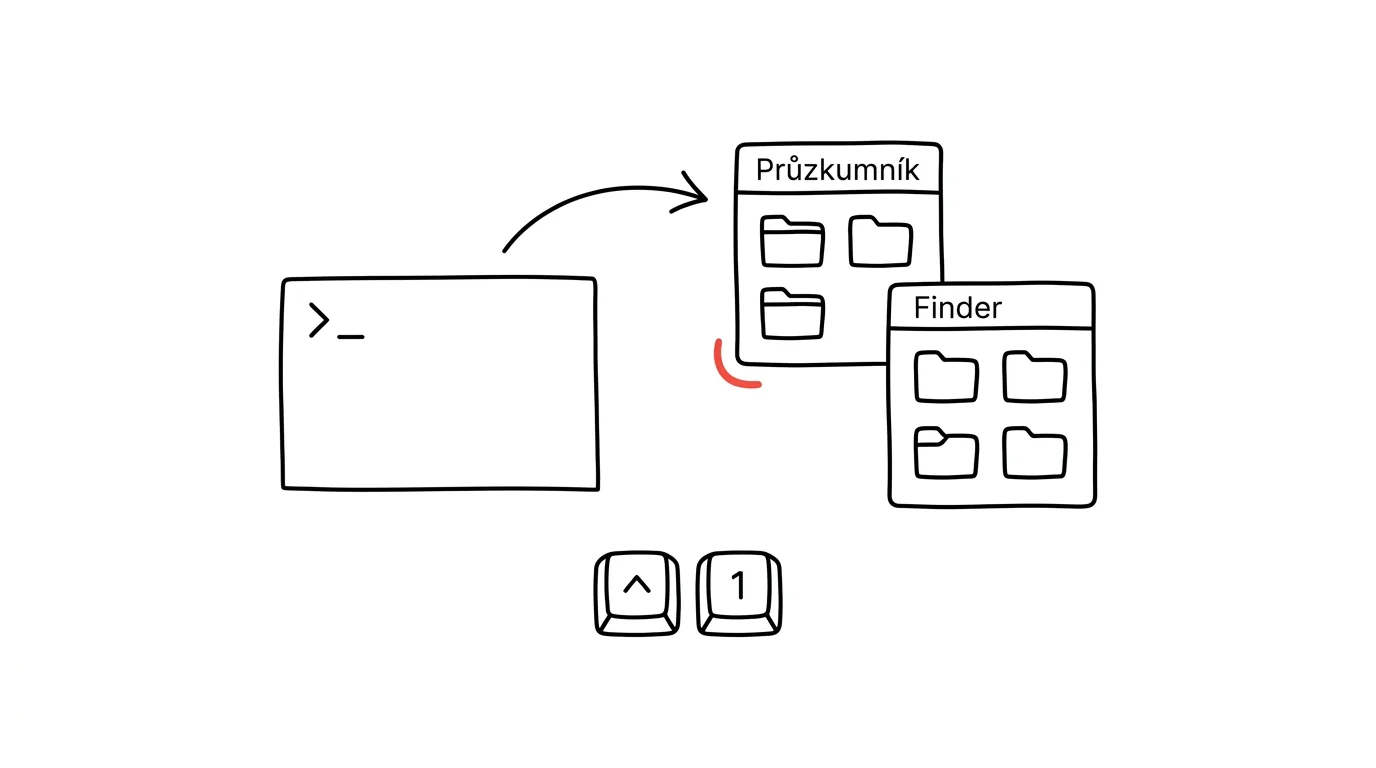
The terminal is great for commands, but sometimes you just need to see a folder: drag a file out of it into an email, glance at image thumbnails, throw something in the trash. Few people know that the path from the terminal to the graphical world is a single command: open . on a Mac, explorer.exe . on Windows, and xdg-open . on Linux all open the exact folder you're standing in inside the terminal. The dot means “the current directory” — no manually hunting down the same folder in the Explorer tree.
How to do it
- On a Mac, type
open .in the terminal — the folder opens in Finder. Theopencommand also works on a specific file:open report.pdfopens it in its default app, as if you'd double-clicked it. - On Windows (PowerShell or cmd), use
explorer.exe .— File Explorer opens in the current folder. The shorterexplorer .works too; open a file withstart filename.xlsx. - In WSL, the Linux environment inside Windows,
explorer.exe .works too — and it's the most convenient bridge between the Linux filesystem and Windows: the folder opens in File Explorer even when it lives inside WSL. - On Linux with a desktop environment,
xdg-open .does the job — it opens the default file manager; the same command also opens files and web addresses. - It works the other way too: from File Explorer to the terminal, by typing “cmd” into the address bar. Both directions together mean you never have to search for the same folder twice.
A typical scenario
A developer just generated a report in the terminal into the folder build/reports/2026-08 and needs to send the file to a colleague in chat. Without the trick, he'd open File Explorer and click his way through the folder tree to a long path he already has printed in front of him. This way he just types explorer.exe ., the folder pops up, and he drags the file into the chat with the mouse. The whole thing takes three seconds — and works the same way for a project nested ten levels deep.
On a Mac the trick goes even further: open -a "Visual Studio Code" . opens the current folder in a specific app, and open -R file.txt reveals a file in Finder with it selected — ideal when you want to drag one specific file out of deep inside a project. On Windows, explorer.exe /select,file.txt serves the same purpose.
What you get out of it
A small everyday frustration disappears: “I'm already here in the terminal, so why am I searching for this folder again in File Explorer?” Switching between the command line and the graphical file manager becomes instant, in both directions. And the open, start, and xdg-open commands are handy for files too — they open anything in its default app without ever leaving the terminal: a PDF in your browser, a spreadsheet in Excel, an image in your photo viewer.
Want to go deeper? The handbook has a whole chapter on it — Core systems: inbox, priorities, reviews.
Similar tips
No agenda, no meeting
One simple rule that erases half your meetings: whoever calls the meeting sends an agenda and expected outcome in advance.
The shutdown ritual: close the day so it doesn't follow you
Five minutes at the end of work: write down loose ends, glance at tomorrow, close the laptop. Work stays at work — even in your head.
Timeboxing: put your tasks straight into the calendar
A task with no time attached is just a wish. Drag your tasks into concrete calendar slots — and give your day a budget, like money.
Was this helpful?
Liked this tip?
I send one like it every week by email. Two minutes to read, hours saved.
The Top 30 tips e-book, free — it lands in your inbox right away.
Then 1 tip a week · no spam · unsubscribe in one click
Prefer a system to single tips? The free email course — seven days, seven emails, one skill a day.