Tips & tricks · Workflow · Everywhere · ~2 min a day · 2 min read
Stop retyping file paths: drag the file into the terminal
Last reviewed:
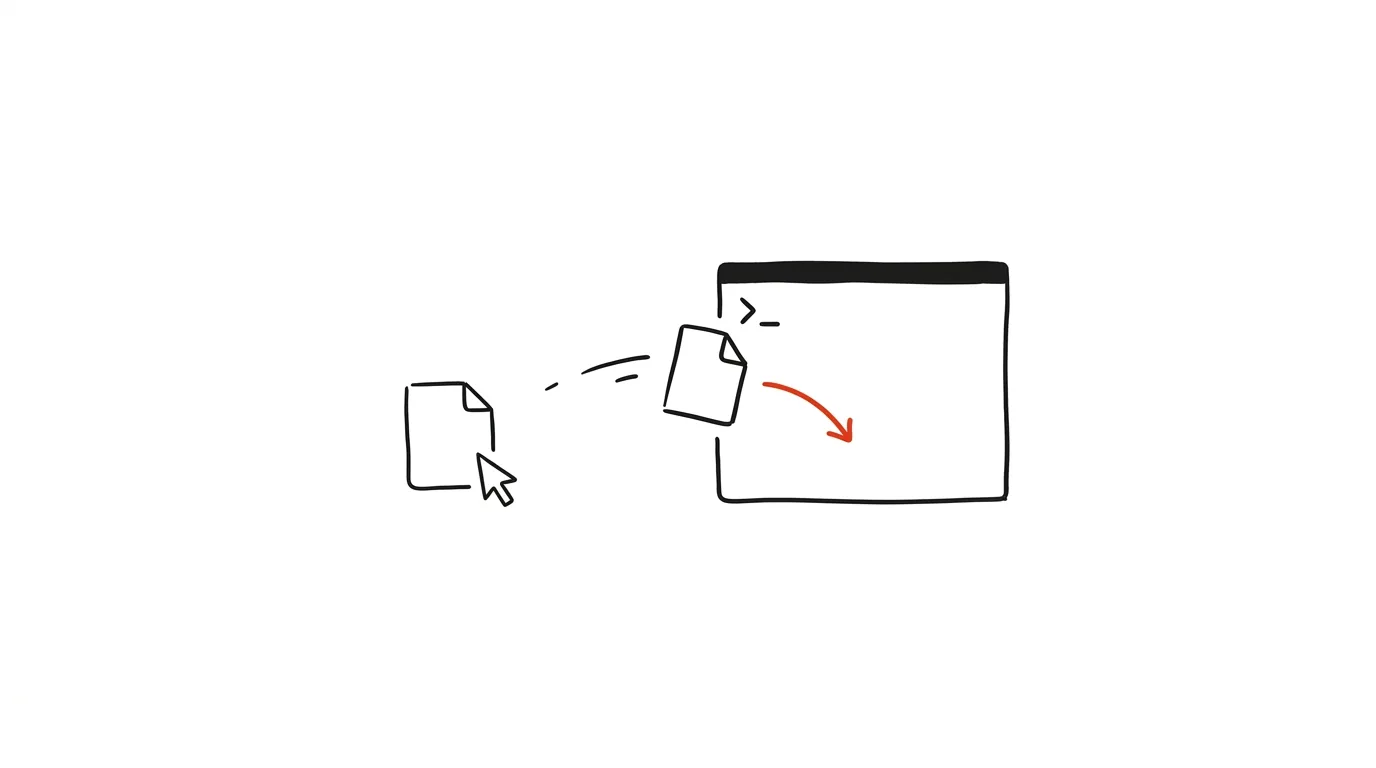
Typing out a file path is the most error-prone thing you do in a terminal: long folder names, spaces, accented characters — and a single typo means No such file or directory. Yet there's a trick surprisingly few people know: just drag a file or folder with the mouse from File Explorer, Finder, or another file manager straight into the terminal window. The terminal inserts the full path at the cursor position, and best of all, correctly escaped — it quotes or escapes spaces and special characters for you.
How to do it
- Type the start of a command into the terminal, say
unzip(with a trailing space). - Find the file in File Explorer (Windows), Finder (Mac), or your file manager (Linux) and drag it with the mouse into the terminal window.
- The full path appears on the line — for example
'/home/jane/Downloads/project materials.zip'— quotes around the spaces included. Press Enter. - It works in Windows Terminal, in macOS Terminal and iTerm, and in most Linux terminals. You can drag a folder too — handy for
cd: typecd, drag the folder, Enter. - On a Mac, the trick has a sibling: whenever you see a file in an open dialog or window in any app, you can also get its path into the terminal via Cmd+Option+C in Finder.
A typical scenario
A student needs to run a script in the terminal on a file that arrived by email: Measurement Results – Group B (final version).csv, saved somewhere in Downloads. Typing that path by hand is practically impossible — spaces, a dash, parentheses, accented letters, every character a trap. Instead, he types python analyze.py , drags the file from the folder into the terminal, and runs it. Ten seconds, zero typos.
The same trick pays off for commands involving two paths at once — like cp or ffmpeg: type the command, drag the source file, type the destination. It also works with tools that prompt interactively for a file: anywhere the terminal is waiting for a path, you can drop a file instead of typing.
It's worth knowing that dragging only inserts the path text — the file itself isn't copied or moved anywhere, so there's no risk of scattering anything. The terminal and the graphical world, which usually live apart, suddenly shake hands.
What you get out of it
The most common source of terminal errors — hand-typed paths — disappears. Files with spaces and accented characters in their names stop being a problem, because the terminal handles the quoting itself. And the barrier for occasional users drops: you don't need to know tab completion or quoting rules, just how to drag with a mouse — the terminal instantly becomes friendlier even to someone who spends five minutes a week in it.
Want to go deeper? The handbook has a whole chapter on it — Core systems: inbox, priorities, reviews.
Similar tips
Set working hours for notifications in Slack
A notification schedule automatically quiets Slack outside working hours. It leaves you alone in the evening — and shows colleagues when you're reachable.
Alt+click in Slack: a message stays unread until you deal with it
Read a message on your phone at the bus stop and now there's no trace of it at work? Alt+click puts it back among the unread. And Esc, the opposite way, clears a whole channel.
Message yourself in Slack: a notepad that's always open
Slack has a conversation with just you — a private space for notes, links, and half-written messages, synced between your computer and phone.
Was this helpful?
Liked this tip?
I send one like it every week by email. Two minutes to read, hours saved.
The Top 30 tips e-book, free — it lands in your inbox right away.
Then 1 tip a week · no spam · unsubscribe in one click
Prefer a system to single tips? The free email course — seven days, seven emails, one skill a day.