Tips & tricks · Shortcuts · Mac · ~3 min a day · 2 min read
Copy a file's path: Cmd+Option+C in Finder
Last reviewed:
Cmd+Option+C
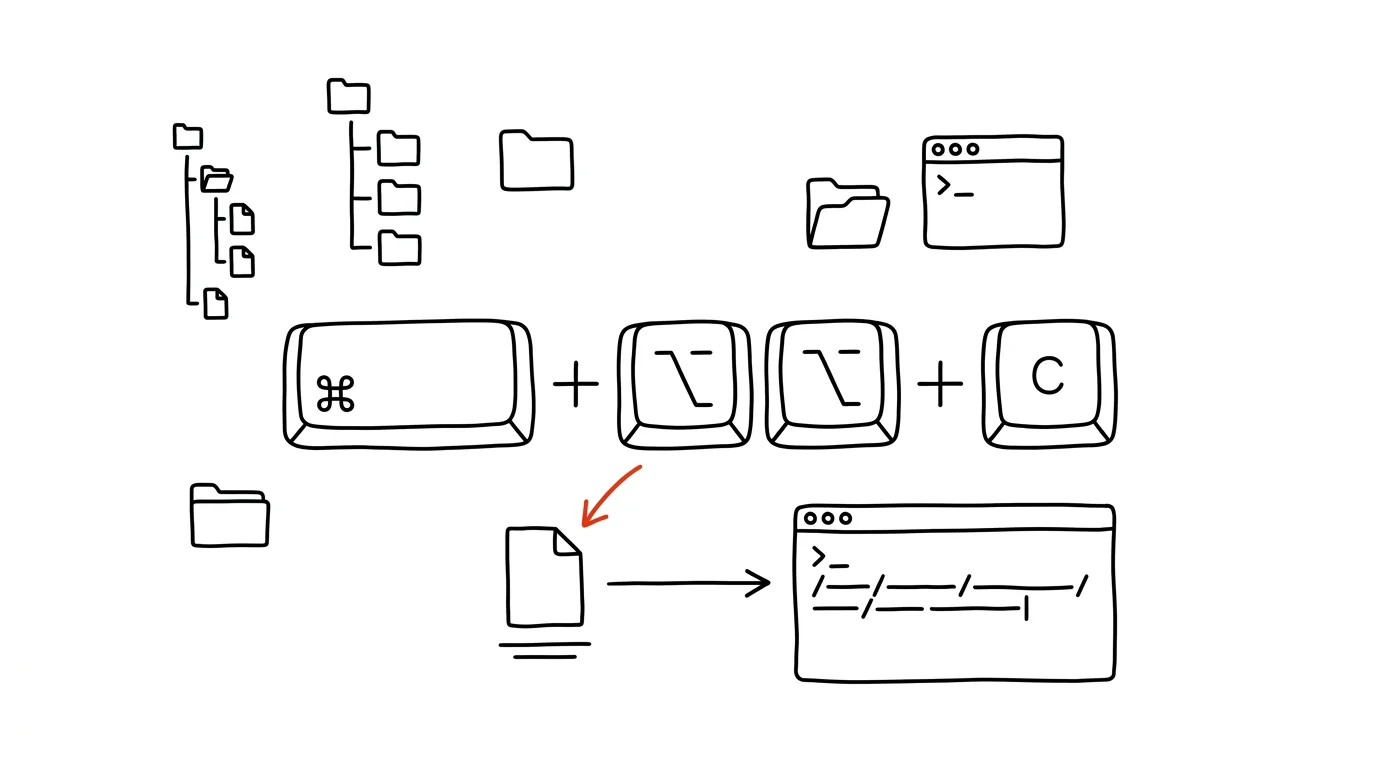
"Send me the path to that file." Or: a script or terminal command needs an exact path, and you type it out by hand — /Users, slash, name, slash… and still make a typo. Finder can copy the full path with one keystroke: select the file and press Cmd+Option+C. Your clipboard now holds something like /Users/alex/Projects/web/logo.png, ready to paste anywhere. The feature has existed for years, but it's not visible in the regular menu — it only appears once you hold down Option — so surprisingly few people know about it, including experienced users.
How to do it
- Select a file or folder in Finder and press Cmd + Option + C — the full path is on your clipboard.
- The same option is in the context menu too, just hidden: right-click the file, then hold Option — the Copy item changes to Copy "…" as Pathname.
- Paste the path with the regular Cmd + V into the terminal, a script, a config file, or a message to a colleague.
- There's an even more direct route for the terminal: just drag the file from Finder into the Terminal window — the path types itself at the cursor's position, spaces in the name and all handled correctly.
- It works in reverse too: paste a copied path into the Go to Folder dialog (Cmd+Shift+G) and Finder jumps straight to it. A path a colleague sent you works the same way — select, copy, Cmd+Shift+G, paste, and you're in their folder.
- When sending a path in chat or documentation, format it as code (in many apps, wrap it in backticks) — a long path with spaces won't wrap awkwardly then, and the recipient can copy the whole thing in one click.
A typical scenario
A developer is debugging a build that fails on one config file buried six folders deep. She needs its exact path for a terminal command. Instead of typing it out by hand (and the classic typo in a folder name with a space in it), she finds the file in Finder, presses Cmd+Option+C, and pastes the path into the command. She then uses the same shortcut to send the path to a colleague in chat, so he knows exactly which file to edit — no more "it's somewhere in the config folder." It's handy outside of development too: a path to a file on a shared drive dropped into meeting notes is far more precise than three sentences of description.
What you get out of it
Exact paths with no manual retyping and no typos in folder names — most useful for anyone who moves daily between Finder and the terminal, or writes scripts. And when talking to IT or colleagues, it replaces a vague description of a file's location with an unambiguous reference the other person finds on the first try.
Want to go deeper? The handbook has a whole chapter on it — The app categories that matter.
Similar tips
In-depth guide · 21 min
AI right in your editor: Copilot and friends for developers
A complete guide with prompts: three levels of assistance and when to use each, tests and refactoring, unfamiliar codebases, and agent-mode guardrails.
iPhone Shortcuts: your phone switches into work mode by itself
The Shortcuts app can do automations: arriving at the office turns on Do Not Disturb, opening Instagram starts a timer.
jq: readable JSON in the terminal and one-expression value extraction
API response as one unreadable line of mush? jq formats it, colors it, and pulls out exactly the field you're looking for.
Was this helpful?
Liked this tip?
I send one like it every week by email. Two minutes to read, hours saved.
The Top 30 tips e-book, free — it lands in your inbox right away.
Then 1 tip a week · no spam · unsubscribe in one click
Prefer a system to single tips? The free email course — seven days, seven emails, one skill a day.