Tips & tricks · Apps · Everywhere · ~5 min a day · 3 min read
Todoist: priority and due date right in the task text
Last reviewed:
Q
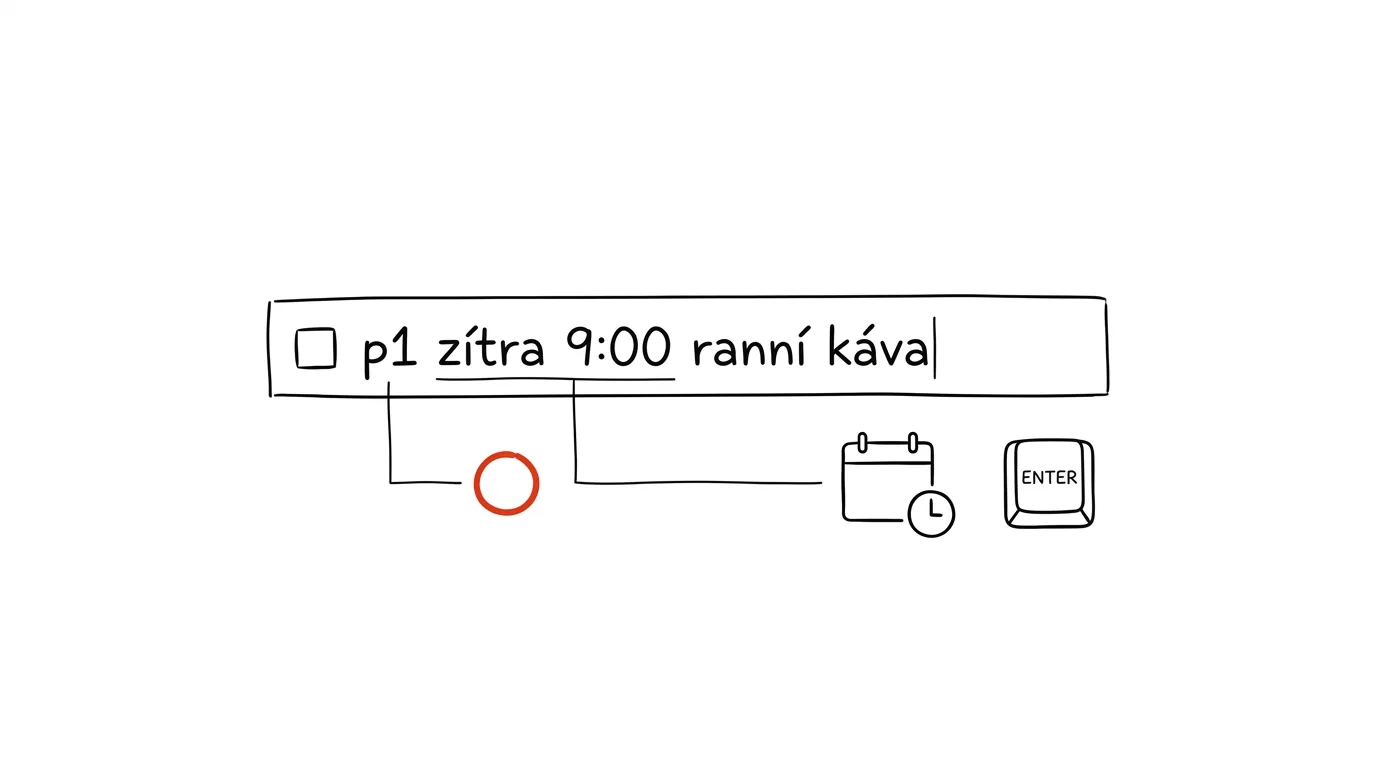
Adding a task should take five seconds, or in the rush of work you simply won't add it — and the thought stays stuck in your head, where it eventually disappears. Todoist solves this by having Quick Add pull a due date, time, priority, and project out of a single typed sentence, without you having to set any of it manually through a menu.
A typical scenario
In the middle of other work, you remember you need to call a client tomorrow at 2 p.m., and it's urgent. The usual process: open the app, create a new task, type the title, click the date, pick tomorrow, click the time, enter 2:00 p.m., click priority, select the highest. Six steps for one phone call — and the next similar task means the same routine all over again.
With Quick Add, you type one sentence, “Call Smith tomorrow 2pm p1 #sales,” and hit Enter. Todoist pulls out the due date, time, priority, and project on its own — six steps become one.
How to do it
- Open Quick Add — in the desktop app, the global Q shortcut works from anywhere, even outside an open Todoist window.
- Type everything into one line, exactly as you'd say it out loud: “Send proposal to Smith tomorrow 2pm p1 #sales.”
- Todoist automatically parses out each part: tomorrow 2pm becomes a due date with a time, p1 becomes the highest priority (the range runs from p1 to p4, where p1 is the most urgent), and #sales assigns it to the Sales project.
- Before you confirm, a preview shows how Todoist interpreted each part of the text — just a quick glance to confirm the date or project is right before you save the task.
- The same principle works for recurring due dates (“every Monday”) or labels (the
@symbol) too — everything can go into one continuous line of text without switching between form fields. - Learn the recognized keywords by heart (days of the week, “tomorrow,” “in a week,” specific times) — the more naturally you write, the more reliably Todoist picks them up.
The best tools
- Todoist's Quick Add (the Q key) — the core of the whole feature, free and built into the app on every platform.
- The Todoist mobile widget — lets you add a task the same quick way straight from your phone's home screen, without opening the full app.
- Voice input through your phone's assistant combined with Quick Add — dictate the sentence, and Todoist parses it the same way.
- Browser keyboard shortcuts (the Todoist extension for Chrome or Firefox) for adding tasks straight from whatever webpage you're browsing.
What you get out of it
- Time: an estimated 3–7 minutes a day, since you're skipping the repeated clicks into separate form fields for every task.
- Higher odds it actually gets written down: the faster the entry, the greater the chance you actually add the task the moment it occurs to you, instead of putting it off “for later” and forgetting.
- Consistent data: writing in the same format (date, priority, project in one sentence) leads to more uniform tasks across your whole system, which makes filtering later easier.
- Less interruption of your work: quick entry takes a few seconds, so you return to what you were doing with barely any loss of focus.
Pro tip
Learn that Quick Add also works globally from anywhere in the system, not just inside an open Todoist window — you write down the idea without switching apps and without losing the context of whatever you were doing. It's the difference between “write it down now” and “write it down whenever I get to it” — and the latter usually means half your ideas never get written down at all.
Want to go deeper? The handbook has a whole chapter on it — The app categories that matter.
Similar tips
Forward as an Attachment: A Whole Thread in One Email
Gmail can forward an email as an .eml attachment — even ten messages at once. The recipient gets the originals, headers and all, not a mangled copy.
Templates in Gmail: never write the same reply twice
Answering similar questions over and over? Save the reply as a template and drop it in with two clicks.
Turn an Email Straight Into a Calendar Event
Gmail turns an open email into a Calendar event in three clicks — with the subject as the title and a link back to the conversation.
Was this helpful?
Liked this tip?
I send one like it every week by email. Two minutes to read, hours saved.
The Top 30 tips e-book, free — it lands in your inbox right away.
Then 1 tip a week · no spam · unsubscribe in one click
Prefer a system to single tips? The free email course — seven days, seven emails, one skill a day.