Tips & tricks · Apps · Browser · ~4 min a day · 3 min read
Custom search shortcuts: “w query” searches Wikipedia
Last reviewed:
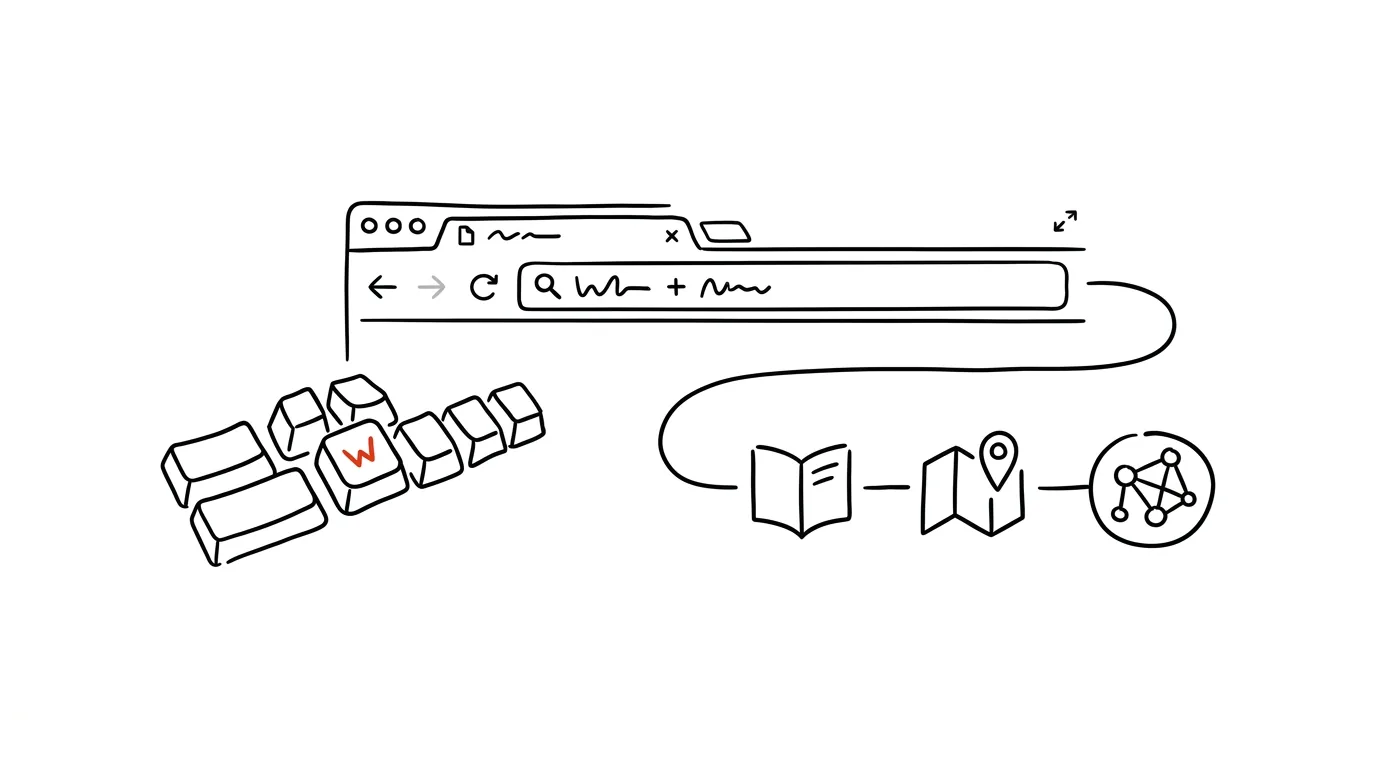
Why open a site and search there when the address bar can just do it directly? A browser's address bar can work as a universal search field — show it once where each query should go, and afterward all you type is a few letters, a space, and your search term.
A typical scenario
A coworker asks where the nearest bank branch is. Without a custom shortcut, that means: open a new tab, type “google maps” into the address bar, wait for results, click the link, and only then enter the actual search. Four steps for one query, and the same thing repeats for every Wikipedia search, every lookup in the company wiki, or every internal-system search.
With a shortcut set up, all you do is type “w Pomodoro technique” into the address bar and hit Enter — and you land directly on the Wikipedia search result, no detour through opening the page and typing into its own search box. It works the same way for maps, company documentation, or anything else where a search parameter can be tacked onto a URL.
How to do it
- Open Browser settings → Search engine → Manage search engines (Chrome and Edge both use a similarly named section, just in slightly different menu locations).
- Click to add a new search engine and fill in three fields: a name (e.g. “Wikipedia”), the keyword you'll type into the address bar (e.g. “w”), and a URL with a
%sparameter marking where your search text should go — for Wikipedia that'shttps://en.wikipedia.org/w/index.php?search=%s. - Save it and test it: type “w” into the address bar, a space, and your search term, e.g. “w Pomodoro” — the browser jumps straight to the search result. If nothing happens, check whether you saved the keyword as the search engine's actual shortcut, not just as its name.
- Add shortcuts the same way for other sites you use often — your company wiki, an internal ticketing system, a mapping site. Find the URL with
%sby searching for something on the site and copying the resulting address from the address bar — the parameter with your query will be visible there, and you just replace it with%s. - Keep your shortcuts short and memorable (one or two letters) — the shorter they are, the sooner you'll start using them automatically.
The best tools
- Built-in search engine management in the browser (Chrome, Edge, Firefox) — free, works instantly, nothing to install.
- Sync via your browser account — shortcuts set up once carry over to every device signed into the same account.
- Firefox keyword bookmarks — the same idea via bookmarks with a keyword attached, handy if you already use bookmarks.
- Raycast or PowerToys Run — for people who want the same shortcut principle to work outside the browser too, straight from the desktop.
What you get out of it
- Time: a few seconds saved per search adds up to a few minutes over dozens of daily queries.
- Fewer broken trains of thought: no waiting for a homepage to load before you can actually search.
- A consistent habit: shortcuts set up once keep working indefinitely with no further maintenance.
- Less reliance on bookmarks: instead of hunting through a bookmark list, you just type the query directly.
Pro tip
Many sites already work this way automatically, with nothing to set up — start typing a site's address (say, “youtube.com”) and press Tab if the browser offers “Search youtube.com…”. Browsers remember frequently visited sites and turn them into search engines on their own.
Want to go deeper? The handbook has a whole chapter on it — The app categories that matter.
Similar tips
A closed lid doesn't have to put your laptop to sleep: run it as just a monitor setup
With an external monitor and keyboard, a laptop can run closed and save desk space. Just change one setting for what closing the lid does.
Your monitor can do 120 Hz but runs at 60: turn on the full refresh rate
Plenty of monitors and laptops run at 60 Hz even though the hardware can do more. One setting, and scrolling suddenly feels buttery smooth.
The parking file: unfinished work survives every interruption
Before a meeting or a coworker pulls you away, write one sentence: what you're doing and what the next step is. Coming back then takes seconds, not a quarter hour.
Was this helpful?
Liked this tip?
I send one like it every week by email. Two minutes to read, hours saved.
The Top 30 tips e-book, free — it lands in your inbox right away.
Then 1 tip a week · no spam · unsubscribe in one click
Prefer a system to single tips? The free email course — seven days, seven emails, one skill a day.