Tips & tricks · Apps · Browser · ~10 min a day · 3 min read
Web clipper: save an article with one keystroke
Last reviewed:
Ctrl+Shift+K
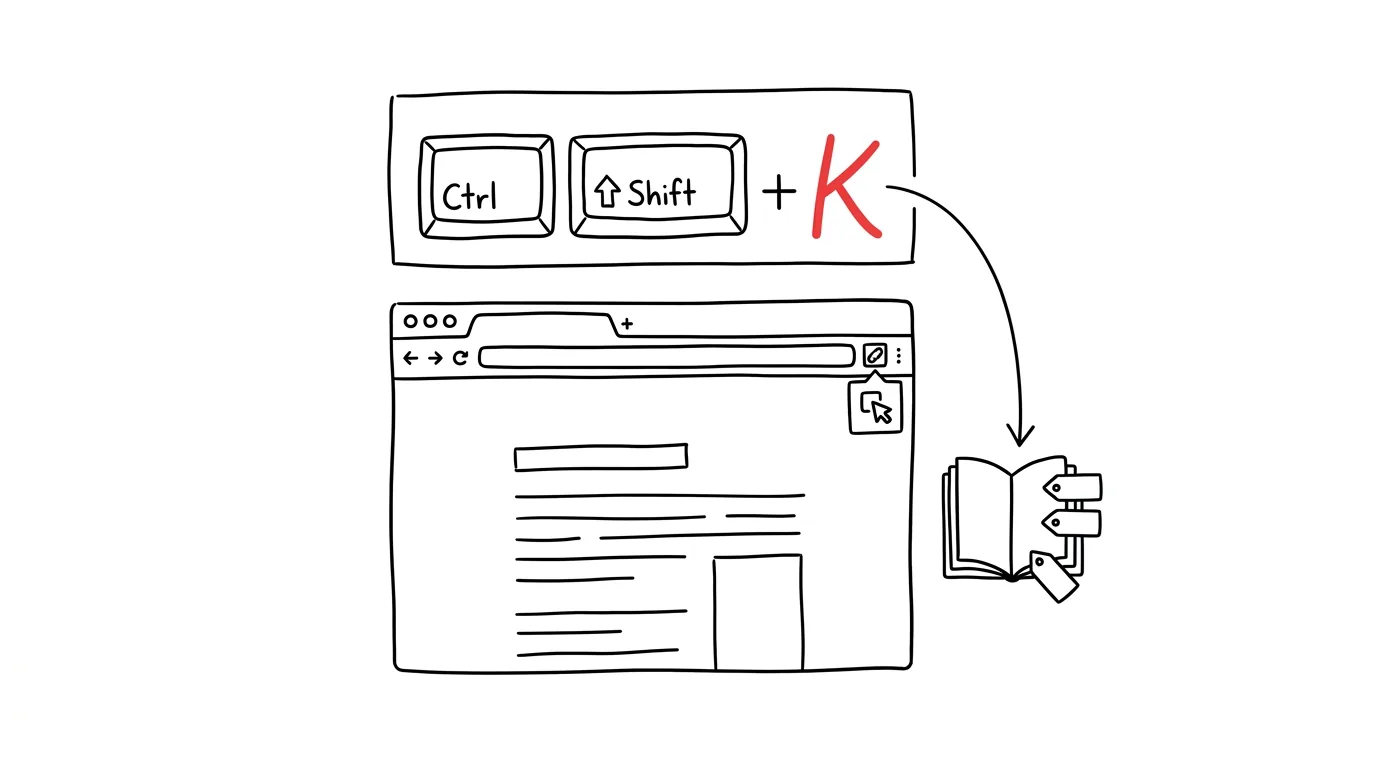
“That article was great, too bad I can't find it now.” You've probably heard yourself say this — a bookmark gets lost among hundreds of others, or you leave a tab open in the browser until you close it, unread, weeks later. A web clipper solves this problem once and for all: the article gets saved to a library where you can actually find it, even six months later.
A typical scenario
Eva, a marketer, runs across five interesting articles during the day — one about industry trends, another with a specific number she'll need for a presentation. Without a clipper, she saves them as bookmarks in a “Read later” folder that already has over a hundred unnamed, unsorted entries. A month later, when she needs to find the one with the number, she goes through them one by one and eventually gives up.
With a web clipper, she presses Ctrl + Shift + K while reading, adds the tag “marketing,” and the article disappears into her library with the text and images saved — regardless of whether the page later vanishes from the internet. A month later she finds it through full-text search on a keyword from the text, not by the bookmark's name that nobody remembers.
How to do it
- Install a browser extension — Notion Web Clipper is one option, others include Pocket, Instapaper, or Obsidian Web Clipper, depending on where you want to save your content.
- Set up a keyboard shortcut for quick saving — e.g. Ctrl + Shift + K — so you don't have to reach for the mouse and hunt for the extension icon every time.
- Save everything into a single database or “To read” list with a clear status: new → read → archive. Without this structure, you'll end up with the same unsearchable pile, just in a different app.
- Add at least one tag or category when saving — it makes later searching much easier than relying on full text alone, especially for shorter articles where the keyword might not appear verbatim.
- Most clippers can save a selected passage instead of the whole page — handy when you only care about one paragraph or quote, not the entire long article.
The best tools
- Notion Web Clipper — saves directly into a Notion database, a good choice if you already keep notes in Notion and want everything in one place.
- Pocket — a simple tool focused purely on read-later, including offline mode and a clean, ad-free reading view.
- Instapaper — similar to Pocket, plus a built-in reading-time estimate and the option to listen to articles as audio.
- Obsidian Web Clipper — for people who keep notes in Obsidian; a saved article becomes part of a linked note network instead of an isolated item.
What you get out of it
- Time: tens of seconds saved when looking for an article later add up to ten or more minutes a day for a regular reader.
- Less lost content: pages change or disappear over time — a saved copy of the text stays accessible even after the original is gone from the web.
- Actual reading instead of hoarding: a database with a status forces you to come back to saved articles instead of letting the list grow forever like a pile of bookmarks.
- Better visibility into your own sources: tags and categories gradually build a personal library you can search by topic, not just by chance.
Pro tip
Once a week, set aside ten minutes for your database and go through it: anything worth keeping, turn into your own notes or a summary; archive or delete the rest without regret. Saving without reading is just digital hoarding, and without regular cleanup it ends up just as unsearchable as old bookmarks.
Want to go deeper? The handbook has a whole chapter on it — The app categories that matter.
Similar tips
Snooze an email until you can actually do something about it
The Snooze feature hides an email from your inbox and brings it back at a time you choose. Your inbox stays clean and nothing gets lost.
Forward as an Attachment: A Whole Thread in One Email
Gmail can forward an email as an .eml attachment — even ten messages at once. The recipient gets the originals, headers and all, not a mangled copy.
Templates in Gmail: never write the same reply twice
Answering similar questions over and over? Save the reply as a template and drop it in with two clicks.
Was this helpful?
Liked this tip?
I send one like it every week by email. Two minutes to read, hours saved.
The Top 30 tips e-book, free — it lands in your inbox right away.
Then 1 tip a week · no spam · unsubscribe in one click
Prefer a system to single tips? The free email course — seven days, seven emails, one skill a day.