Tips & tricks · Gear · Windows · better sleep · 3 min read
Night light: warmer colors after sunset
Last reviewed:
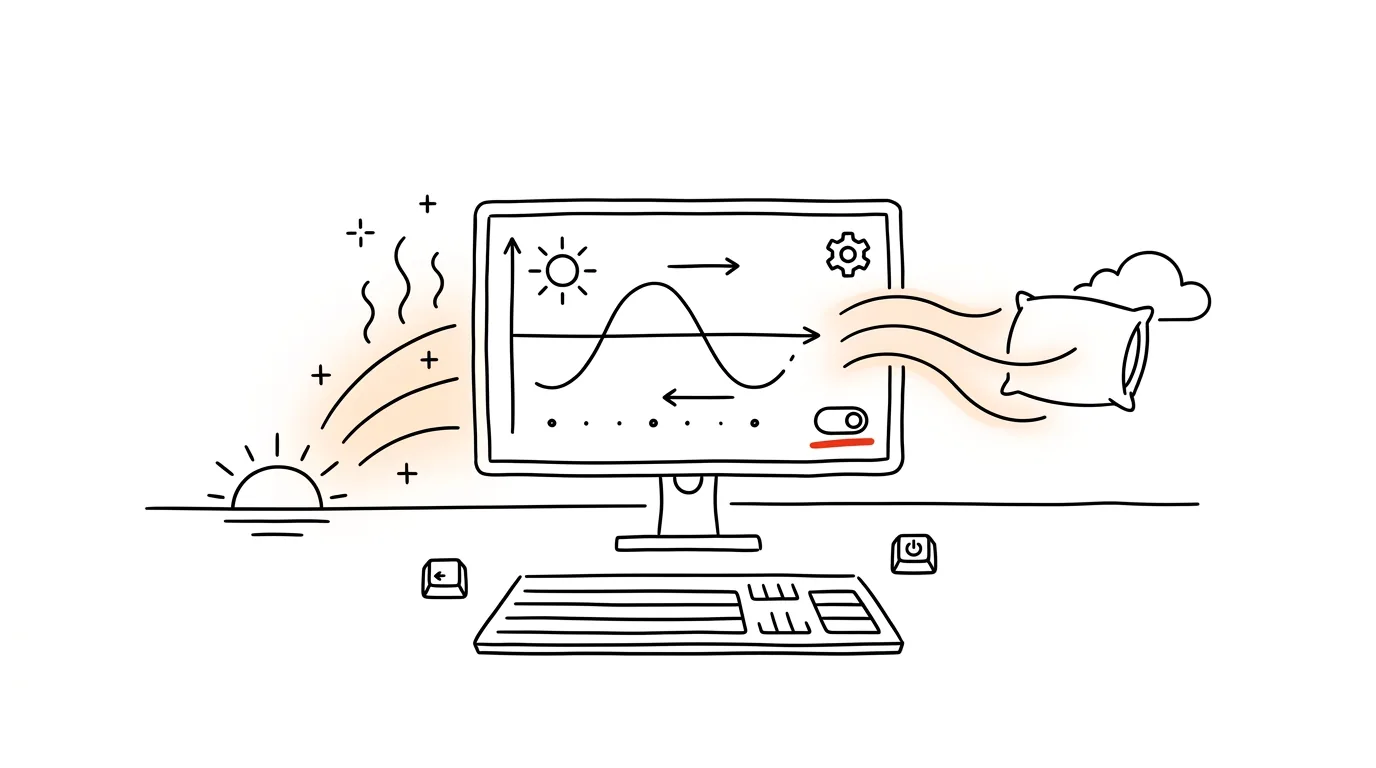
Evening work doesn't have to wreck your sleep as much as it does. The cold, bluish glow of a display in the evening tells your body it's still daytime — even at the exact moment you should be winding down toward sleep. Windows has a built-in feature that softens this effect entirely automatically, with no extra add-on.
A typical scenario
It's ten at night and you're still finishing an email or clicking through the last spreadsheet. The screen shines just as sharp and bluish as it did at noon, your eyes start to ache after a while, and once you're in bed you still lie there for twenty minutes before drowsiness finally sets in. Left unaddressed, this repeats every evening the computer or laptop stays on after dark.
With night light, the display gradually shifts to warmer tones after sunset on its own — the image is softer, less harsh on the eyes, and your body gets a more consistent signal that night is approaching. There's nothing to remember or switch manually — the feature runs in the background on a schedule you set once.
How to do it
- Open Settings → System → Display → Night light.
- Click Schedule night light and choose the automatic Sunset to sunrise option — Windows calculates the times itself based on your location, so you don't have to track them manually. If automatic timing doesn't suit you, you can set fixed hours instead.
- Adjust the strength with the slider — start around the halfway point and dial it in later based on how it feels on your eyes. A higher strength means a warmer, more orange image.
- You can toggle the feature on and off quickly right from the Action Center (the icon in the bottom-right of the taskbar), for moments you need to see accurate colors, like when editing photos.
The best tools
- Windows' built-in Night light — free, set up once and it runs on schedule from then on.
- Night Shift on Mac — a similar feature under Settings → Displays, works on the same sunset-to-sunrise scheduling principle.
- f.lux — an older but still-used tool for computers where you want finer manual control over the color-temperature curve throughout the day.
- Phone settings — if you also work on your phone in the evening, a similar feature (Night Light / Night Shift) exists there too and is worth turning on at the same time.
What you get out of it
- Better sleep onset: less blue light in the evening means your body's melatonin production isn't being suppressed, so falling asleep should be faster and easier.
- Less eye strain: a warmer, softer image is easier on the eyes during long evening work sessions.
- Zero maintenance: a schedule set once runs on its own — nothing to remember or click every evening.
- Adjustable strictness: both intensity and timing can be tuned anytime, so the feature never gets in the way of work where you genuinely need accurate colors.
Pro tip
If you occasionally need to see undistorted colors in the evening (say, for editing photos or graphics), you don't have to turn the feature off in settings — just click the Night light tile in the Action Center to switch it off for a moment, then click again to turn it right back on exactly where it was.
Want to go deeper? The handbook has a whole chapter on it — The complete guide to an effective home office.
Similar tips
A second charger lives in your bag
One charger stays at your desk, a second one lives permanently in your bag. A few bucks buys the end of endless repacking and forgetting.
E-ink tablets: writing like on paper, without the distraction
The reMarkable and its peers have no notifications, no browser, no social networks. Just you and your notes — which digitize themselves.
Choppy Video Call? A Cable Fixes What Wi-Fi Can't
“You froze” usually doesn't mean slow internet — it means unstable Wi-Fi. An Ethernet cable is the single most reliable upgrade for calls.
Was this helpful?
Liked this tip?
I send one like it every week by email. Two minutes to read, hours saved.
The Top 30 tips e-book, free — it lands in your inbox right away.
Then 1 tip a week · no spam · unsubscribe in one click
Prefer a system to single tips? The free email course — seven days, seven emails, one skill a day.