Tips & tricks · Shortcuts · Windows · ~5 min a day · 3 min read
Snap Layouts: window arrangements from the maximize preview
Last reviewed:
Win+Z
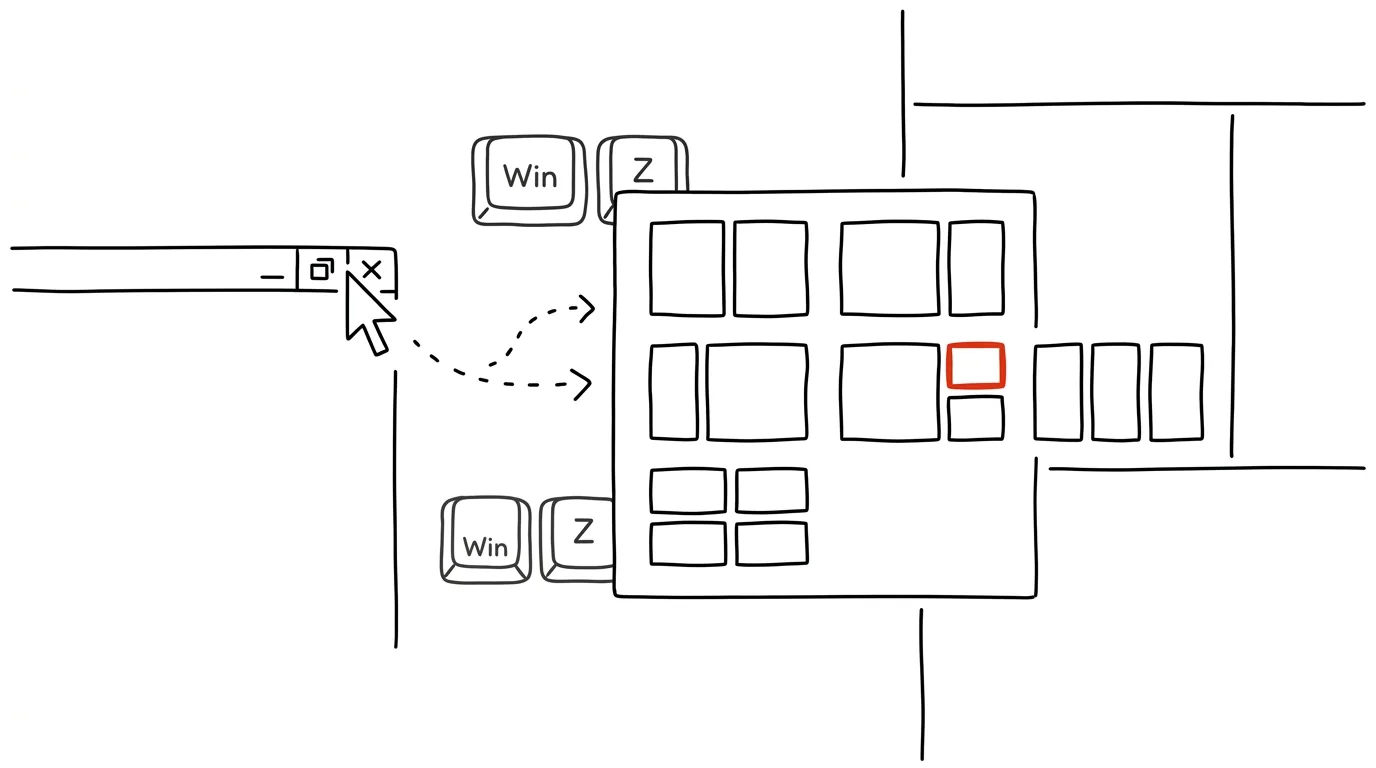
Windows 11 offers ready-made window layouts — you just need to know about them. Most people still arrange windows by manually dragging corners and edges with the mouse, even though the system has had a faster built-in way for years, one that even remembers which window goes where.
A typical scenario
You're working on a project where you need email, a spreadsheet, and a notepad open at once — three windows side by side in thirds of the screen. Doing it manually means dragging three windows around, fine-tuning each one's width separately, and if you accidentally close one, you're rebuilding the whole arrangement from scratch.
With Snap Layouts, just hover the mouse over the maximize button in the window's top-right corner (or press Win + Z) and a menu of ready-made layouts appears — halves, thirds, a four-window grid. Click the position where the window belongs, and Windows automatically fills the remaining slots with previews of your other open windows.
How to do it
- Hover the mouse over the window's maximize button in the top-right corner (no need to click, just hold the cursor there for a moment), or press Win + Z directly.
- A menu of available layouts appears — usually two halves, three columns, or a grid of four panes, depending on your screen's size and resolution.
- Click the position in the layout where you want to place the active window.
- Windows automatically offers thumbnails of your other open windows to fill the remaining slots in the layout — click a thumbnail to snap that window into place (this is called Snap Assist).
- You can assemble a whole layout this way in a few clicks, even with four or more windows, without a single mouse drag to the edge.
The best tools
- Built-in Snap Layouts (Win + Z) — a free part of Windows 11, the fastest way to a tidy layout without installing anything extra.
- PowerToys FancyZones — a free add-on from Microsoft for custom, named zones beyond the predefined layouts, good for large or multiple monitors.
- Snap Assist — a built-in companion feature that, once you place the first window, offers to fill the remaining slots for you.
- Rectangle (macOS) — a similarly free feature for Mac, which lacks native Snap Layouts.
What you get out of it
- Time: roughly 3–5 minutes a day saved on manually arranging multiple windows, especially on a higher-resolution monitor where more windows fit at once.
- Clarity: the layout is always precise and symmetrical, with no window overhanging or staying too small.
- Quick restoration of a layout: after closing and reopening a window, a few clicks rebuild the whole arrangement.
- Less mouse fatigue: no more repeated fine-tuning of size and position by dragging edges.
Pro tip
Hover over an app's icon on the taskbar to see whole saved groups of windows in that layout — click a group's preview to restore the entire layout at once, without having to reassemble each window individually.
Want to go deeper? The handbook has a whole chapter on it — The app categories that matter.
Similar tips
In-depth guide · 18 min
Todoist vs. TickTick vs. Microsoft To Do: Which Task Manager Actually Sticks
An honest comparison of the three most popular task managers across ten criteria. Plus a table, a pick for your situation, and a lossless migration guide.
Track your week: where your time actually goes
A week with a time tracker (Toggl and similar) reveals the gap between what you think you do and reality. It's usually a shock — and the start of a change.
Three tasks for the day: pick in the morning, check in the evening
Not a list of twenty items, but three things that absolutely must get done today. Everything else is a bonus.
Was this helpful?
Liked this tip?
I send one like it every week by email. Two minutes to read, hours saved.
The Top 30 tips e-book, free — it lands in your inbox right away.
Then 1 tip a week · no spam · unsubscribe in one click
Prefer a system to single tips? The free email course — seven days, seven emails, one skill a day.