Tips & tricks · Apps · Everywhere · better focus · 3 min read
Word without distractions: Focus mode
Last reviewed:
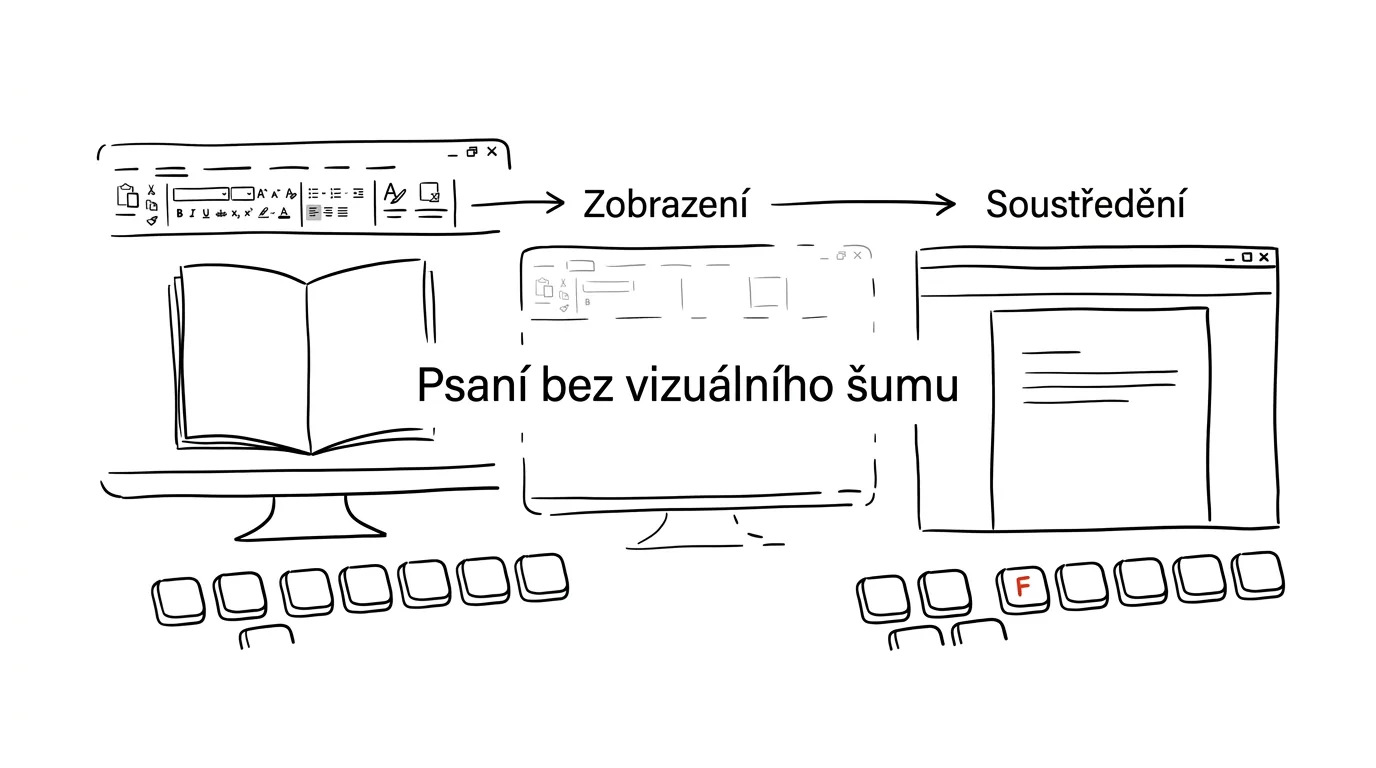
You need the ribbon while formatting, not while writing. When you're sitting in front of a blank page trying to get a thought down, the dozens of buttons, icons, and menus around the text are just visual noise pulling attention away from the one thing that matters right now — the text itself.
A typical scenario
You're writing a term paper or a longer report, and every so often your eye drifts to the ribbon — a highlighter-color icon, a comments button, a styles menu — and before you know it, you've clicked somewhere you didn't mean to, or you've just been distracted for a moment and lost the thread of the sentence you were writing. Over a long writing session, this small noise adds up to a noticeable loss of focus.
In Focus mode, everything around it disappears — only the page and the cursor remain. Nothing tempts you to wander, nothing distracts, and the ribbon is still within reach, just tucked away until you call it up yourself.
How to do it
- In the main menu, click View and find and select Focus.
- The area around the page dims or disappears entirely, the ribbon hides, and only the page with your text remains, centered, with no side panels or bars.
- Whenever you need to format text or use another ribbon function, just move your mouse to the top edge of the screen — the ribbon temporarily slides down, then disappears again once you move the mouse away.
- To exit the mode and return to normal view, press Esc.
- Focus mode doesn't change the document's content or formatting in any way — it's purely a visual setting for writing that you can turn on and off at any time without altering the text.
The best tools
- Focus mode in Word — a free built-in feature, turns on with one click and needs no add-ons.
- Immersive Reader — a related Word feature aimed more at reading than writing, with highlighting and text-to-speech.
- iA Writer or Typora — standalone free/paid apps for distraction-free writing, popular with people who want an even cleaner environment than Word offers.
- Google Docs (full-screen mode) — a similar, simpler feature for people working in Google's environment.
What you get out of it
- Focus: fewer visual cues around the text mean fewer chances to lose your train of thought mid-sentence.
- Faster writing: without the temptation to detour into formatting, you write a first draft faster and leave formatting for a later step.
- Less screen fatigue: a dimmed area around the page is easier on the eyes during long writing sessions than a fully lit interface with every panel visible.
- Easy return to regular work: one press of Esc and you're back in standard view with everything you need for editing.
Pro tip
You can bring up the ribbon by moving your mouse to the top without having to leave Focus mode — handy when you just need to quickly fix the formatting of one word and get right back to writing without losing the calm environment.
Want to go deeper? The handbook has a whole chapter on it — The app categories that matter.
Similar tips
Merge multiple PDFs into one — without paying for Acrobat
A contract, an attachment, and a scanned addendum, all in one file: Preview handles it on a Mac, free PDF24 on Windows — just don't upload sensitive documents anywhere.
Pull just a few pages out of a PDF — by printing to PDF
Need to send three pages out of a fifty-page PDF? Print the range “12-14” to PDF and the new file is born. No installing anything.
Slim down a presentation: compress images right inside PowerPoint
Presentation is 80 MB and won't go through email? Built-in image compression shrinks it to a fraction of the size — two clicks, no visible loss.
Was this helpful?
Liked this tip?
I send one like it every week by email. Two minutes to read, hours saved.
The Top 30 tips e-book, free — it lands in your inbox right away.
Then 1 tip a week · no spam · unsubscribe in one click
Prefer a system to single tips? The free email course — seven days, seven emails, one skill a day.