Tips & tricks · AI · Everywhere · ~10 min per document · 2 min read
Smart Quotes and Dashes: Typographic Proofreading by AI
Last reviewed:
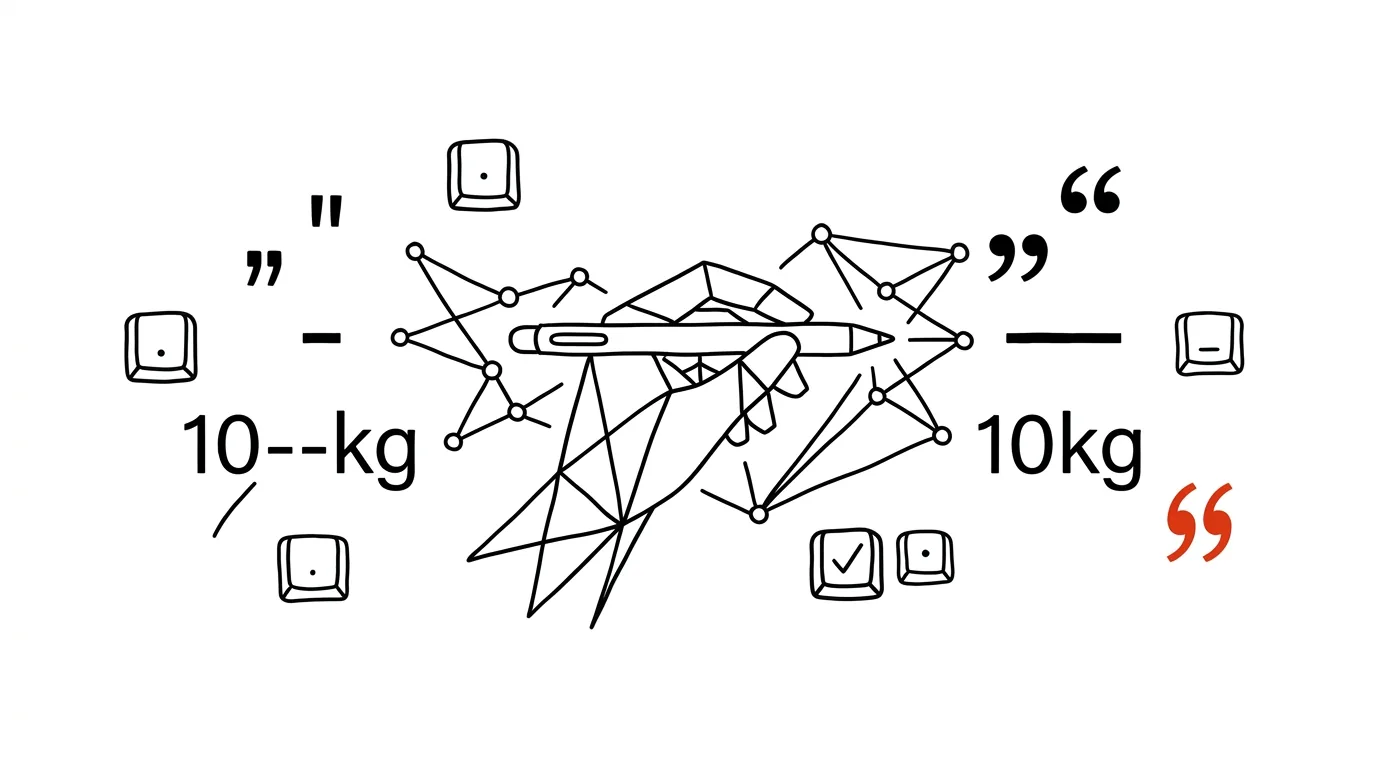
A text can be written brilliantly and still look amateurish: straight quotation marks instead of proper curly ones, a hyphen where an en dash belongs, "50%" with no space when you meant fifty percent, not "fifty-percent." Typography is a layer most people never consciously notice — but it's exactly what separates professional copy from amateur copy at a glance. Fixing it by hand means knowing the rules and hunting down every occurrence; AI does it all in one pass and hands you a list of changes to approve.
How to do it
- Paste the finished text into a chat with this prompt:
Do a typographic proofread following standard English rules.
Fix ONLY typography, no rewording:

- straight quotes to curly “” (nested ‘’),
- dashes: en dash for ranges with no spaces (9–5pm), em dash
  for asides with no spaces, hyphen only inside compound words,
- spacing: a non-breaking space between a number and its unit
  (100 km), and between a number and % (50 %) unless the
  phrase is used as an adjective (a 50%-off sale),
- ellipsis … instead of three periods,
- the × sign instead of the letter x in dimensions (2×3 m),
- curly apostrophes ’ instead of straight ones in contractions.

Return the corrected text and a list of changes by type with
counts.
- Skim the list of changes — pay special attention to percentages, where spacing depends on meaning and the model is inferring it from context.
- Copy the text back. One thing to watch: non-breaking spaces sometimes get lost on copy-paste depending on the app — in Word, check them by turning on formatting marks.
- Any rule on the list that surprised you, have it explained right away — it's the fastest typography crash course there is, tailored to your own actual mistakes.
A typical scenario
Marketer Eva is finalizing a company price list and a press release. The texts passed through three people, each one wrote quotes differently, ranges like "9-17" have a hyphen, and percentages are a coin flip between spaced and unspaced. A designer could fix it, but bills by the hour — and would still have to ask what "20% off" is supposed to mean.
Eva runs both documents through the prompt and sees 34 quote fixes, 8 dash fixes, and 2 disputed percentages in the change list, which she resolves herself. The text that goes to the printer is one even a typesetter wouldn't be embarrassed by.
What you get out of it
Text that looks professional even under a magnifying glass — which matters everywhere a document represents you: proposals, price lists, course materials, websites. The "typography only" constraint guarantees nothing gets silently added to your text, and the change list keeps the final word with you. It pairs with the tip proofreading that doesn't rewrite you — together they form a two-step preflight check for every piece of text that leaves your computer. Save the prompt somewhere you'll find it: typographic proofreading is exactly the kind of task you'll do again and again for every piece you publish.
Want to go deeper? The handbook has a whole chapter on it — AI and automation.
Similar tips
Image Resizer: shrink photos with a right-click
Ten phone photos to email? Image Resizer from PowerToys shrinks them right in File Explorer — select, right-click, done. Originals stay untouched.
Peek: preview a file with Ctrl+Space, no app required
Ctrl+Space
What's in that file? Peek from PowerToys shows the contents of a selected file on Ctrl+Space — no waiting for Word, a photo viewer, or a PDF reader to launch.
PowerRename: rename a hundred files by a rule
Replace text across all filenames, add a date, number them. PowerRename from PowerToys renames whole batches at once — with a preview before anything actually happens.
Was this helpful?
Liked this tip?
I send one like it every week by email. Two minutes to read, hours saved.
The Top 30 tips e-book, free — it lands in your inbox right away.
Then 1 tip a week · no spam · unsubscribe in one click
Prefer a system to single tips? The free email course — seven days, seven emails, one skill a day.