Tips & tricks · AI · Everywhere · ~20 min per problem · 2 min read
Paste the Error Message Into AI, Not a Search Engine
Last reviewed:
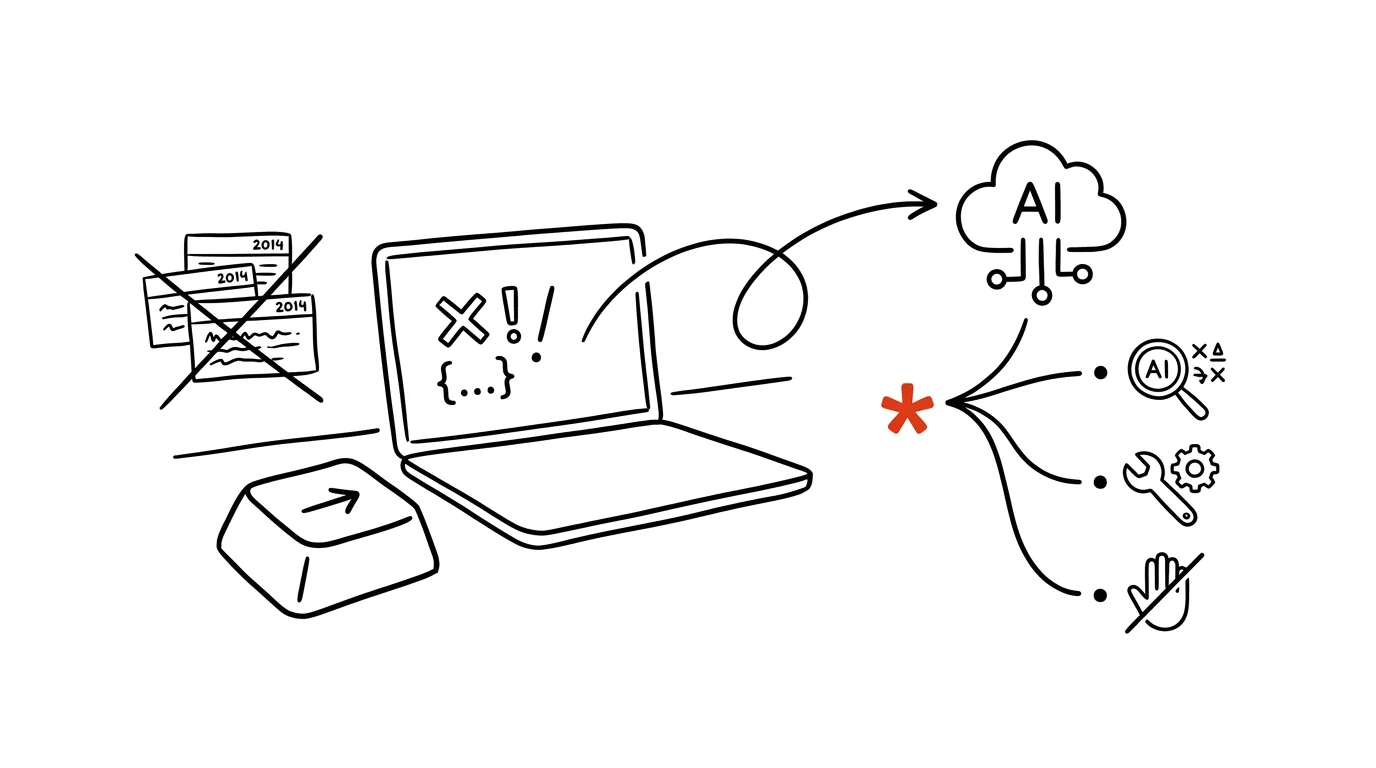
The classic move with an error message: type it into a search engine, open five results, find that three are ten-year-old forum posts, one is for a different version, and the last one tells you to reinstall Windows. Chatbots are actually built for this better than a search engine: they understand the message, know the context of your system, can ask follow-up questions — and, crucially, you can just photograph the message or paste a screenshot, even for messages in a language you don't understand at all.
How to do it
- Copy the whole message (it's often behind a "details" or "more information" button), or take a screenshot and paste it into the chat — Claude, ChatGPT, and Gemini all read images.
- Add context and this prompt:
Here's an error message. Context: [Windows 11 / macOS,
which app, and what I was doing when it appeared — e.g.
printing from Word]. I'm not a technician.

1. What the message means, in one plain sentence.
2. The most likely cause in my situation.
3. Steps to fix it, starting with the gentlest — for each,
   say exactly what to click where and how I'll know it worked.
4. What I should NOT do, so I don't make it worse (anything
   that could delete data or break something else).

Walk me through it one step at a time, not all at once.
- Do the step, report the result, and continue. That "one step at a time" matters: when a step doesn't work, the model adjusts its diagnosis instead of you blindly working through the whole list.
- Take point 4 seriously — for steps like deleting folders, editing the registry, or "reset to factory settings," stop and think it over. AI proposes, the human approves; backing up before a bigger intervention always pays off.
A typical scenario
The parents' printer stops working and an error code in English lights up on the screen. It used to mean an evening phone call and remote troubleshooting in the dark: "and what does it say now?" This time the daughter gave her parents a simpler process: photograph the message with your phone, send it into a chat, and say you're not technicians.
The model reads the code from the photo, explains that the printer is waiting on a stuck job in the queue, and walks them through it: what to click, what should appear, how to confirm it. Ten minutes later it's printing. The phone call still happens — just a happy one this time.
What you get out of it
Most error messages have a trivial fix — the problem was always that the message is written for technicians and the forum guides are for a different version. With AI you get an explanation for your specific situation, at your own pace. And thanks to point 4, you also learn what the forums leave out: where the line is, past which it's smarter to call a professional. It pairs with the tip photograph it and it's a task — a phone with AI doubles as a repair technician in your pocket.
Want to go deeper? The handbook has a whole chapter on it — AI and automation.
Similar tips
In-depth guide · 37 min
AI for families: a shared calendar, parenting, cipher scavenger hunts, and bedtime stories on demand
A guide for parents with prompts: family chaos in one overview, where AI helps and where it must not decide, cipher hunts, and custom bedtime stories.
In-depth guide · 76 min
AI in the company: the complete rollout guide — from data to measurable results
Our most comprehensive guide: AI rollout from the data foundation through tools and policy to self-monitoring meetings. 50+ prompts and a 90-day plan.
In-depth guide · 17 min
Custom instructions: set up AI once, it applies forever
A complete guide to standing instructions: what belongs in them, how they differ from a Project, testing them — and ready sets for common professions.
Was this helpful?
Liked this tip?
I send one like it every week by email. Two minutes to read, hours saved.
The Top 30 tips e-book, free — it lands in your inbox right away.
Then 1 tip a week · no spam · unsubscribe in one click
Prefer a system to single tips? The free email course — seven days, seven emails, one skill a day.