Tips & tricks · AI · Everywhere · ~the end of transcribing · 19 min read · in-depth guide, doing it ~2 h
Snap a photo and it's a task: Claude on mobile
Last reviewed:
In this article
- A typical scenario
- Phase 0: setup so processing takes five seconds
- Phase 1: whiteboard and flipchart into who-what-by-when tasks
- Phase 2: receipts and invoices into budget line items
- Phase 3: posters, invitations, and schedules into calendar events
- Phase 4: handwriting — notes, lists, and business cards
- Phase 5: documents and longer texts into summaries and decisions
- Phase 6: from trick to habit — connectors, routines, and cleaning up your gallery
- Common mistakes
- The best tools
- What you get out of it
- Pro tip
Every phone's gallery is a graveyard of good intentions: a photo of the whiteboard after a meeting, a poster for an event you meant to go to, a receipt from lunch with a client, a handwritten list from a meeting, four shots of a contract you meant to read properly later. You photographed it telling yourself you'd “transcribe it sometime.” You never did. A photo isn't an output — it's a postponement. You saved yourself a picture, and along with it, the work you pushed off indefinitely.
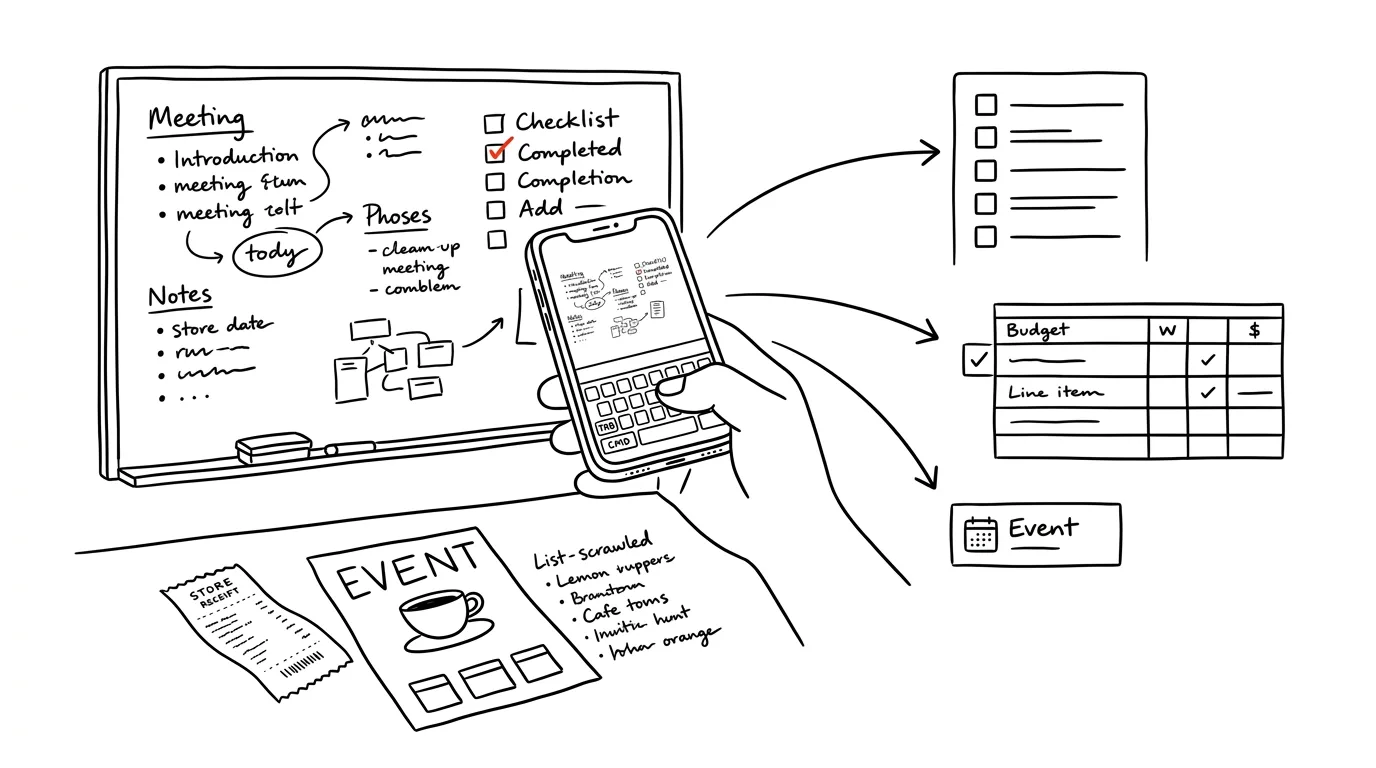
But a phone with AI isn't a scanner that just saves an image — it's a scanner that processes the content on the spot. The gap between a photo and a usable output used to be an hour of transcribing. Now it's a single request you can type before you even reach your car. A whiteboard turns into a task table, a receipt into a budget line, a poster into an event with an address and a time, handwritten notes into readable text. Always with one rule sitting above all of it: AI proposes, the person approves — and you double-check the numbers yourself.
This guide is spelled out down to the last prompt. First, the setup that gets processing down to five seconds instead of five minutes, then six typical scenarios (whiteboard, receipt, poster, handwriting, business card, document), each with a ready-to-copy prompt, and finally the most important part — how to turn a one-off trick into a habit, and how to route the outputs into your calendar and task list. You don't have to read it all at once; jump to whichever scenario is sitting in your phone right now.
A typical scenario
Project manager David runs a two-hour meeting with his four-person team on a Friday. Fifteen items are left on the whiteboard: seven have initials next to them, four have a date, three are crossed out, one is circled and connected to another with an arrow. Everyone knows the usual routine — photograph the whiteboard, spend ten minutes staring at the photo Monday morning, then half an hour writing up notes. Or never write them up at all, because Monday brings some other priority and the tasks just dissolve. Of his last four meetings, only one got notes.
The new routine: still in the meeting room, before the last person has left, he opens the photo in the Claude app and pastes in the prompt he keeps saved in his notes. He fills in the participants' names and the date. Twenty seconds later he has a table of eleven tasks with owners and deadlines attached, a separate list of three decisions, and two items flagged with a question mark because the initials could be read two ways. He fixes those two from memory — he remembers them, since the meeting ended a minute ago. One more prompt turns the table into a two-hundred-word write-up, which he sends out.
The difference isn't just the half hour saved. Notes that arrive within ten minutes of a meeting get read, because people still remember the context and recognize their own name in them. Notes sent Monday afternoon are an archival document. And after three months, this habit has cut roughly two hours of transcribing out of David's week — but more importantly, it's added six write-ups that would otherwise never have existed.
Phase 0: setup so processing takes five seconds
This whole approach lives or dies on one thing: whether processing is faster than putting it off. If you have to dig the photo out of your gallery, open the app, scroll to find it, and think up a prompt from scratch, convenience wins and the photo just sits there. Phase 0 takes fifteen minutes and turns this into a reflex.
App within thumb's reach
Put the Claude app on your phone's home screen, ideally in the bottom row where you can reach it with one hand. There's an even shorter path: most gallery apps can share a photo straight to another app from the preview screen — open the shot, tap share, pick Claude.
Pre-write your prompts. Save the six prompts from this guide that you'll use most often as text shortcuts on your phone (on iPhone under Settings and Keyboard, on Android in the personal dictionary of shortcuts) — type “;board” and the whole prompt drops in. On mobile, whatever's closest to your thumb wins.
How to shoot the photo so the machine can read it
The quality of the source material decides how much you'll have to fix afterward. Four things are enough:
- Straight on, not from the side. A whiteboard shot from a sharp angle skews the writing at the edges so badly that even you can't read it. Stand in the middle.
- Two photos beat one. For a large whiteboard or an A4 page densely covered in pencil, photograph the left and right halves separately. The resolution on each detail doubles, and the read success rate climbs noticeably.
- Watch for glare and shadow. A glossy whiteboard under fluorescent light and a shiny receipt are the most common causes of unreadable text. Step to the side so the glare slides off the text; avoid casting your own shadow by not shooting with a light source directly behind you.
- Use scan mode for documents. Your phone's built-in scanner crops the shot, straightens the perspective, and boosts contrast — it makes a real difference on multi-page documents; see scanning with your phone.
What not to photograph and what to cover
A whiteboard with internal strategy on it, a receipt with a name and card number, a document with a national ID number, a client list — all of that is sensitive data. Upload it only to a paid account with contractual data protection, never a free chat, and cover or crop out whatever you can before uploading. Other people's personal data (business cards, contact lists, health documents) also belongs to someone who isn't you — process it only to the extent your work actually requires, and delete the photos once you're done.
Calibration: five minutes that save hours of corrections
Before you start trusting the machine with numbers, let it show you once what it actually sees. Photograph your typical handwriting or your typical whiteboard and run this prompt on it.
Here's a photo of [a whiteboard / a page of my handwritten notes].
Don't turn this into anything yet — first show me what you read.

1. Transcribe literally all the text you can make out in the image,
   in the order it appears, preserving the structure (columns,
   bullets, arrows, boxes, strikethroughs).
2. For every passage you're not sure about, write [UNCERTAIN] and
   offer two possible readings.
3. List separately anything that's completely illegible, and say
   why (blurry, cut off by the edge, overlapping, too small).
4. Don't fill in anything, don't fix typos, and don't rephrase.

Once I see what you read, I'll tell you what I want to do with it.
It returns a raw transcript that tells you two things within five minutes: whether your handwriting is machine-readable (almost always for print letters, sometimes not for fast cursive) and how to shoot photos so the share of uncertain spots shrinks. If more than a handful of passages come back illegible, the problem is almost always the photo, not the model — reshoot it close up and in sections.
Phase 1: whiteboard and flipchart into who-what-by-when tasks
The whiteboard after a meeting is the most valuable, and fastest-spoiling, material in the whole company. An hour later you still remember what that arrow meant; a day later you don't. That's why this scenario gets processed on the spot, not that evening.
Extracting the tasks
The key is giving the model three things it can't read off the photo: who was at the meeting (so it can match initials to people), when the meeting happened (so it can convert “by next week” into a date), and what shouldn't become a task (crossed-out items, notes, ideas).
Here's a photo of the whiteboard from the [team name] meeting,
held on [date]. Participants: [Jane D., Peter S., David K., Lucy M.].

Turn the whiteboard into a task table with columns:
task | who | by when | where on the board.

Rules:
- match initials and first names to the people in the list above;
  where the match isn't clear-cut, write QUESTION MARK and offer
  the possible options
- don't put crossed-out items into the table; list them separately
  at the end under the heading "crossed out — to check"
- where a deadline is missing, write "no deadline set" and don't
  invent a date
- convert relative deadlines ("by next week", "by end of month")
  into a specific date based on the meeting date, and keep the
  original wording in parentheses
- in the last column, note which part of the board the item came
  from (left column, box on the right, note at the bottom)

Below the table, give two lists: what's a decision (not a task),
and what's just a note or an idea. At the end, note what was
hard to read.
It returns a table where most rows are done and two or three need your hand. Check the assignment of people and dates first — in that order. A mixed-up person means a task nobody does; a wrong date means a task done late. The most common failure: the model turns an item that was just a column heading into a task, and conversely misses a task tucked into a note at the margin. That's why those last two lists exist — they force it to make a call on each item separately.
From the task list to meeting notes ready to send
The table is for you. The write-up is for everyone else, and it has to go out while the meeting is still fresh.
Turn this task table into meeting notes that I'll send to the
participants in five minutes.

Structure:
- three opening sentences: what the meeting was about and the
  main takeaway
- decisions as bullets, each with who made it
- tasks in the format who — what — by when, sorted by deadline
- open questions we didn't resolve
- one closing sentence: when the next meeting is and what needs
  to be ready for it

Write plainly, no filler courtesies, 250 words maximum.
Where the source has QUESTION MARK or "no deadline set", keep
that visible in the notes too — let people fill it in as they read.
Don't add anything that isn't in the source.
It returns text you can paste straight into an email or a chat channel. The last line of the prompt matters: the model tends to “polish” the write-up and add conclusions that were never actually said in the meeting. Leaving the question marks in is also a neat trick — colleagues fill in their own tasks themselves, because it's annoying to see an incomplete line next to your own name.
Phase 2: receipts and invoices into budget line items
A receipt is a piece of paper that loses value twice: first it fades (thermal paper is completely unreadable after a few months), then the deadline for claiming it expires. Processing it on the spot — at the register or in the car — is the cheapest possible investment here.
One receipt, one line
Here's a photo of a receipt. Pull a line for my budget out of it,
in the format:
date | merchant | total amount | currency | payment method |
category | note

- pick the category from my list: [food, transport, office,
  software, lodging, client entertainment, other]
- if the receipt has items belonging to different categories,
  split it into multiple lines; their sum must match the total
  amount shown on the receipt
- list the tax base and sales tax/VAT separately, only if they're
  on the receipt
- anything you can't read, write as [ILLEGIBLE] — never guess
  a number
- put whatever's handwritten on the receipt into the note

At the end, write one sentence on which value you were least
sure about.

Output as semicolon-separated lines, no additional commentary.
It returns a line you copy into your spreadsheet. The check has one rule: eyeball the amount and the date against the original, nothing else. A mixed-up merchant name is a cosmetic flaw; a mixed-up digit in the amount is an error in your budget. For faded thermal paper, take two exposures — the lighter one often catches what the darker one loses.
A month's batch of receipts
If the photos are already sitting in your gallery, process them all at once. This is the one case where a graveyard of photos actually pays off.
Here are [12] photos of receipts from [August]. Turn them into
one table with columns: date | merchant | amount | currency |
category | photo number.

- sort the rows by date
- don't convert foreign currencies, leave them in the original
  currency and label them
- for every receipt where you weren't sure about the amount or
  the date, add an asterisk at the end of the row
- list receipts you couldn't read at all separately, by photo number

At the end, add three things:
1. a sum by category,
2. a list of the starred rows I should check,
3. a flag for possible duplicates (same merchant, day, and amount).

Don't calculate anything else.
It returns a table ready for import and — which tends to be the biggest surprise — a list of duplicates, because people often photograph the same receipt twice. One honest note on the totals: a language model isn't a calculator, it generates numbers as text. Treat them as a rough guide and have them recalculated where they belong: in a spreadsheet, with a formula. This connects to a personal budget from a bank statement.
Phase 3: posters, invitations, and schedules into calendar events
A poster is information with an expiration date. If you don't move it into your calendar within a minute, the event slips by — not because you didn't want to go, but because you never hear about it at the right moment.
From a poster to an event
Here's a photo of a poster. Pull the details for a calendar event
out of it:

name | date | start time | end time | location including address |
admission | link or contact | what to bring

- if only a day of the week or a date without a year is given,
  state which date that works out to in your judgment, and flag
  it as an estimate to verify
- if the end time is missing, write "not stated" and don't guess
  a duration
- transcribe the address exactly as it is on the poster, don't
  look it up
- flag any web address or QR code you can't read as [ILLEGIBLE]

At the end, add two sentences: what I should verify before I add
this to my calendar (advance registration, limited capacity,
schedule changes possible).
Then repeat the whole thing as a short text for the event's notes.
It returns a complete set of details for the event. Watch out for two things: posters often leave out the year (the model fills it in based on the nearest upcoming date, so it gets it wrong for a poster from last year), and it likes to guess an end time on its own.
Multiple events at once from a conference program
Here's a photo of the [conference program / schedule / training
timetable]. Turn it into a table: session name | day | start |
end | room | speaker.

- keep the order by time
- put parallel sessions side by side and mark them as concurrent
- list breaks and lunches too, so no gap appears in the calendar
- where a later session's time is only implied, don't calculate
  it, write "not stated"
- flag anything you read from small or blurry print

At the end, pick [5] sessions that best match my focus area
[describe your focus area], and write one sentence for each
saying why.
It returns an overview of the whole conference plus a personal shortlist. That shortlist is a side benefit that makes the prompt worthwhile even when you're not adding anything to your calendar.
Phase 4: handwriting — notes, lists, and business cards
This is the capability that makes the whole approach worthwhile most of all: Claude can also read handwritten text, so there's finally a path from a paper notepad to your computer that doesn't take longer than writing the notes did in the first place.
Meeting notes into continuous text
Here are [3] photos of my handwritten notes from [a meeting with
client X, August 12]. The pages are in order, I write fast and
messily, in abbreviations.

1. Transcribe the notes into continuous text in the same order
   I wrote them. Don't shorten or rephrase — I want my own
   sentences, just readable.
2. Leave abbreviations as they are; at the end, list the ones
   you had to guess and what you think they mean.
3. Flag uncertain spots as [UNCERTAIN: option A / option B].
4. List separately: what looks like a task for me, what looks
   like a promise made to the other side, and all numbers, dates,
   and names, so I can check them.

Don't write a summary — I'll ask for that separately if I want it.
It returns a transcript you'll recognize your own thoughts in. Point 4 is the key one: tasks and promises are the one thing that absolutely has to surface from meeting notes, and they're the easiest thing to miss in handwritten chaos.
A paper list into a usable checklist
Here's a photo of a handwritten list.
Turn it into a clean bulleted list where you:
- list checked-off and crossed-out items separately under a
  "done" heading
- flag items with a question mark or a circle around them as
  uncertain
- keep indented lines and arrows as nested bullets under the
  main item
- merge repeated items and note the count next to them
- don't add anything "for completeness"

Then give me the same list again, this time sorted by
[store aisle / priority / where it belongs], so I can act on
it directly.
It returns the list in two forms — faithful and usable. That second ordering is the real payoff: a shopping list sorted by aisle saves more time than the transcription itself.
A business card into a contact
Here's a photo of a business card, possibly with my pencil note
on it too. Pull out: name | title | company | email | phone |
website | address | handwritten note.

- write the phone number in international format and keep the
  original notation from the card next to it
- transcribe the email address character by character, and flag
  letters that are easily confused: lowercase l and capital I,
  zero and the letter O, the combination r n versus m
- transcribe the handwritten note verbatim into the note column,
  don't interpret or add anything to it
- flag anything you can't read as [ILLEGIBLE]

At the end, write one sentence: what I should verify about this
contact before I write to them.
It returns a contact ready to save. The email address is the one field where an error goes unnoticed until the message bounces, which is why the prompt spells out which character pairs get confused. If you've collected more than a handful of cards, skip mobile and go straight to batch processing — the full process is in from a box of business cards to a CRM table.
What handwriting reading still can't handle
Expect reliability, not infallibility. Here's where it runs into trouble:
- Fast cursive with connected letters. Print handwriting reads almost flawlessly, neat cursive reads well, “doctor's handwriting” reads unreliably. Try the calibration prompt from Phase 0 on a sample of your own writing and take the result on board.
- Numbers are the riskiest. With digits, context doesn't tell you what's meant — a one and a seven, a zero and a six, a three and an eight get confused most often. That's why amounts, phone numbers, tax IDs, and deadlines always get checked against the original.
- Structure on a whiteboard. Arrows, boxes, and the relationships between items are something the model often has to guess at. The text transcription tends to be faithful; the interpretation of “what belongs to what” doesn't always hold up.
- Crossed out and rewritten. When you cross out a word and write another one above it, both can end up in the output — or the wrong one alone.
- Abbreviations that exist only in your head. Internal project names, people's initials. The fix: write them into the prompt as a small glossary.
- Pencil on glossy paper and faded thermal paper. It's not about the handwriting, it's about contrast. Side lighting and a close-up shot save more than any prompt can.
The defense is always the same: have uncertain spots flagged, check numbers against the original, and never let something unread turn into a silent guess. That's also why the instruction “flag anything you can't read” keeps repeating in every prompt — without it, the model fills the gap with a plausible-sounding guess.
Phase 5: documents and longer texts into summaries and decisions
The last big scenario is different from the previous ones: you don't want a transcript, you want to understand what the paper actually says and what you're supposed to do about it. Typically a lease, insurance terms, instructions from school, a package insert, a returns policy, or a report with a table of numbers.
A multi-page document
Here are [4] photos of a document [type: lease / insurance terms /
instructions from school]. The pages are in order.

Give me four things from it:
1. A summary in 8 bullets: what the document is about and what
   it wants from me.
2. A table of key facts — amounts, deadlines, dates, the parties'
   names, notice period, penalties, automatic renewal. For each
   one, note which page it's on.
3. Five things I should watch out for: what's unfavorable to me,
   ambiguous, or unusual, and why.
4. Seven questions I should ask the other party before I sign.

Where the text in the photo is cut off or unreadable, say so
explicitly and don't guess at the content. Don't give a legal
opinion — I want to understand the contract and know what to
ask about.
It returns your bearings on the document in a minute instead of half an hour. Two caveats: page photos are a worse source than a PDF scan, so for longer contracts, use scan mode and upload a single file; and the summary isn't legal advice — for a contract involving serious money, this is preparation for a conversation with a lawyer, not a substitute for one. More detail in a contract before you sign it.
A table or chart in a photo
With numbers, it pays to split the work into two steps: a faithful transcription first, interpretation only after. If you combine them, the model starts interpreting before it's finished reading, and bends the numbers to fit a story.
Here's a photo of [a table from a report / a chart from a
presentation]. Transcribe it into a text table exactly as it
is: same columns, same row order, no recalculating, no filling
in gaps.

- transcribe numbers with units and decimal points exactly as
  shown
- leave empty cells empty, don't replace them with zero
- for digits that could be confused, add [?] after the value
- below the table, list which values were hardest to read in
  the original

Don't comment on any of it yet. Once I confirm the table, I'll
ask you for an interpretation.
It returns a transcription you check against the photo. Only once the table is confirmed should you ask questions like “what does this tell us” — and even then, key numbers get calculated in a spreadsheet or a script, not in the chat.
Phase 6: from trick to habit — connectors, routines, and cleaning up your gallery
Everything above works as a one-off too. But the real payoff comes once it becomes a habit you don't have to think about.
The two-minute-from-the-click rule
The one rule that holds this whole system together: a photo taken for its content gets processed within two minutes. Not that evening, not on the weekend — right away, while you're still standing at the whiteboard, sitting in the car, or waiting for the elevator. The reason isn't discipline, it's context: within two minutes you can spot an error in the output from memory; two days later you can't, and you have to go back to the original, which someone may have erased by then.
A rule of thumb for sorting: photos split into two kinds. Keepsakes (kids, vacation, food) belong in the gallery and nowhere else. Work photos (whiteboard, paper, screen, poster) have an output that's missing somewhere — and until it gets there, the job isn't done.
Connectors: straight from output to a draft in your calendar and task list
Claude can reach into other apps through connectors — your calendar, mail, notes, task list (how that works is explained in connectors as USB-C for AI). That removes the last manual step: copying the output into wherever you actually work with it. But an iron rule applies: it may only create something after your confirmation, and it never sends anything.
Pull the event details out of this poster photo and prepare a
calendar event for me in [calendar name].

First show me the draft: name, date, start and end time, location,
description. Only create the event after I confirm it.

- don't invite anyone and don't send anything to anyone
- put the link or contact from the poster into the description,
  plus the sentence "verify registration"
- if the end time is missing, propose a duration and note that
  it's estimated
- if you're not sure about the date, don't create the event —
  ask me instead
- set the reminder for [the day before at 6:00 PM]
It returns a draft to sign off on, and only acts after that. The same logic lets you carry a task from a whiteboard into your task list, or a contact from a business card into your address book. The boundary is always the same: reading and preparing a draft happens without asking, any writing, sending, or deleting happens only after a human confirms it.
A one-time gallery cleanup
Before you get into the habit of processing right away, there's still what's already sitting on your phone to deal with. Don't do it one photo at a time.
Here are [20] photos that have been sitting on my phone from the
last [three months]. Go through them and give me an overview —
one row per photo:

number | what's in it | type (whiteboard, receipt, poster, note,
document, business card, other) | is it still current | what to
do with it (process, keep, delete)

- for posters and invitations, check the date: mark anything
  already past as no longer current
- for receipts, give the date and amount, so I can tell whether
  I still need it
- for whiteboards and notes, note what situation it looks like
  it's from

At the end, split them into three groups: process now, keep,
delete. Don't delete or save anything anywhere — just sort it
for me.
It returns an inventory, and the biggest relief tends to be discovering that half the photos are stale and can go. Process the “process now” group using the methods from the earlier phases and delete the rest — an empty gallery is part of the result.
A routine that reminds you
The last piece is a reminder. A scheduled weekly task (“every Friday at 4pm, ask me whether I have any unprocessed meeting photos or receipts from this week sitting on my phone”) is cheaper than relying on memory, and it can be tacked onto the morning summaries you're already getting.
Common mistakes
- Shooting into your gallery instead of into the app. A shot saved “for later” has one downside compared to a processed one, but it's a decisive one: later never comes. The critical moment is while you're standing at the whiteboard, not that evening at home.
- A photo with no instructions. “What's in this photo?” gets you a description, not an output. The second sentence is what makes the difference: state the format (table, bullets, semicolon-separated line) and the purpose. The more specific the format, the less work is left for you.
- Not checking the numbers. Text recognition is good, not infallible, and context can't tell you the correct digit. Amounts, phone numbers, tax IDs, and deadlines get compared against the original — every time.
- Letting the model quietly fill in what it couldn't read. Without an explicit instruction (“flag anything you can't read as illegible”), it fills the gap with a plausible-looking guess. You can't tell after the fact, which is why that instruction belongs in every prompt.
- Letting AI create or send something without confirmation. Connectors are convenient, and that's exactly why the boundary around them gets enforced: AI proposes, the person approves. No event, payment, email, or deletion without your sign-off.
- Photographing sensitive things into a free chat. A whiteboard with internal strategy, a document with a national ID number, someone else's business cards. Use a paid account with contractual data protection, crop out what you can, and delete it once processed.
- Letting the output sit in the chat. A conversation isn't storage. If the output never makes it into your calendar, spreadsheet, or task list, all you've done is move the graveyard from your gallery into your chat history.
The best tools
- Claude on mobile — reads both printed text and handwriting, and above all turns it into the structure you asked for; works on a photo taken a second ago, including multi-page sets.
- Your phone's built-in scanner — cropping, perspective correction, and contrast for documents and contracts; a better source image means fewer corrections, see scanning with your phone.
- Connectors and MCP — links to your calendar, mail, drive, or task list, so the output doesn't dead-end in the chat; always in draft-for-approval mode.
- Your phone's text shortcuts — the six most common prompts behind three characters; this is what decides whether processing takes five seconds or five minutes.
- Voice input — when you'd rather not type: attach the photo and dictate the instruction, see voice mode.
- A spreadsheet editor — the place where receipt lines turn into a budget, and where numbers get added up with a formula, not a guess.
What you get out of it
- Time: roughly half an hour of transcribing disappears from an average meeting, and about the same from a monthly batch of receipts. Over a month that adds up to several hours — but more importantly, an entire activity disappears, one that nobody likes and that therefore keeps getting put off.
- Money: reimbursed receipts that would otherwise have faded away in a jacket pocket, and deadlines from contracts and invitations that don't quietly expire. For one person that tends to add up to a meaningful sum per year; for a team, more.
- Peace of mind: your phone stops being a warehouse of unfinished business quietly weighing on you every time you open the gallery.
- Quality: notes sent within ten minutes of a meeting carry a different weight than ones sent three days later — and manually retyping numbers, the most common source of typos, gets replaced by checking a finished output instead.
Pro tip
You'll get the most out of a photo nobody ever thinks to take: the table at the end of a meeting. Business cards, a notepad, a conference program, a flyer, a scrap of paper with a number scribbled on it — one shot from above and one request: “list all the contacts, dates, and company names in this photo, note for each one which item on the table it came from, and flag anything you can't read.” Ten seconds later you have a complete trail from the meeting that you'd otherwise never have collected at all.
And one closing rule that sits above the whole guide: a photo is an input, not an archive. Once you've processed it and the output has landed wherever it belongs, you don't need the original anymore — and the sooner you delete it, the less of other people's data is lying around on your phone. Always read the numbers yourself, though; the machine saves you the transcribing, but the person is still responsible for the content.
Want to go deeper? The handbook has a whole chapter on it — AI and automation.
Similar tips
The Action Button: A Physical Shortcut on the Side of Your iPhone
Newer iPhones have a programmable button above the volume controls. Voice memo, flashlight, camera, or a custom shortcut with one press-and-hold.
Three fingers on iPhone: copy, paste, and undo
The iPhone has gestures for working with text: a three-finger pinch copies, a spread pastes, and a swipe left undoes the last action.
iPhone: tapping the back triggers anything
A double-tap on the back of your phone can launch the flashlight, a screenshot, or a shortcut. A hidden button hardly anyone knows about.
Common questions
Can AI read my handwritten notes too?
Block letters read almost flawlessly, neat cursive well, fast “doctor's” handwriting unreliably. It pays to calibrate once: photograph a sample of your own handwriting and ask for a raw transcript with uncertain spots flagged — you'll learn how readable your writing is to the machine and how to shoot better photos.
Can I trust the numbers the model transcribes from a photo?
Not without checking. Numbers are the riskiest part — a one and a seven, a zero and a six get confused, and context can't tell you the right variant. Amounts, phone numbers, IDs, and deadlines are always compared against the original; key figures are additionally computed in a spreadsheet with formulas, not in the chat.
What if the model can't read something in the photo?
Without an explicit instruction it silently fills the gap with a plausible guess — and you can't tell. That's why every prompt includes “mark anything you can't read as unreadable” and a request for variants on uncertain spots. If there are many unreadable passages, the problem is almost always the photo: reshoot it straight on, up close, and in sections.
Why process the photo right away instead of in the evening?
Because of context, not discipline. Within two minutes of the shot you can spot an error in the output from memory — you still know what the arrow on the board or the initials meant. Two days later you don't, and you have to go back to an original someone may have erased in the meantime.
Can AI create a calendar event or send the meeting notes on its own?
It may create things only after your confirmation, and it never sends anything. Connectors can move the output into your calendar, task list, or address book, but the boundary is firm: reading and drafting a proposal without asking; any write, send, or delete only after a human approves.
Can I photograph documents with sensitive data?
Only into a paid account with contractual data protection, never a free chat — and cover or crop out whatever you can before uploading. Other people's personal data (business cards, contact lists, health documents) should be processed only to the extent your work actually requires, and the photos deleted once you're done.
Was this helpful?
Liked this tip?
I send one like it every week by email. Two minutes to read, hours saved.
The Top 30 tips e-book, free — it lands in your inbox right away.
Then 1 tip a week · no spam · unsubscribe in one click
Prefer a system to single tips? The free email course — seven days, seven emails, one skill a day.