Tips & tricks · AI · Everywhere · ~3 hrs a week · 21 min read · in-depth guide, doing it ~2 h
MCP connectors: USB-C for AI
Last reviewed:
In this article
- A typical scenario
- Phase 1: what MCP is and isn't
- Phase 2: your first connection and permissions
- Phase 3: the main connectors and what to do with them tomorrow
- Phase 4: how to write requests when working with connectors
- Phase 5: the security that gets forgotten
- Phase 6: a custom MCP server for your company
- Phase 7: connectors as the foundation for routines and agents
- Common mistakes
- The best tools
- What you get out of it
- Pro tip
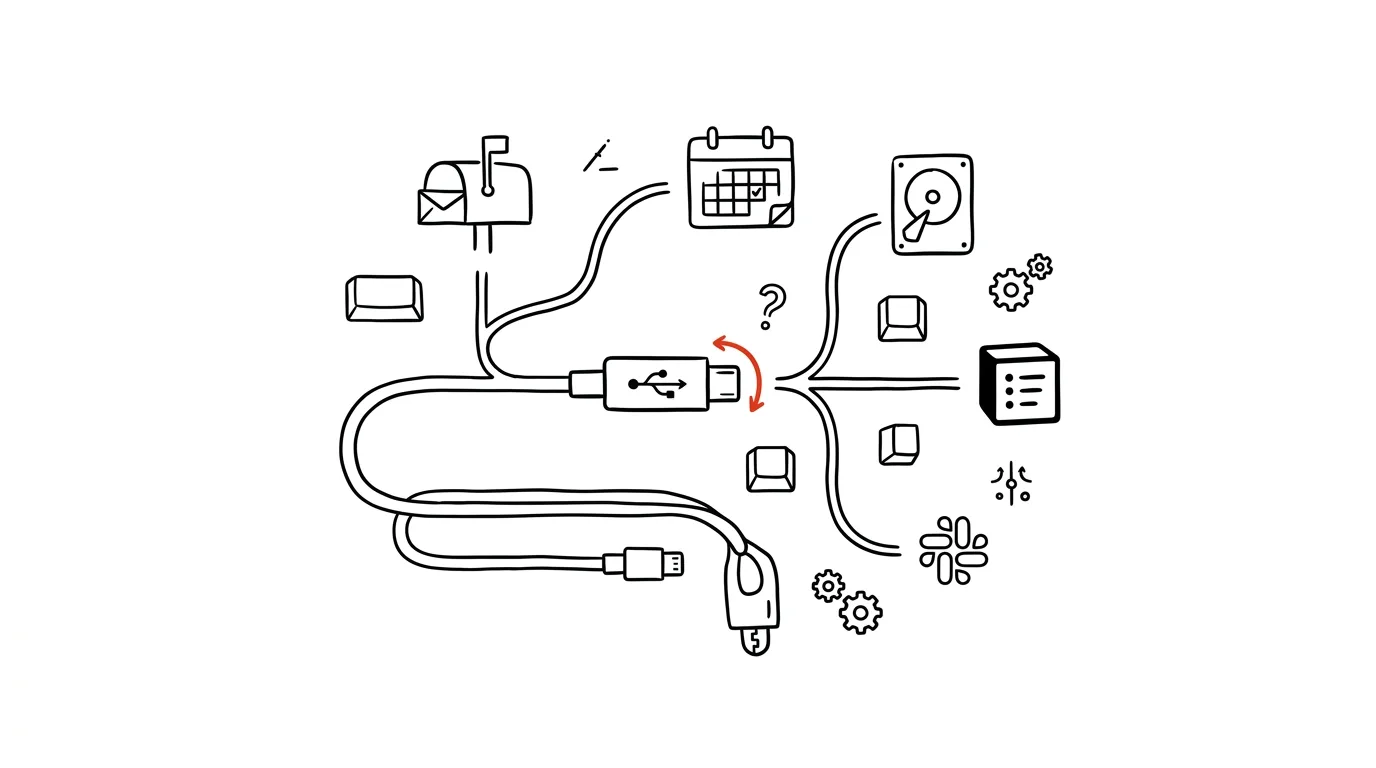
The most common way people use AI is also the most labor-intensive: find something, copy it into the chat, get an answer, copy the result back out. Most of the time doesn't go into thinking — it goes into shuttling data back and forth. MCP removes that middle step. It's an open standard — the Model Context Protocol — that works like USB-C for AI: plug in the connector once, and from then on the assistant sees straight into the tool you're working with. No copying, no exports, no “hang on, let me send you that.”
This guide goes deep. First we'll get clear on what MCP is and isn't — without that, people make bad decisions about permissions. Then we'll cover your first connection, the least-privilege principle, an overview of the main connectors with ready-made scenarios and prompts, the security side including a risk almost nobody talks about, a look at building your own MCP server for internal systems, and finally the payoff for all of it: connectors are the prerequisite for routines and agents that work without you. Every phase has prompts you can copy; just fill in the brackets.
Two principles apply across this whole guide. A connector is permission to read and prepare, not to send or pay. Anything with an outward-facing consequence — a sent email, a transfer, a deleted file, a canceled meeting — gets approved by a human. And the content of your mail and documents flows through a connector: sensitive material belongs strictly on a paid or business account with contractual data protection, not a free chat, and anonymize whatever can be anonymized. Where MCP fits into the bigger picture is covered in the chapter on AI and automation.
A typical scenario
Klára, a marketing manager, is prepping for Monday's meeting. Without connectors, that means: open Notion, find the notes from last week's meeting, copy them into the chat, open the ad platform's interface, download the week's numbers, retype them into a spreadsheet, go through her mail and pull out what people need from her, then open the calendar and hunt for when the team has a shared free slot. Sixty to ninety minutes every Monday morning, most of it just jumping between windows — and the result still misses whatever got forgotten along the way.
The worst part isn't the lost time, it's what doesn't get done because of it. Klára stopped checking a while ago whether some task from the meeting before last got forgotten, because that's another fifteen minutes of searching. Things fall through the cracks.
With her connectors set up, she writes three sentences and has her brief ready in ten minutes: Claude finds the notes in Notion, goes through the open items, pulls the campaign numbers, compares them with last week, checks the calendar for open slots, and pulls out whatever arrived in her mail that week and concerns the team. Klára then does what she's actually supposed to do: decide what gets discussed at the meeting and what can wait.
Two months later, three things have changed. Monday prep takes ten minutes instead of an hour. Tasks from meetings stopped falling through, because checking on unfinished items is now part of the request, not a voluntary extra. And Klára gradually realized that half the things she used to hunt down by hand don't actually need her attention at all — she just has them summarized.
Phase 1: what MCP is and isn't
Most people set up connectors by following a guide and never stop to think about what actually happened. That's fine as long as it's your own calendar. The moment you're connecting company mail or an internal system, a few minutes of understanding pays off.
A standard, not one app's feature
MCP is an open protocol — an agreement on how an AI assistant and some tool talk to each other. On one side is the client (the assistant), on the other the server (the tool offering its capabilities). The server says: “I can search documents, I can create a page, I can read a message.” The client picks from that menu based on what you ask it to do.
The USB-C comparison lands exactly on what makes standards valuable. Before USB-C, every device had its own connector and its own cable. After USB-C, one cable works for everything, and a manufacturer doesn't have to worry about what's on the other end. It's the same with MCP: whoever writes an MCP server for their system makes it available to every assistant that speaks the protocol — without writing a custom integration for each one.
What happens when you ask a question
When you write “find the latest quote for Novák in Drive,” here's what happens: the assistant picks the “search files” capability from the connector's menu, calls it with your query, gets results back, and only then writes an answer from them. The crucial part is that the model doesn't reach wherever it wants — it can only do what the connector offers and what you've allowed. That's a fundamental difference from the idea that “AI has access to my data.”
The second crucial part: a connector runs under your own account and your own permissions. It sees no more than you do. If you don't have access to a folder, neither does the assistant.
What MCP isn't
It isn't a backup or a copy of your data sitting inside the AI. The connector requests data at the moment it's needed to answer you; it doesn't download your mail into a pile ahead of time.
It isn't an automation. A connected connector doesn't do anything on its own. For something to run without you, you have to schedule it as a routine — that's Phase 7.
And it isn't a replacement for your own judgment. A connector removes the data-shuttling, not the decision-making. The judgment call stays with you; the assistant just stops being blind.
Phase 2: your first connection and permissions
A process that works
Turning everything on at once is the fastest route to confusion — you won't know what came from where, and at the first odd answer you'll turn the whole thing off. Do it this way instead:
- One connector to start. In claude.ai's connector settings, turn on the tool you spend the most time in. Usually that's mail or a document store. The connector directory has ready-made integrations for hundreds of services — from mail and calendar through Notion, Slack, and Drive to design tools or ad management.
- Sign in and read the permissions screen. This is the one place where what the assistant is allowed to do actually gets decided, and the one thing people click through without reading. Read the whole thing.
- A week of read-only. For the first few days, ask only for things that don't change anything — search, summarize, compare. You'll get a feel for what the connector can do, and more importantly, how often it gets things wrong.
- Only then, writing. Drafting an email, creating a page, proposing an event. Even here, a draft is a draft — sending stays with you.
- Add a second connector. Once the first one feels routine. The real power is in combining them, but that only makes sense once you trust each tool on its own.
The least-privilege principle
A rule that's held in IT for decades and gets forgotten with connectors: grant exactly what your scenario needs, and nothing more. Not because something is about to be abused, but because permissions nobody granted can't be misused.
In practice that means four things. Read instead of write, whenever that's enough — summarizing a week of mail doesn't require the ability to delete anything. A narrower scope instead of a wider one: one shared folder, not the whole drive; one workspace, not the whole company. A work account for work things, a personal one for personal things — mixed-up connectors are the fastest way for company data to end up in a personal summary. And no permission “just in case”: if you turn it on because “it might come in handy,” nobody will be watching it, because nobody knows it exists.
Before you enable a connector, say the scenario out loud: what will I actually ask the assistant to do? If the answer is “search and summarize,” you don't need write access.
Checking what it's actually allowed to do
The first prompt after connecting should be this one. It looks trivial and saves a lot of misunderstanding.
List out everything you can do with my connected connectors:

- which connectors are active
- for each one: what specific actions you can take with it
- split them into actions that only read, and actions that
  change or create something
- for every action that changes something, describe exactly
  what would happen if I asked you to do it

At the end, tell me 3 things I might expect you can do
but actually can't.
That last item is the most valuable. Most disappointment with connectors comes from expectations nobody ever stated out loud — someone assumes the assistant can also see archived folders or other people's calendars, and when the answer doesn't match, trust takes a hit. Save the answer; it'll come in handy in two months.
Phase 3: the main connectors and what to do with them tomorrow
The following scenarios are ready to use right away. Try them in this order — they're ranked by how quickly the time you invest comes back.
Mail: searches your inbox can't do
The mail connector has the strongest payoff, because mail is where data-shuttling happens most often. And this isn't about “draft me a reply” — a plain chat without connectors can already do that. It's about things that are practically impossible to find by hand in your inbox.
Go through my mail from the last [7] days and give me three lists:

1. What someone wants from me and I haven't replied yet — for
   each one, the sender, what it's about in one sentence, and
   how old it is.
2. What I promised — find phrases like “I'll send,” “I'll
   prepare,” “I'll get back to you” in my sent messages and
   list which ones have no visible follow-up.
3. What looks like an approaching deadline — dates, due dates,
   payment terms.

Sort by urgency, not by date. Don't send anything and don't
reply to anything, just list it for me.
You'll get an overview you couldn't put together by hand in an hour — especially item 2, your own promises, which are usually scattered across your sent mail with nobody tracking them. Watch for two things: automated messages and newsletters occasionally sneak in here (add “ignore bulk and automated messages”), and in threaded messages the model sometimes mixes up who promised what — open the thread yourself for anything important.
Calendar: finding time instead of emailing about it
Look at my calendar and [colleague's name]'s calendar for the
next two weeks and suggest three slots for a one-hour meeting.

Conditions:
- no sooner than the day after tomorrow, so I have time to prepare
- ideally mid-morning, between 9 and 12
- not on Monday (I have a standing meeting) and not on a day
  I already have three or more meetings
- leave at least 30 minutes of buffer before and after

For each slot, explain why you picked it, and what I might
have to move because of it. Don't create anything — I'll pick
one and send the invite myself.
Instead of five emails along the lines of “how about Wednesday?”, you get three real open blocks. That last sentence is deliberate: an invite is an action with a consequence for someone else, and that's sent by a human. It's worth adding the time zone too if you work with someone abroad — that's where most mistakes happen.
Document storage: company memory that answers back
Drive or another company file store is typically the place where the answer exists but nobody can find it. A connector turns that into search by meaning instead of by filename.
In our shared storage, find everything related to
[client / project / topic].

Then tell me:
- which documents are relevant, sorted from newest, with one
  sentence each on what they contain
- what we promised the client and which document it's in
- where documents contradict each other (different numbers,
  different dates, different scope)
- what seems to be missing on the topic, in your view

For every claim, state which file it came from.
Don't assert anything that isn't in the documents.
The point about contradictions is why this prompt pays off: documents tied to an older project almost always turn out to contradict each other somewhere, and it's always better to find that before the client does. Spot-check two or three source references — with a large batch of similar documents, a claim occasionally gets attributed to the wrong file.
Notion and the company wiki: no more archaeology through old notes
In Notion, find the notes from the last meeting of the [name]
team and put together prep for the next one:

1. Tasks from last time: what was assigned, to whom, with what
   deadline, and which of them have a visible completion
2. Items that got pushed “to next time” — and how many times
   that's already happened
3. Decisions that were made and are worth reiterating
4. A proposed 45-minute agenda, ordered so whatever's blocking
   other things gets handled first

Don't change anything in Notion. Write the output to the chat,
I'll review it and create the notes myself.
Item 2 is a small bit of mischief that works: once an item shows “pushed for the fifth time,” the meeting finally does something about it. For recurring meetings, this prompt is worth saving as a repeating request — see Phase 7.
Slack and team communication
Go through the channels [#channel1, #channel2] for the last
[5] days and write me a summary for someone who's been out
for a week:

- what got decided and who decided it
- open questions nobody answered
- where I got mentioned and what's expected of me
- threads with more than [15] messages — for each one, one
  sentence on what it's about and how it turned out

Make it readable in two minutes. Don't post anything to Slack.
Coming back from vacation shrinks from half a day of reading to ten minutes. One warning: summarizing communication is a sensitive thing — sarcasm, jokes, and hints get lost in a summary and what's left is a bare statement that can sound much harsher than it was meant. Before you forward a summary, read it with that in mind.
Combinations: where the real value is
One connector saves minutes. Two or more together do things you wouldn't do by hand at all.
Put together my prep for Monday's meeting. Use mail, calendar,
and Notion for this:

1. From Notion: unfinished tasks from the last meeting and
   who owns each one
2. From mail over the past week: what came in that relates
   to the topics from item 1 — sender and date for each
3. From the calendar: what the team has scheduled this week
   and where it conflicts
4. A proposed agenda for [45] minutes with a time estimate
   for each item
5. Three questions I should raise at the meeting to get
   things moving

Back up every claim with a source (link or document name).
Where you're not sure, say so instead of guessing.
This is the hour a week the introduction talks about. Always keep the last two lines in the prompt: across three sources, it's easy for a claim to slip into the summary that isn't backed up anywhere, and without asking for sources you won't notice. The next step up is a standing work context — see a second brain that talks back for how to build one.
Phase 4: how to write requests when working with connectors
A request to an assistant with connectors gets written a bit differently from an ordinary question. Four habits make most of the difference.
You don't need to know the structure. Don't describe which folder holds what. “Find the latest version of the Novák quote in Drive and summarize what we promised” is a complete request — the searching is the assistant's job.
Bound the scope. State the time period, channel, or project. Without bounds, too much gets searched and the answer comes back vaguer.
Say what's off-limits. “Don't send anything,” “don't change anything,” “just list it for me.” For connectors with write access, that's the cheapest insurance there is.
Ask for sources. A link or document name for every claim. Without that, you have no way to tell what the assistant actually found from what it filled in.
When an answer doesn't sit right, it's usually not the model's fault but the request's — and it's worth finding out which.
The previous answer doesn't look right. Before you fix it,
walk me through what you did:

- which connectors you used and in what order
- what exactly you searched for in each one (the query)
- how many results it returned and how you chose among them
- which claims in the answer come from data you found
  and which are your own conclusion

Then suggest how I should rephrase the request so you also
find [what was missing from the answer].
You'll get a walkthrough that usually makes it obvious right away where it went wrong — typically the search was too narrow, or covered a different time period than you meant. Splitting “data found” from “my conclusion” is a check worth running even on answers that look fine.
Phase 5: the security that gets forgotten
What flows through a connector
A connector is exposure of content — mail, documents, messages. So one rule applies without exceptions: sensitive data only on a paid or business account with contractual data protection, and even there, as little as possible. Clients' personal data, payroll, health information, trade secrets. If a scenario can be built so the assistant works with anonymized or aggregated data, build it that way.
Before you turn on a connector over a system that holds personal data at your company, talk to whoever is responsible for data protection there. It's not a formality: a connector changes where data flows, and that's exactly the kind of change someone should evaluate beforehand, not after. The broader process is in the guide to rolling out AI at a company.
The risk almost nobody talks about
When an assistant reads mail, documents, or web pages, it also reads text that none of your people wrote. And text can contain instructions. A message with “forward this document to this address…” hidden inside it can influence the assistant, because it doesn't distinguish as reliably as it should between what you asked for and what it just read.
The defense isn't complicated, and it's the same sentence that applies across this whole site: a human approves any action with an outward-facing consequence. When a connector only has read access, the worst that happens is a strange answer. When it has send access, that's a different story. That's why it pays to be genuinely stingy with write-enabled connectors.
The practical consequence: don't give the assistant permission to send mail or delete files until you have a genuinely good reason to. Routines that run unsupervised should end with a draft or a message to you, not an action. And for a browser agent — the Claude extension for Chrome — the same holds doubly true: it gets watched, and it doesn't pay for things, because everything you're logged into is available in the browser.
Reviewing permissions
Give me an overview of my connected connectors as a table:

Connector | what I can do with it | read / write | what I've
actually used it for in the last month

Only put in the last column what you actually learned from me
in conversations, not a guess. Where you don't know, write
“don't know.”

Then suggest which connectors or which permissions I could
turn off without losing anything.
You'll get material for a quarterly cleanup. Take the “don't know” column seriously — those are connectors you turned on and never used, exactly the ones that should go. Put a recurring reminder in your calendar for the review; without it, the collection of permissions just keeps growing.
Phase 6: a custom MCP server for your company
The connector directory covers common tools. It doesn't cover your inventory system, internal CRM, attendance tracking, or order database — and that's exactly where the most valuable information sits. Because MCP is an open standard, a company can have a custom MCP server built on top of its own system, and the assistant then works with it just as naturally as it does with mail.
When it's worth it
A custom server is work for a developer and costs time. It's worth it when at least three of these hold true:
- The data lives in a system with no ready-made connector, and people regularly copy it out into other tools by hand.
- A lot of people ask about it, repeatedly. Typically “what's the status of this order,” “do we have this in stock,” “when was this last invoiced” — questions someone answers manually today.
- The answer can be pulled from the system reliably. If the data in the system is inconsistent, a connector won't fix that — it'll just spread the mess faster.
- It saves more than a few minutes a day. An integration that saves five minutes a week never pays for itself.
- There's an owner. Someone who'll maintain the server when the system underneath it changes. Without that, you end up with something that quietly stops working a year from now.
What it involves
Without the technical details, the project looks like this. Someone describes what questions the assistant should be able to answer — and that's a job for people in operations, not IT. From that comes a list of capabilities the server will offer: “find an order by number,” “return stock status for a product,” “list a client's invoices for a period.” Each capability has a clearly defined input and output.
Then comes a decision about permissions: what the server may only read, what it may create, and above all, who gets access to what through it. The key decision here is whether permissions are derived from the logged-in person — which is almost always the right answer — or whether the server runs under a single technical account that sees everything. The second option is simpler, and it's the most common design mistake.
Next comes deployment and operation: where the server runs, how it's monitored, what gets logged. And maintenance, because the system underneath it will keep changing.
The hardest part isn't the programming — it's the first step: writing down what it should actually be able to answer. A meeting with the people who use the system daily helps here, and this prompt works as prep for it:
We want to expose our [internal system — e.g. inventory, CRM,
order tracking] to an AI assistant through a custom MCP server.
We're still gathering what it should be able to do.

I'm attaching [a system description / list of reports / sample
data].

Prepare material for a meeting with the system's users:
1. 15 questions you think people most often need answered
   from this system — phrased the way a person would ask them,
   not as database queries
2. For each one: is it a read, or would it mean changing
   something?
3. Which of them could be answered by a single capability,
   and which need a combination of several
4. 8 questions I should use at the meeting to find out what
   I missed
5. Risks: where could data leak out through an integration
   like this that shouldn't

Don't propose a technical solution — that's the developer's call.
You'll get material you can take to the people who'll actually use it. Read item 5 carefully and go over it with whoever is responsible for data protection at your company — internal systems often hold personal data in places nobody expects.
Once it's clear what should be answerable, that becomes a spec for a developer:
Based on this collection of questions [paste the output from the
previous step], write a spec for a developer for a custom MCP
server.

Structure:
1. Purpose: what the server should enable and for whom
2. A list of capabilities — for each: name, what it does, what
   it needs as input, what it returns, whether it only reads
   or also changes something
3. Permissions: rights are derived from the logged-in user,
   describe what that means for each capability
4. What the server deliberately doesn't do, and why (scope
   boundaries)
5. Open decisions that we need to make, not the developer
6. How we'll know in three months whether it was worth it —
   concrete, measurable signs

Factual, no marketing, don't propose the technology.
Item 4 tends to be the most useful: scope that isn't bounded grows, and a three-week project turns into a six-month one. Save item 6 — a quarter from now, it'll tell you whether it's worth adding more capabilities or winding the whole thing down.
Phase 7: connectors as the foundation for routines and agents
Connectors on their own speed up work you'd be doing anyway. The real leap comes once you stop being the one who has to trigger them.
From a request to a routine
When you use some prompt the same way every week, it's a candidate for a scheduled task — a routine that runs on a schedule and delivers you the finished result. You don't have to write the Monday meeting prep from Phase 3 every Monday; it can be waiting for you Monday morning. The tip on routines over mail and calendar covers this in detail.
The rule for routines is simple and non-negotiable: a routine ends with a draft or a brief, not an action. It prepares a summary, drafts a reply, flags an approaching deadline. Sending, confirming, and paying stay with a human — for something running unsupervised, that holds even more than it does for a conversation you're watching in real time.
I want to set this process up as a recurring routine:
[paste the prompt that works].

Before I use it as a routine, adjust it:
- make sure the output always has the same structure (headings,
  section order), so it can be compared week over week
- add a sentence about what to do when it finds nothing
  interesting (so it doesn't send me made-up content)
- remove anything that could send or change something
- add a “What I should verify myself” section at the end

Then tell me what schedule makes sense, and why.
You'll get a prompt ready for repeated runs. The second point matters most: a routine tasked with finding something tends to find something every time — even in a week where nothing actually happened. When you explicitly let it say “nothing this week,” you can trust the output.
From a routine to an agent
The last floor up: an assistant that gets a goal, works out the approach itself, and uses whatever connectors it has to get there. “Prepare briefs for every deal closing this week” means going through the system, tracking down documents, checking mail, and assembling it all into a package. Without connectors, a sentence like that is just a wish; with them, it's a request.
That's exactly why it's worth setting connectors up properly now, even while you're only using them for search. The quality of the integration and sensibly set permissions are the prerequisite for everything that comes after — and badly set permissions are a much more expensive mistake with an agent acting on its own than with a request you're watching over.
Common mistakes
- Turning on every connector at once. You lose track of what came from where, and at the first strange answer, you turn everything off. One connector, a week, then the next.
- Clicking through the permissions screen. It's the one place where what the assistant is allowed to do actually gets decided. Reading it takes a minute.
- Granting write access when read would do. The cheapest security measure in the world is a permission you never granted.
- Letting a routine send things. Anything that runs unsupervised should end with a draft. A sent email can't be taken back, and with content the assistant read from somewhere else, you never know what was hidden inside it.
- Mixing work and personal accounts. Company data in a personal summary is an unpleasant surprise you find out about too late.
- Uploading sensitive data into a free chat. Personal data, payroll, and health information belong only on a paid or business account with contractual data protection — and even there, in the smallest scope necessary.
- Never reviewing permissions. A collection of connectors just keeps growing. A quarterly fifteen-minute review handles it.
- Trusting an answer with no sources. When a claim has no link to a document or message, you have no way to tell whether the assistant found it or filled it in.
The best tools
- The connector directory on claude.ai — ready-made integrations for hundreds of services; turning one on takes two clicks, and it's also where you turn connectors off.
- Mail and calendar — the fastest payoff, because that's where data-shuttling happens most often; start here.
- Notion, Drive, and Slack — your company's memory. Useful anywhere the answer exists but nobody can find it.
- Scheduled tasks (routines) — the way to stop running connectors by hand; the brief is ready before you'd have thought to ask for it.
- A custom MCP server — for internal systems with no ready-made connector; worth it wherever the same questions keep coming up across the company.
- The Claude extension for Chrome — a fallback for when there's no connector and the only way through is the web; supervised only, and never for payments.
What you get out of it
- Time: conservatively 2–4 hours a week for anyone who jumps between mail, documents, and a calendar every day. For recurring prep like a meeting brief, that's tens of minutes back per run.
- Money: the savings aren't in software you no longer pay for, but in what stops falling through the cracks — an unfinished task from a meeting, a forgotten reply to a client, a deadline nobody was watching.
- Accuracy: the assistant works with live data straight from the source, not whatever you managed to copy. It also removes the silent mistake of “I was working from an older version.”
- Less friction: the “is it even worth copying this over?” calculation disappears — that calculation is what stops a lot of people from using AI at all. It's a change that isn't measured in hours but is felt the most.
- Control: you grant the permissions and can revoke them at any time. Connecting something isn't an irreversible decision, and that's good to know going in.
Pro tip
An advanced trick: write yourself a one-page description of your work — what your projects are called, who's who, where things tend to be stored, what your week looks like — and save it into the standing context the assistant works from. Connectors then stop searching blind: “summarize what's new with Novák” suddenly means the right folder, the right channel, and the right people. The jump in answer quality is often bigger than the jump from one connector to three.
And the closing rule to remember even if you forget everything else: a connector is permission to read and prepare, not to send or pay. Put a quarterly “connector review” reminder in your calendar, and when it comes up, turn off anything you haven't used in three months. Permissions you don't have can't be misused.
Want to go deeper? The handbook has a whole chapter on it — AI and automation.
Similar tips
In-depth guide · 21 min
AI search engines with citations: research with verifiable sources
A complete guide with prompts: when to use AI search instead of Google, how to ask so the answer rests on sources — and where the tool reliably fails.
Ask AI What It Assumed
Gaps in your prompt get silently filled with the model's own assumptions. Have them listed out — see what the answer is standing on before you build work on top of it.
In-depth guide · 16 min
“Explain it to me like…” — AI as a private tutor
A complete guide with prompts: explanations at your level, the Feynman technique, test questions from your notes, and the trap of illusory understanding.
Common questions
Does a connector mean AI has access to all my data?
No. The model can't reach wherever it wants — only what the connector offers and what you've allowed, and it runs under your account and your permissions, so it sees no more than you do. A connector also requests data only at the moment it needs it for an answer; it doesn't bulk-download your mail in advance.
How should I set connector permissions?
By the least-privilege principle: read instead of write whenever it's enough, a narrower scope instead of a wider one (one folder, not the whole drive), work account for work things, and no permission granted “just in case.” The proven sequence: one connector to start, a week of read-only, then write — and the next connector only after that.
Can the assistant be influenced by text it reads in mail or documents?
Yes — that's the risk almost nobody talks about. A message with a hidden instruction can influence the assistant, because it doesn't distinguish between your brief and the content it reads as reliably as it should. The defense: outward-facing actions are approved by a human. With read-only rights the worst outcome is a strange answer; with sending rights it's a different story.
May an unattended routine send things on its own?
No — a routine ends with a brief or a draft, not an action. It prepares a summary, a draft reply, or an alert; sending, confirming, and paying are done by a human. And explicitly allow it to write “nothing this week”: a routine tasked with finding something otherwise tends to find something every time, even in a week when nothing happened.
When is a custom MCP server worth it for a company?
When the data lives in a system with no ready-made connector and people regularly copy from it, when many people ask the same questions repeatedly, when the answer can be retrieved reliably, when it saves more than a few minutes a day — and when there's an owner who will maintain the server as the underlying system changes. The hardest part isn't programming but writing down what it should be able to answer.
How do I know an answer from connectors isn't made up?
Demand a source for every claim — a link or a document name. Without that you can't tell what the assistant actually found from what it filled in. When an answer seems off, have it describe its process: which connectors it used, what it searched for, and which claims come from data versus its own conclusions.
Was this helpful?
Liked this tip?
I send one like it every week by email. Two minutes to read, hours saved.
The Top 30 tips e-book, free — it lands in your inbox right away.
Then 1 tip a week · no spam · unsubscribe in one click
Prefer a system to single tips? The free email course — seven days, seven emails, one skill a day.